Before You Start: Make sure your printer is ready
Printer is powered ON and has paper loaded.
Printer and Phone are connected to the same Wi-Fi network.
IP address of the printer is in the correct range (e.g., 192.168.1.200 - 192.168.1.253).
Keep your printer purchase documents handy (IP address, port details).
Step 1: Go to the Printer Settings
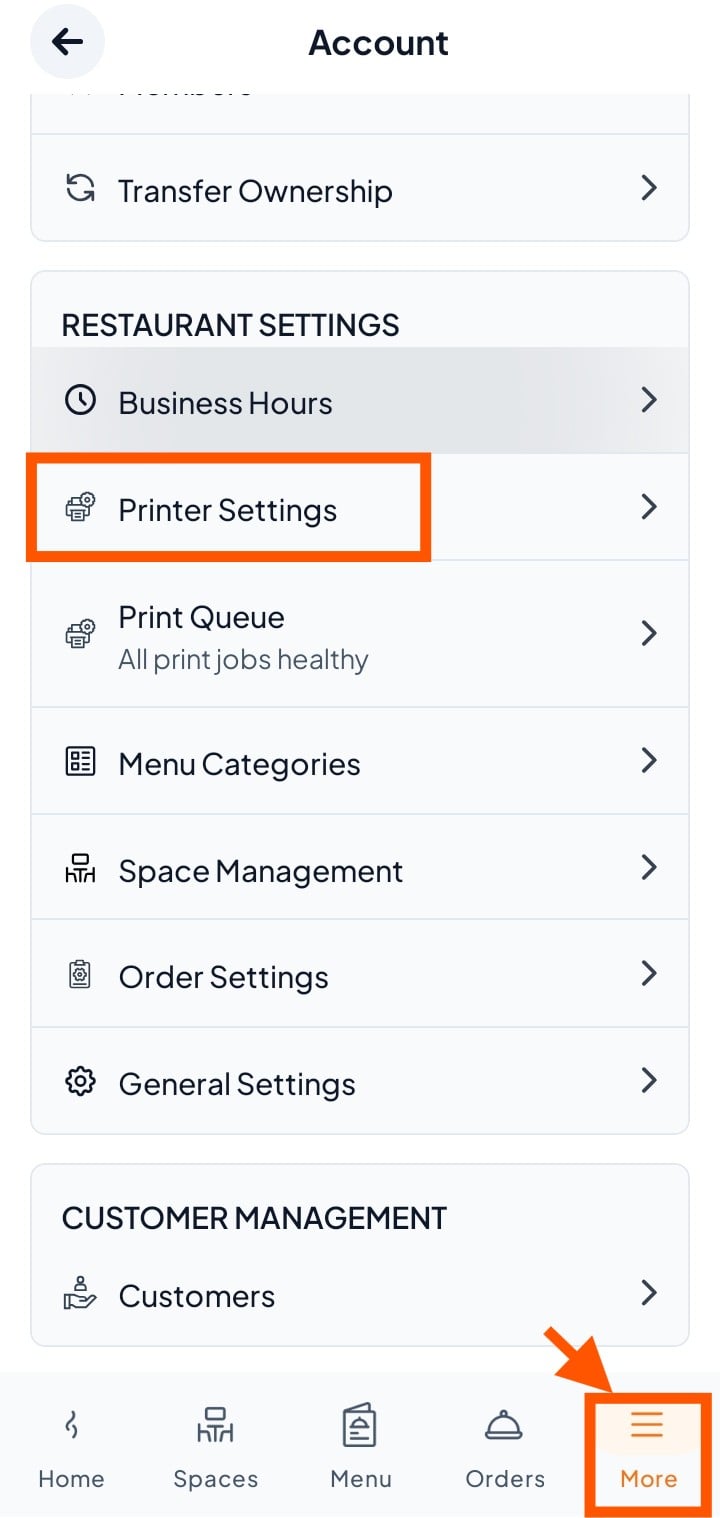
Click "More" at the bottom.
Scroll to Restaurant Settings and select "Printer Settings".
Step 2: Add a New Printer
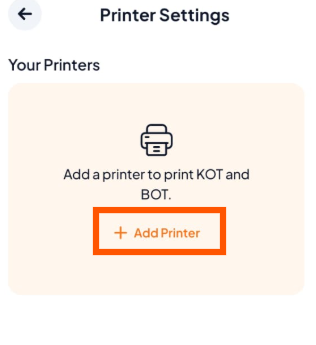
On the Your Printers screen, tap + Add Printer to start setup.
Step 3: Add Your Printer Details
Fill out the printer form with accurate details. For the initial printer setup, you can contact the Orderlay Support Team for assistance.

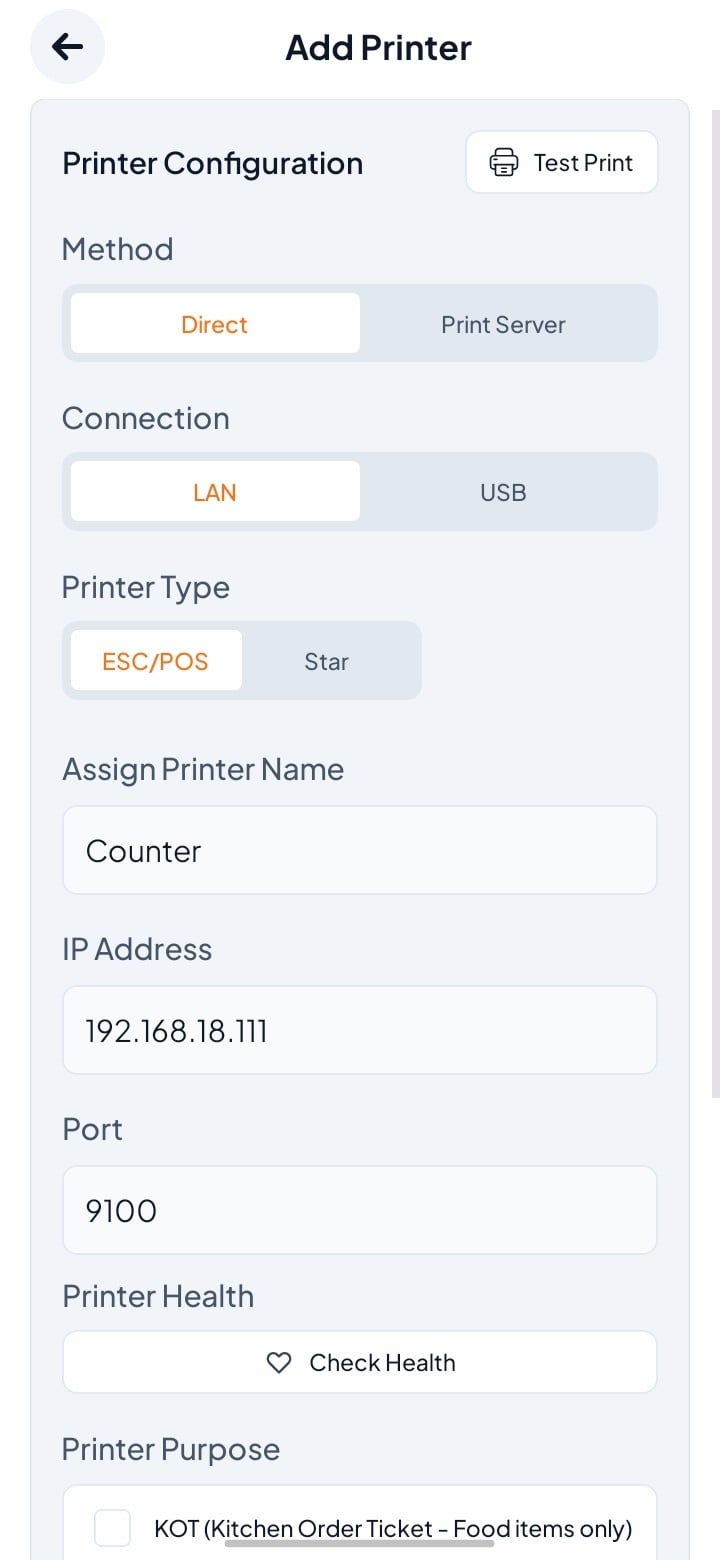
Step 4: Turn On Automatic Printing (Recommended)
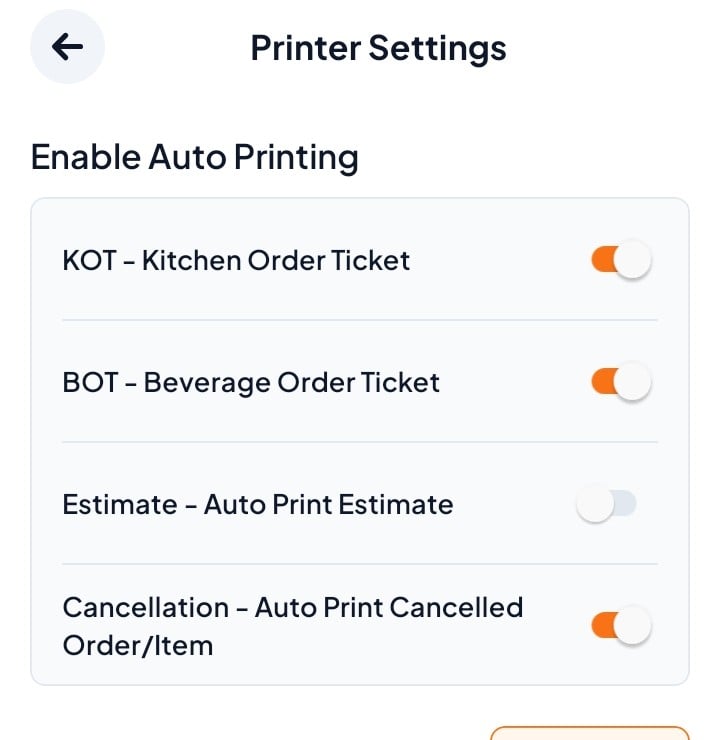
After saving, you’ll return to Printer Settings. Enable automatic printing for smoother workflow:
KOT: To automatically print food orders when an order is confirmed.
BOT: To automatically print drink orders when an order is confirmed.
Estimate: To automatically print the bill when an order is confirmed.
Cancellation: To automatically print the bill when an order is cancelled.
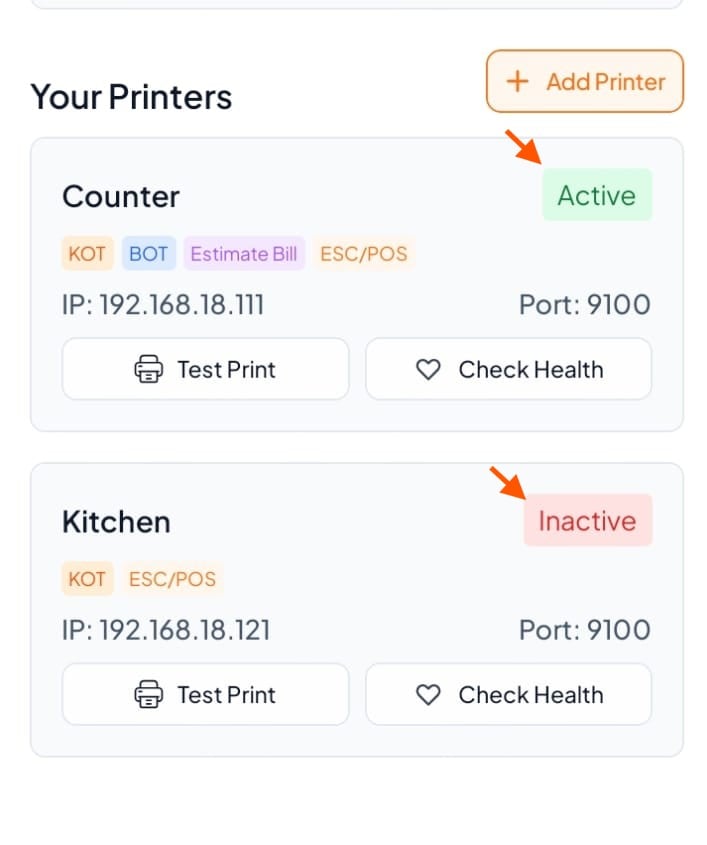
Active → Printer is connected and ready.
Inactive → There’s an error or connection issue.