
Step-By-Step-Guide
Step 1: Start a New Order
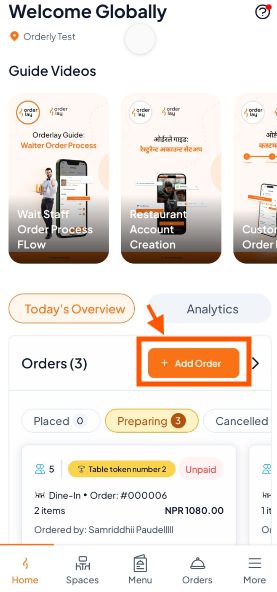
On the main Home screen, tap the "+ Add Order" button.
Step 2: Assign a Table
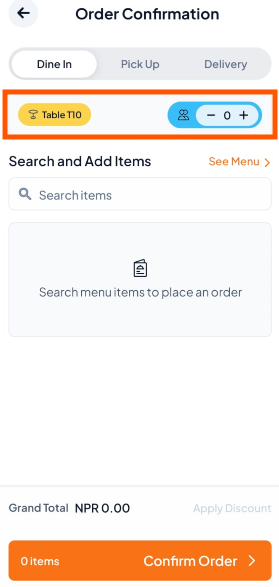
Tap "Spaces Details", choose your table (like Table T10)
Set the number of guests (If needed)
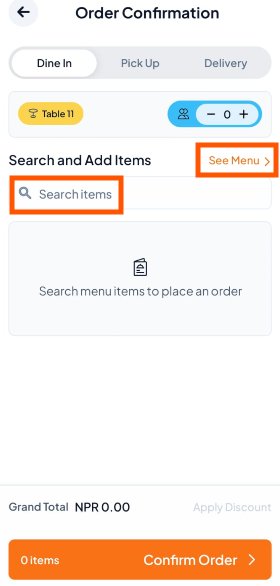
Step 3: Tap "Search Items" or "See Menu" to add items.
Step 4: Add Menu Items
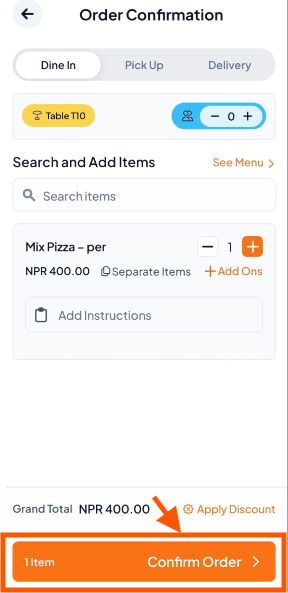
Add the required menu items to the order.
Tap Add-Ons to add extras (e.g., cheese) if needed.
Add special instructions if required.
Repeat the process for all items.
Finally, Confirm the Order
Step 5: Track & Complete the Order
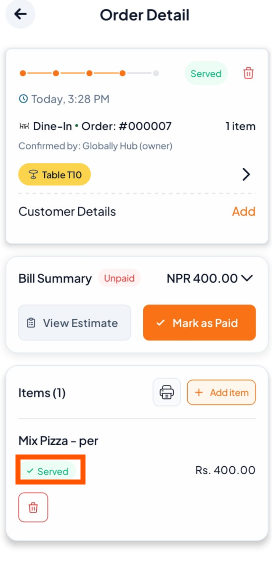
Go to Orders to track status: Preparing → Ready → Served
After serving the food, mark the order as Served to complete it and keep table/room status accurate.

Learn: How to Add New Items to Existing Orders