
Step By Step Guide:
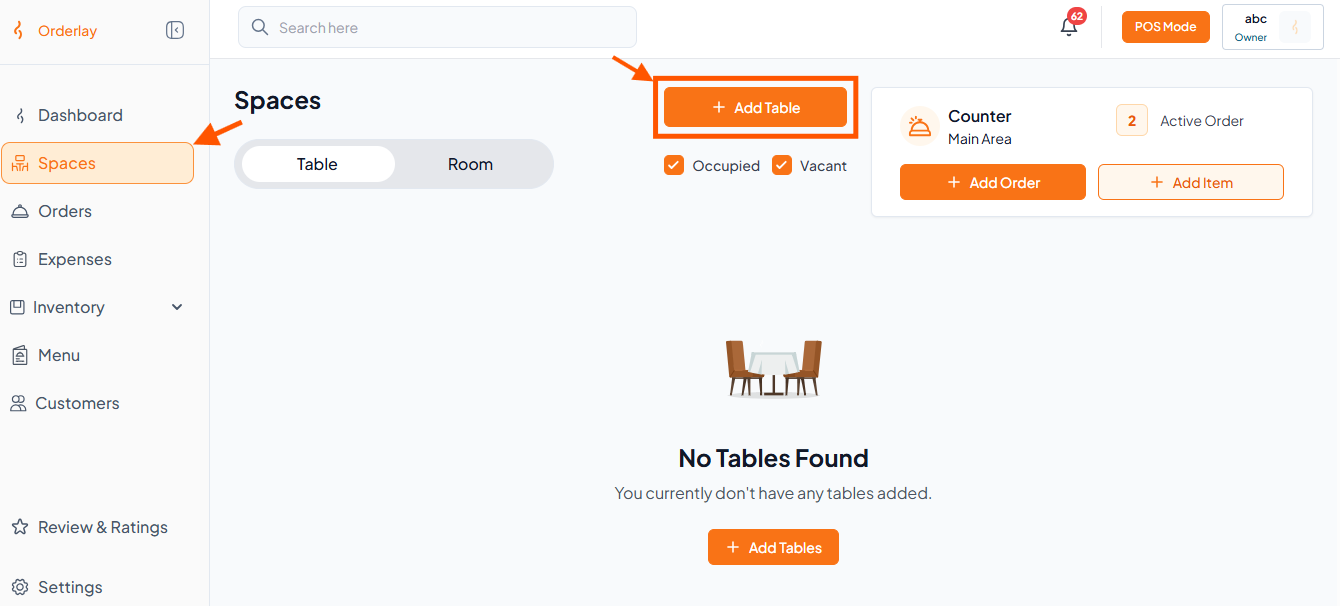
Step 1: Go to Spaces Section and Click "+Add Tables"
From the left sidebar, click on Spaces, then tap "+Add Tables"
Step 2: Fill in Table Details
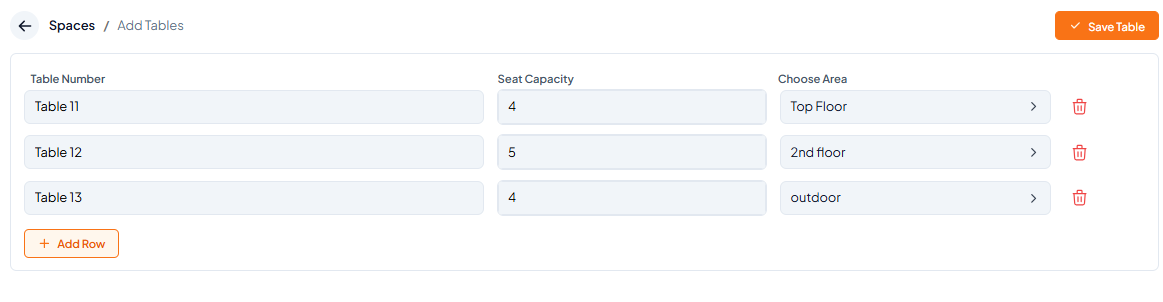
Table Number: Enter a unique name (e.g., Table 1)
Seat Capacity: Select the number of guests (e.g., 4)
Area/Floor: Choose the appropriate section of your restaurant (e.g., Ground Floor)
→ For detailed instructions, see How to Add New Area
To add a new area: Click "+ Add Row" to create a new area/floor.
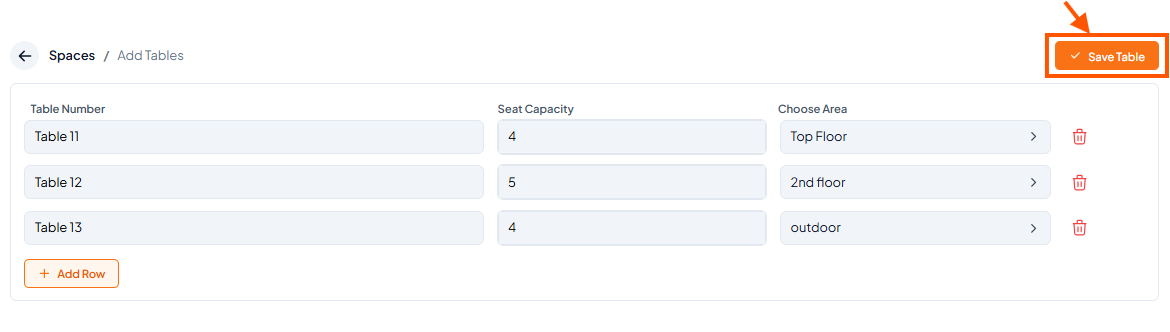
Step 3: Click "Save Table"
What’s Next?
After creating tables, generate a QR code for each table so customers can scan and order. Follow the guide: [How to Generate QR Codes for Your Tables and Rooms].