Step-By-Step-Guide
Step 1: From the left sidebar under Inventory, click "Add Recipe"
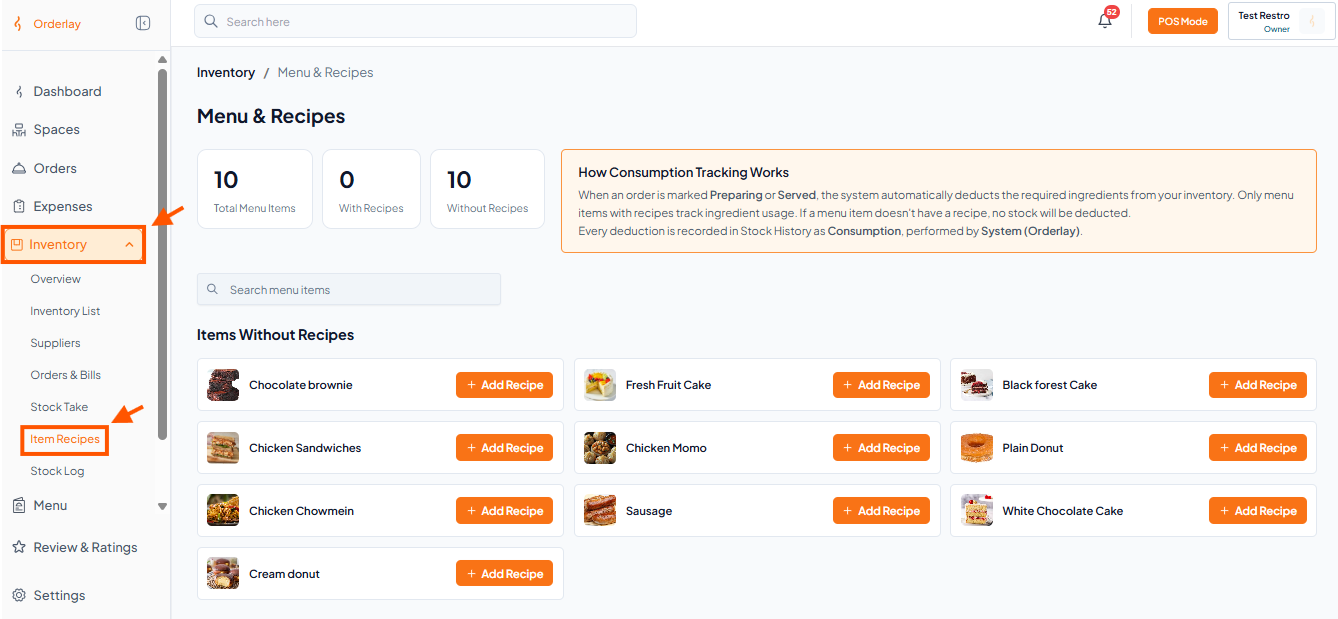
Step 2: Pick Your Item
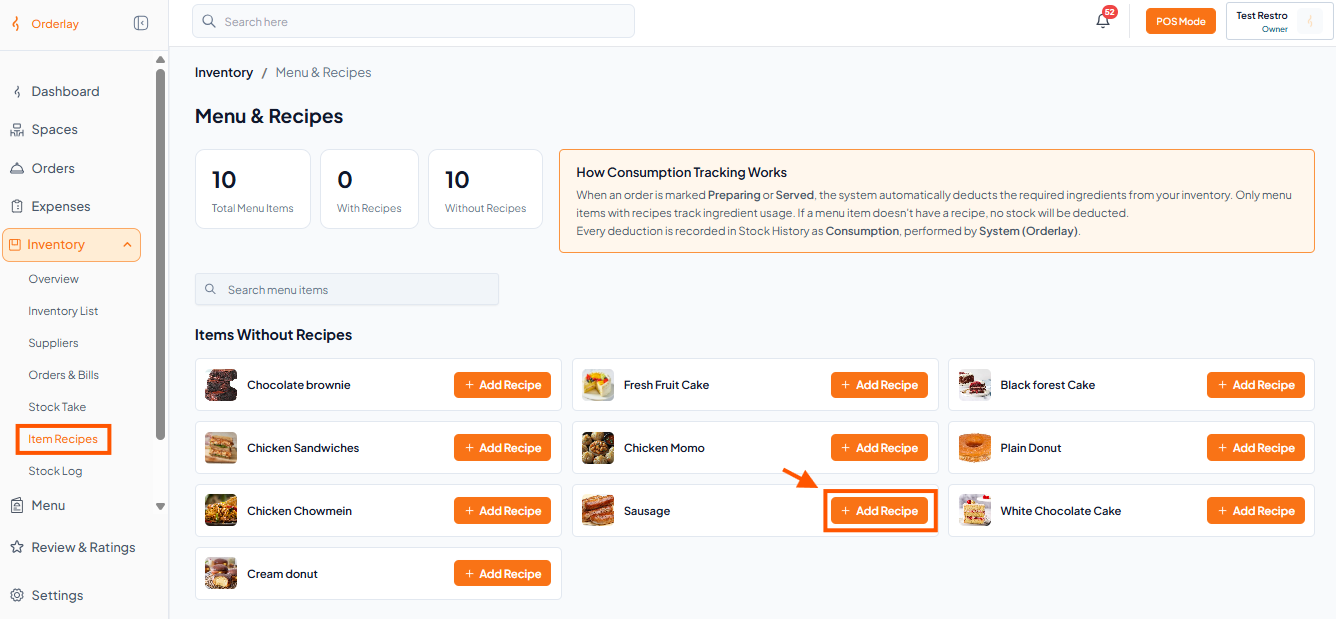
You will see a list of items under "Items Without Recipes."
Find the item you want (for example, "Sausage").
Click the "+ Add Recipe" button next to it.
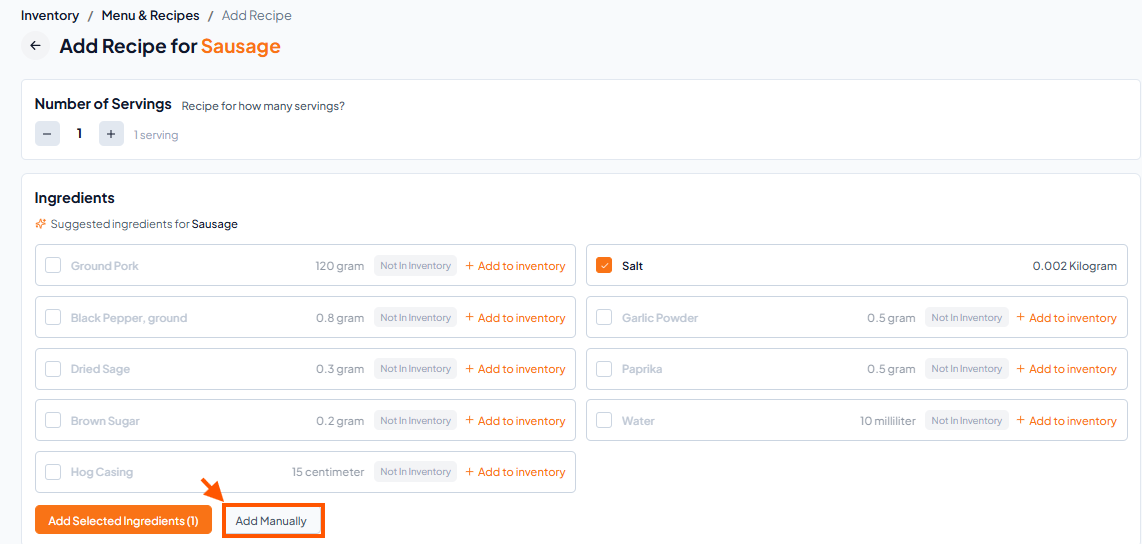
Step 3: Click "Add Manually"
The system will show you AI-suggested ingredients.
To add your own, click the "Add Manually" button at the bottom.
Step 4: Add Your Ingredients
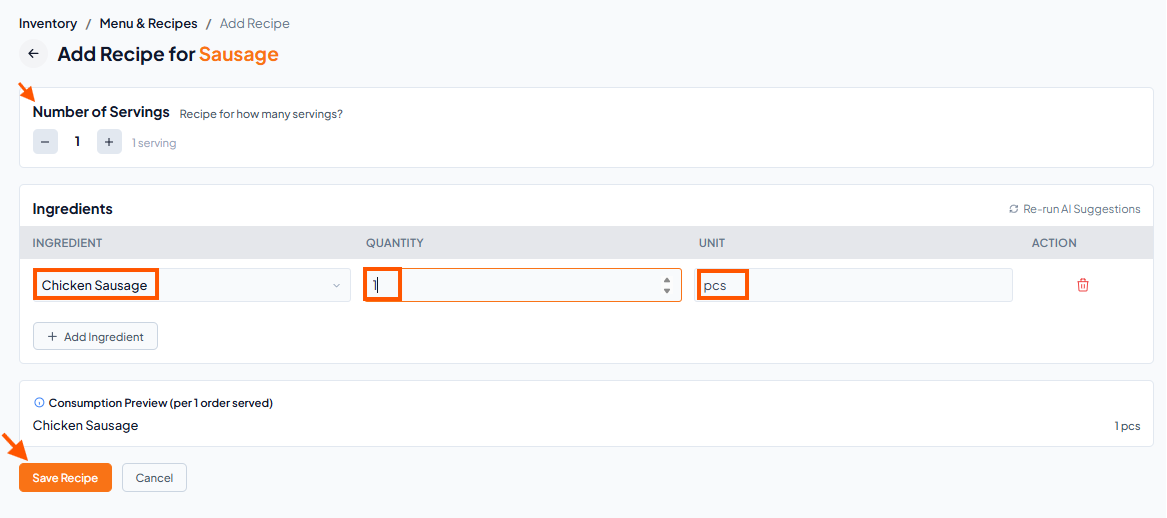
At the top, set "Number of Servings" to "1" (this means your quantities are for one order).
Fill in the Ingredient name, Quantity, and Unit
To add more ingredients, click "Add Ingredient"
Once done, click "Save Recipe".
Important Reminder:
Stock will only be deducted for items that have a recipe.
The Quantity you enter is the amount that will be reduced every time an order is marked as "Served."