Why Do We Use Stock Take?
To ensure your system shows the correct quantity of items you actually have
To identify losses, damages, or counting errors
To maintain accurate stock levels for better business decisions
Step-By-Step-Guide
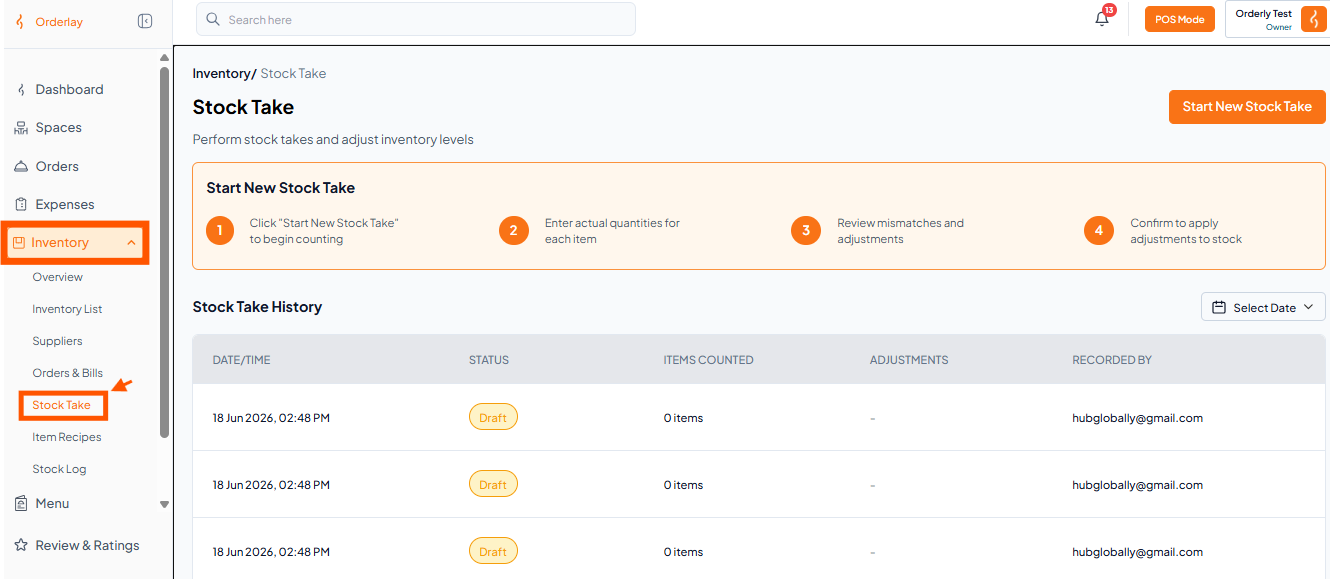
Step 1: Go to Stock Take
From the Inventory section, click on "Stock Take"
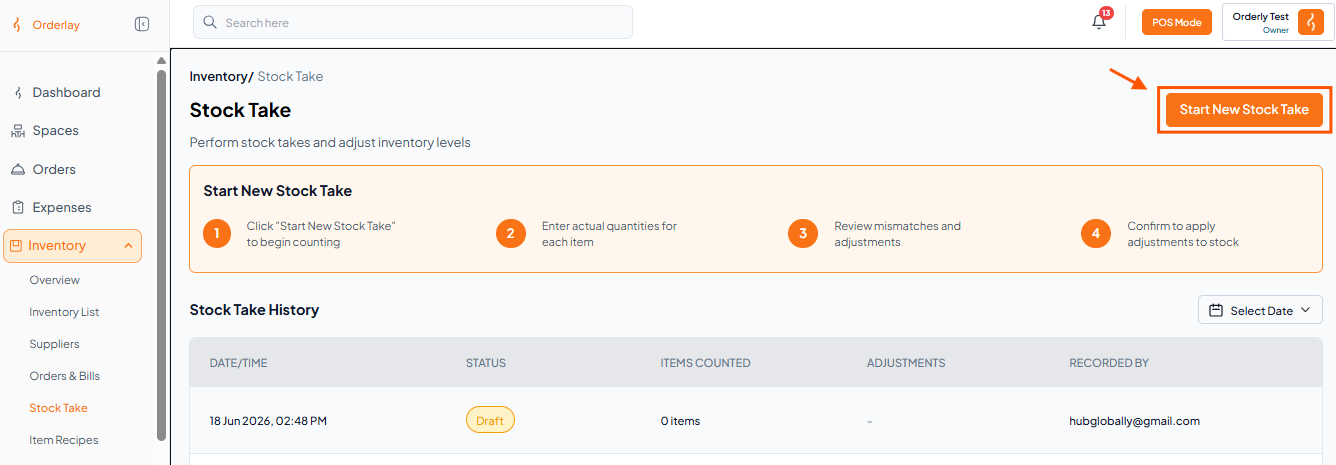
Step 2: Start a New Stock Take
Click on the "Start New Stock Take" button
Step 3: Compare and Adjust Quantities
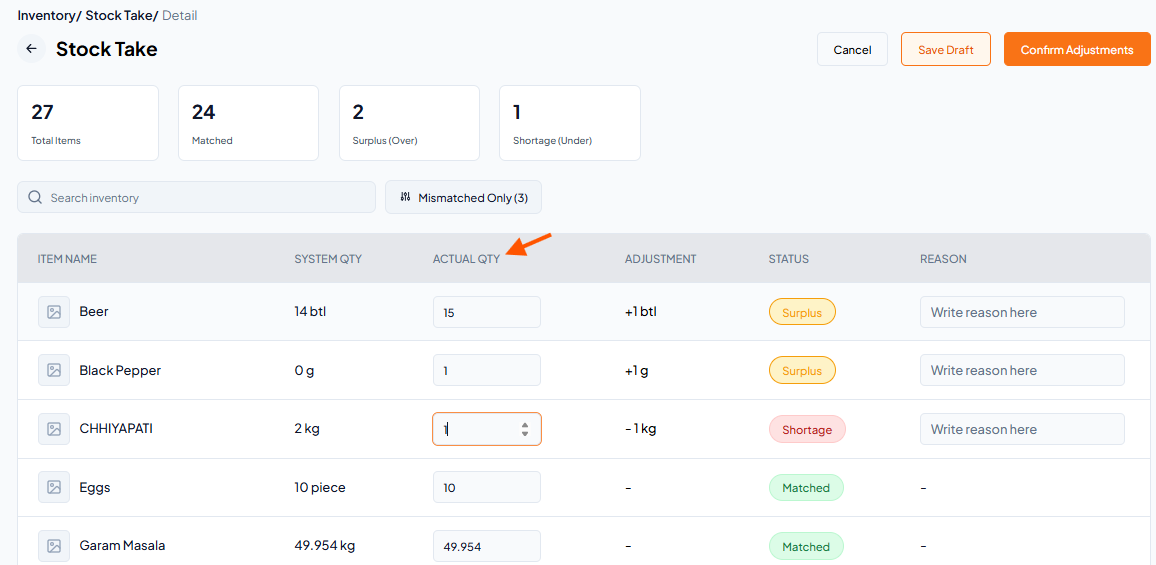
You will see two quantities for each item:
System Qty – What the system shows
Actual Qty – What you counted
Compare both numbers. If they don’t match:
Enter the actual quantity you counted
The system will automatically show the adjustment (+ for extra, – for missing)
You can also add a reason for the difference
Example:
Beer: System = 14, Counted = 15 → +1 (Extra)
CHHIYAPATI: System = 2, Counted = 1 → –1 (Missing)
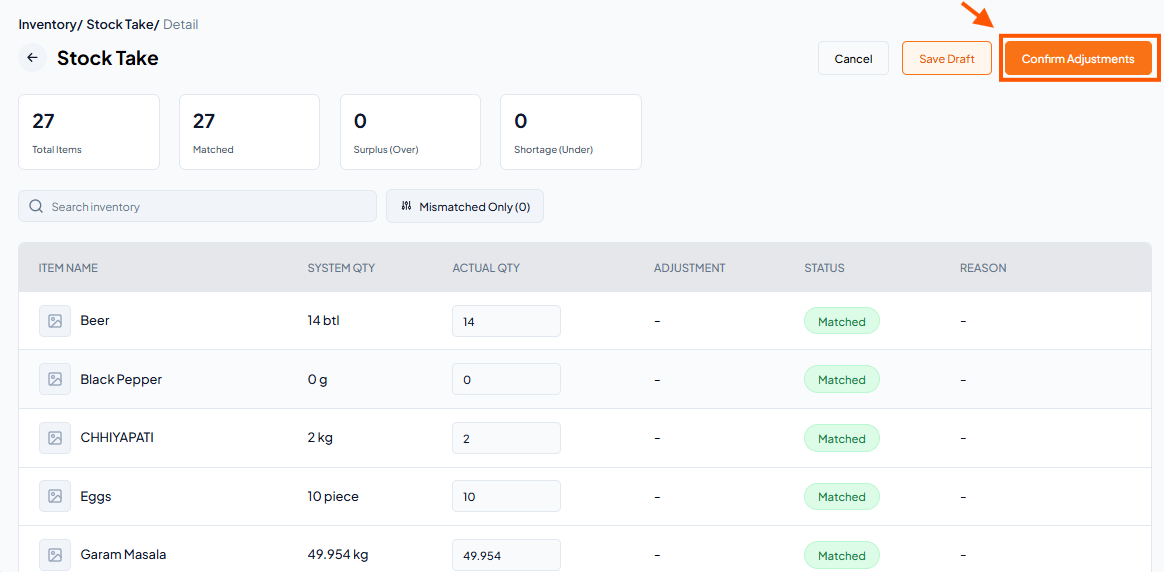
Step 4: Confirm Your Adjustments
Once you have entered all actual quantities, click on "Confirm Adjustments"
Step 5: Confirm and Apply
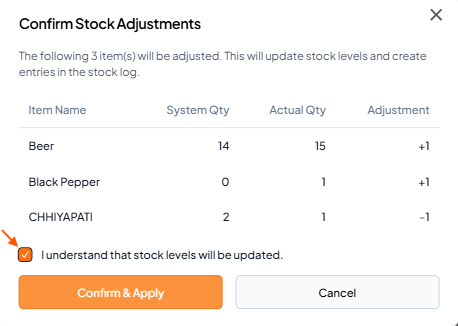
A confirmation screen will appear showing all items that will be adjusted
Click "I understand" to confirm
Finally, click "Confirm & Apply"