To ensure your system shows the correct quantity of items you actually have
To identify losses, damages, or counting errors
To maintain accurate stock levels for better business decisions
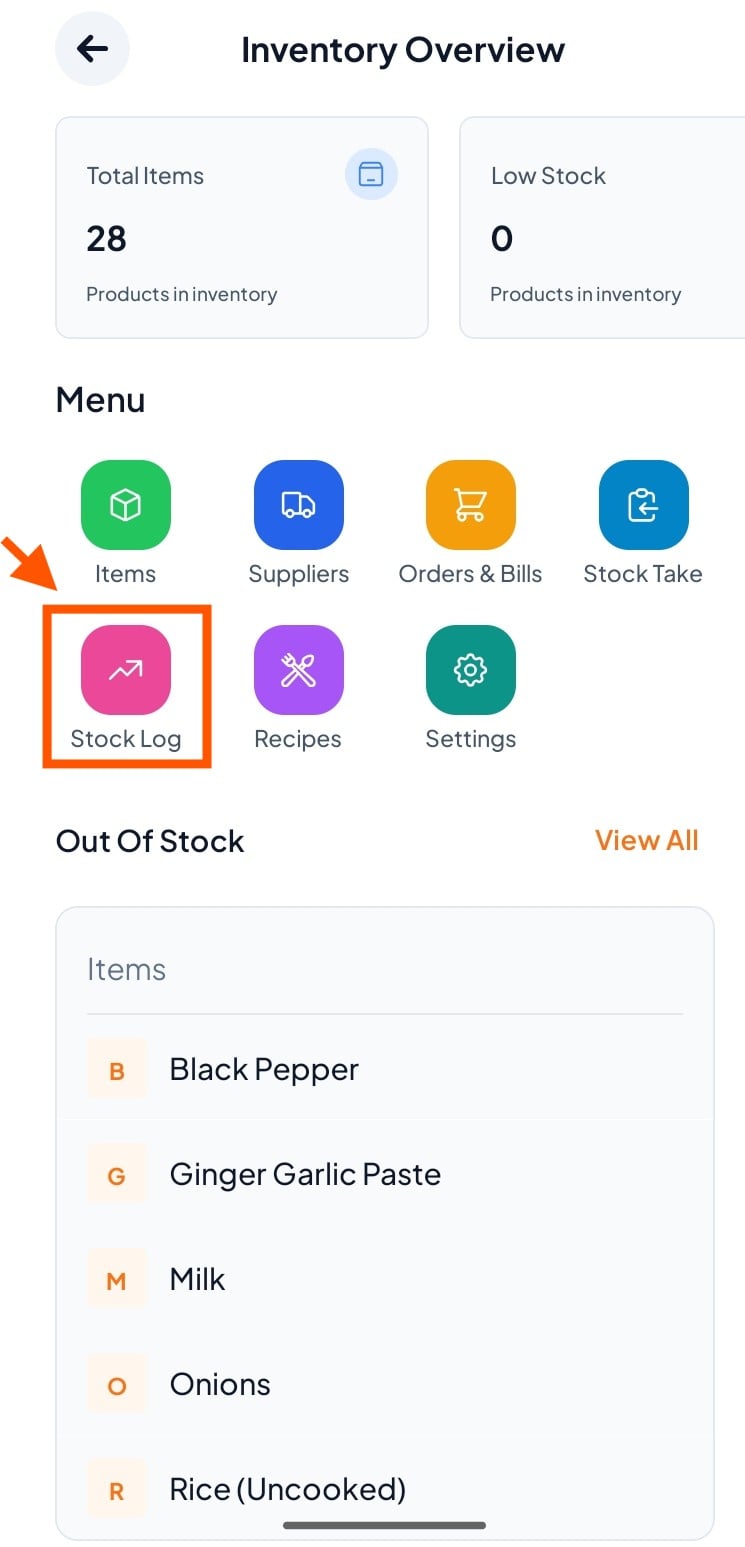
Step 1: Go to Stock Take
Click More → Inventory Management → Stock Take
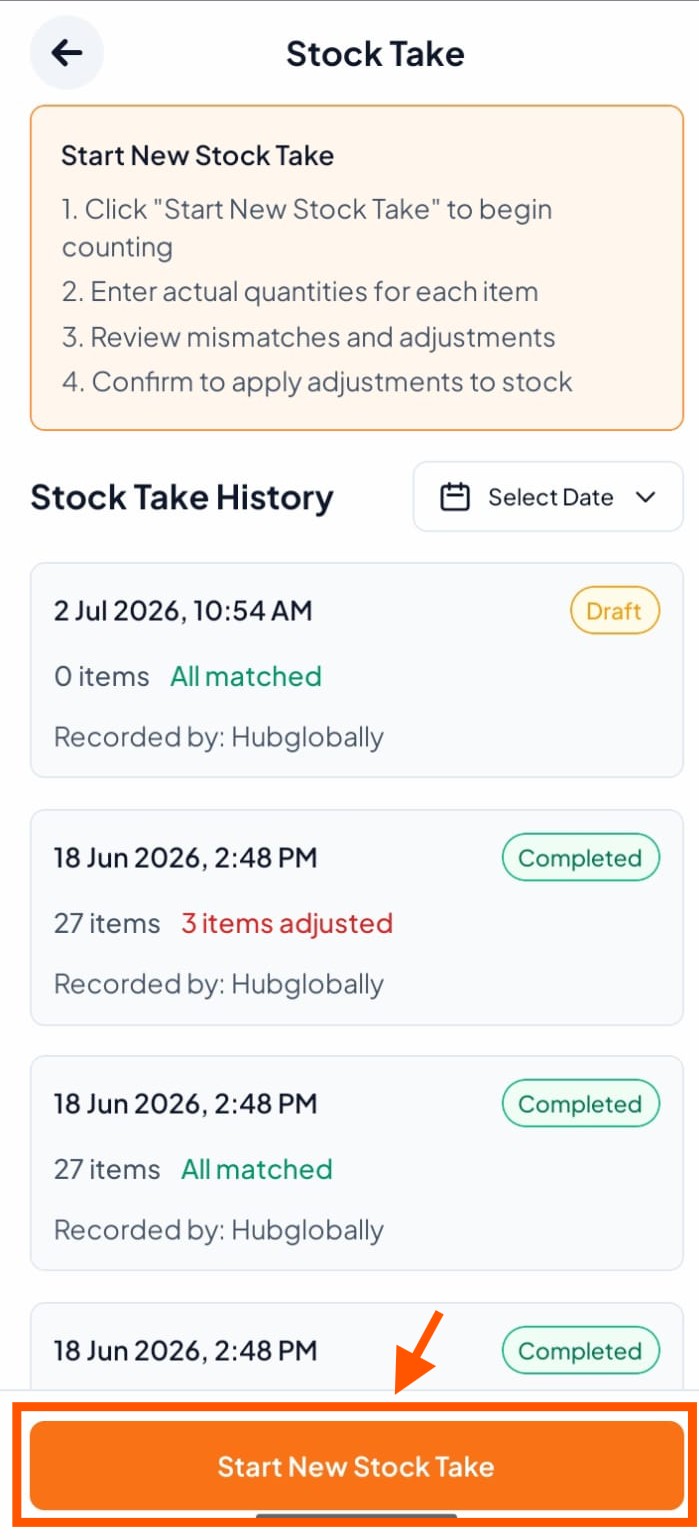
Step 2: Start a New Stock Take
Click on the "Start New Stock Take" button
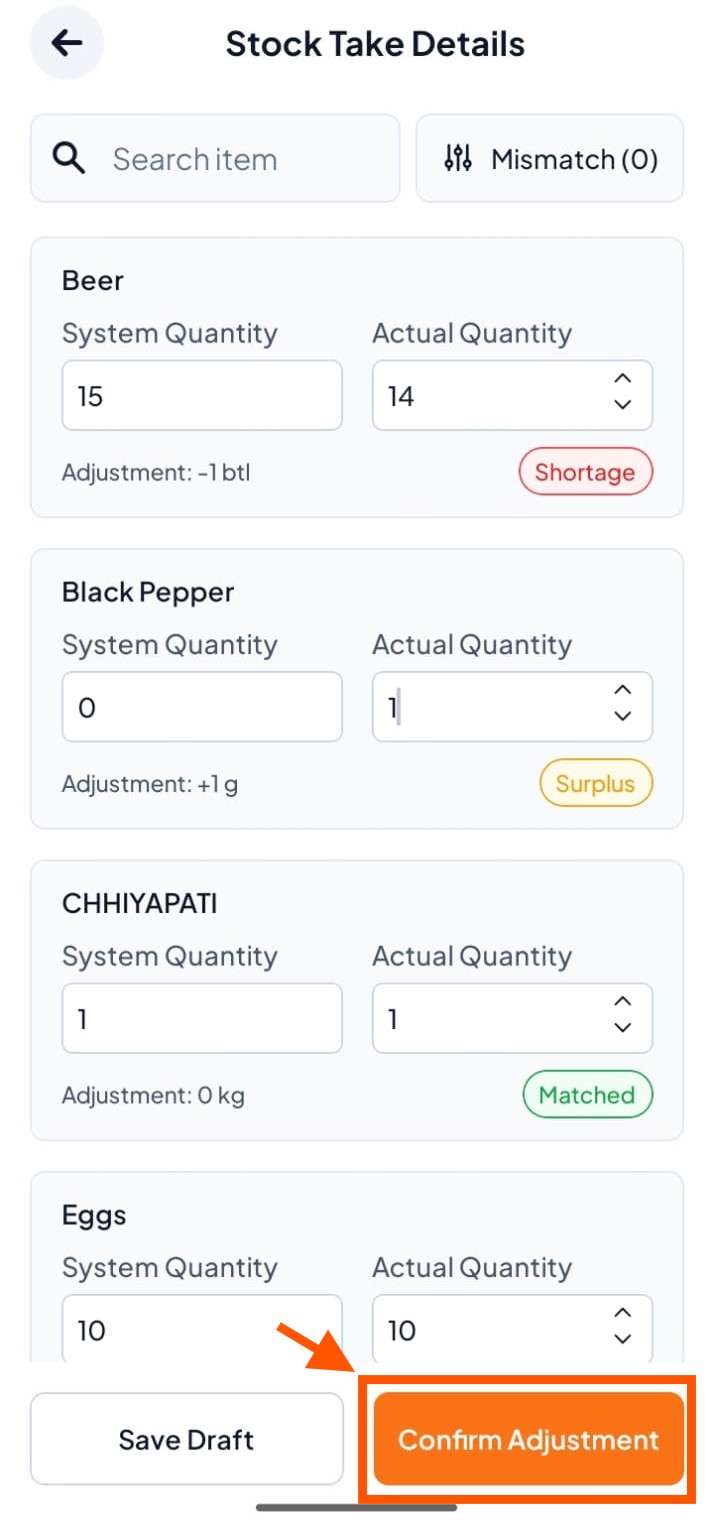
Step 3: Compare and Adjust Quantities
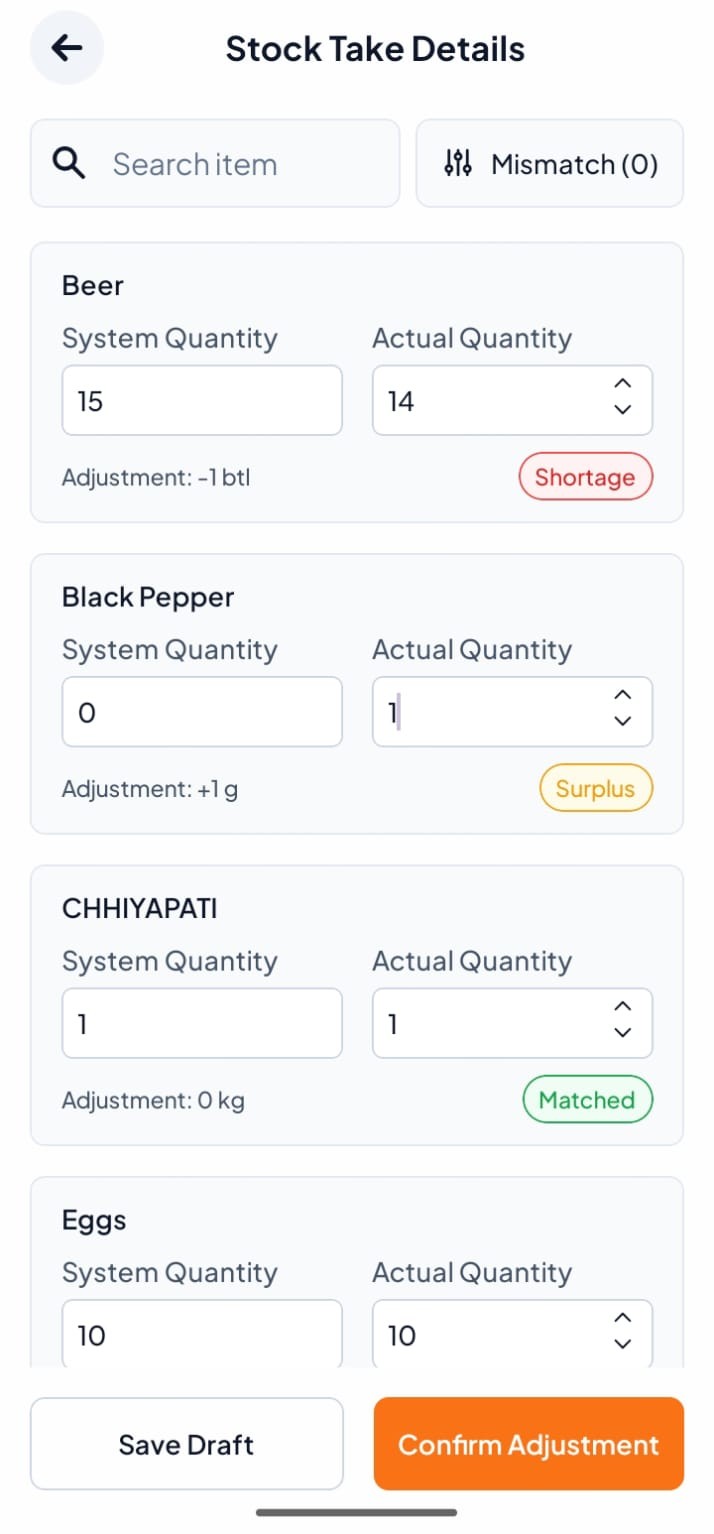
You will see two quantities for each item:
System Qty – What the system shows
Actual Qty – What you counted
Compare both numbers. If they don’t match:
Enter the actual quantity you counted
The system will automatically show the adjustment (+ for extra, – for missing)
You can also add a reason for the difference
Example:
Beer: System = 15, Counted = 14 → -1 (Missing)
Black Pepper: System = 0, Counted = 1 → +1 (Extra)
Step 4: Confirm Your Adjustments
Once you have entered all actual quantities, click on "Confirm Adjustments"
Step 5: Confirm and Apply
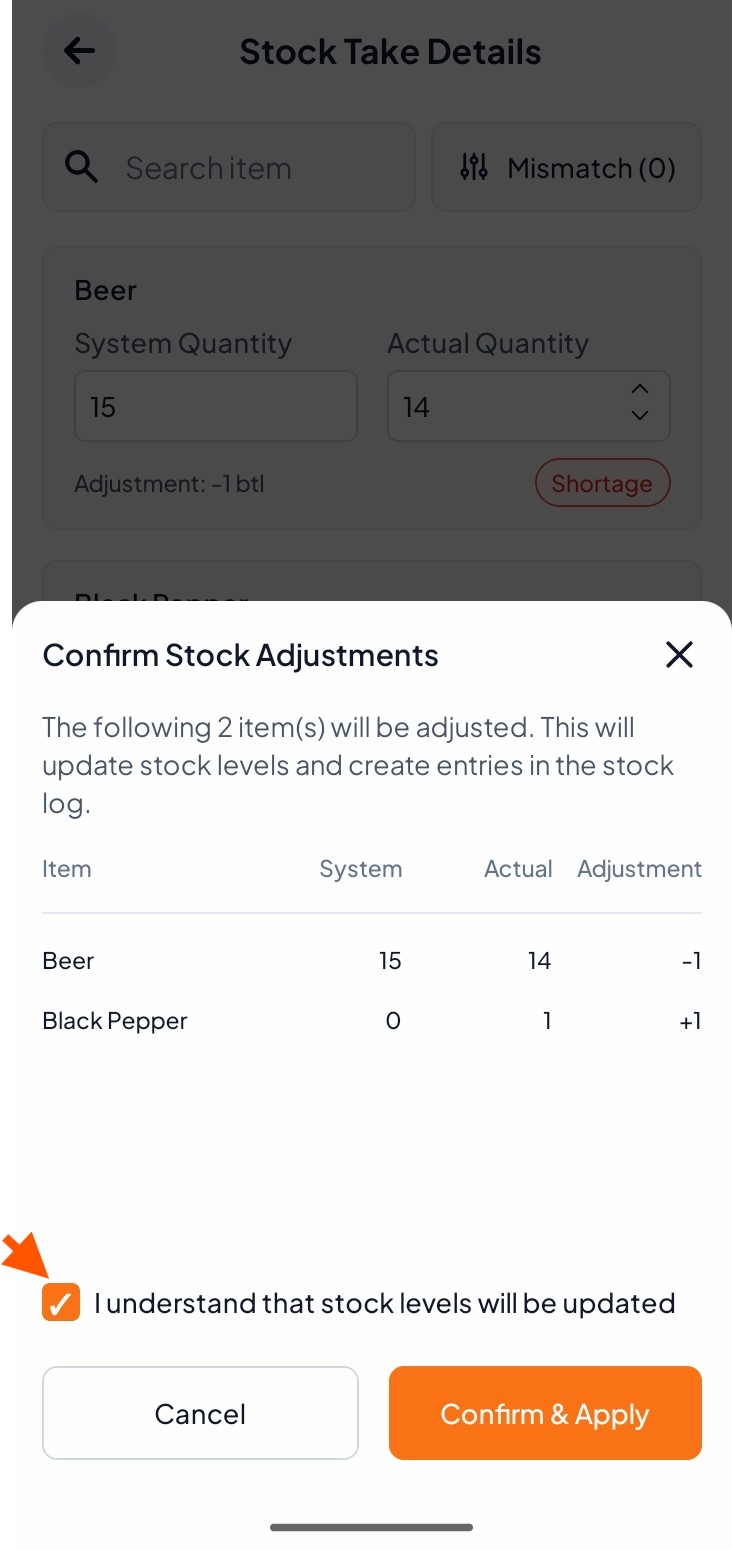
A confirmation screen will appear showing all items that will be adjusted
Click "I understand" to confirm
Finally, click "Confirm & Apply"