Step-By-Step-Guide
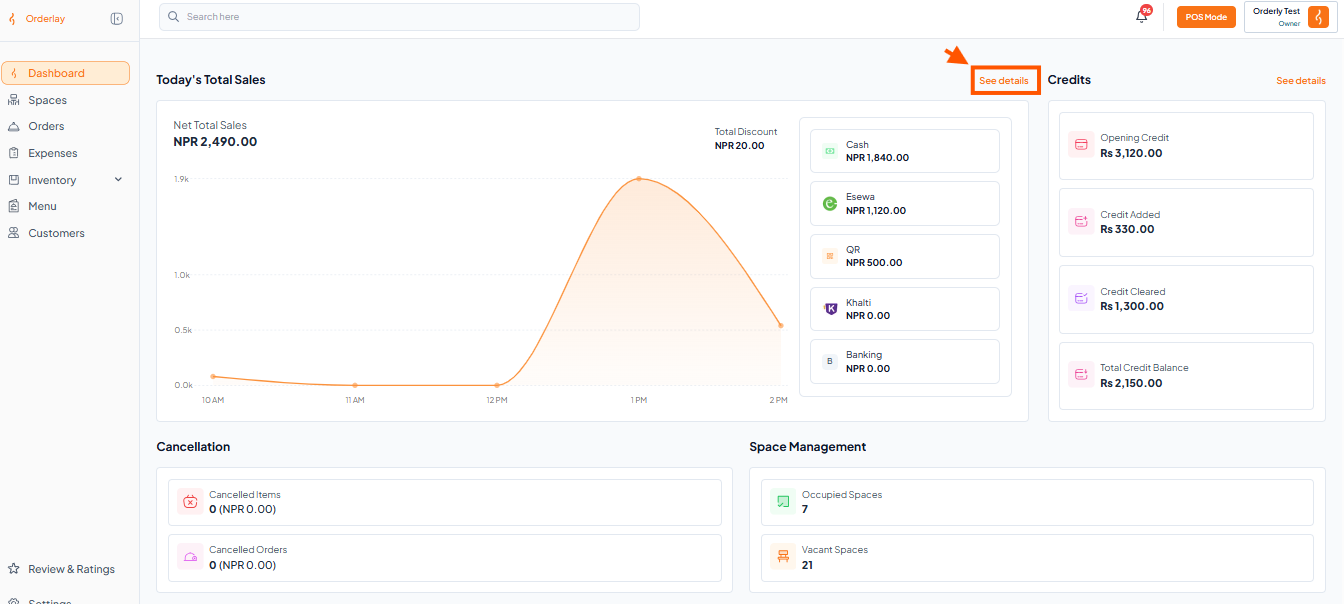
Step 1: Go to the Today’s Total Sales
Under the Dashboard section, scroll down to see Today's Total Sales, then click "See Details"
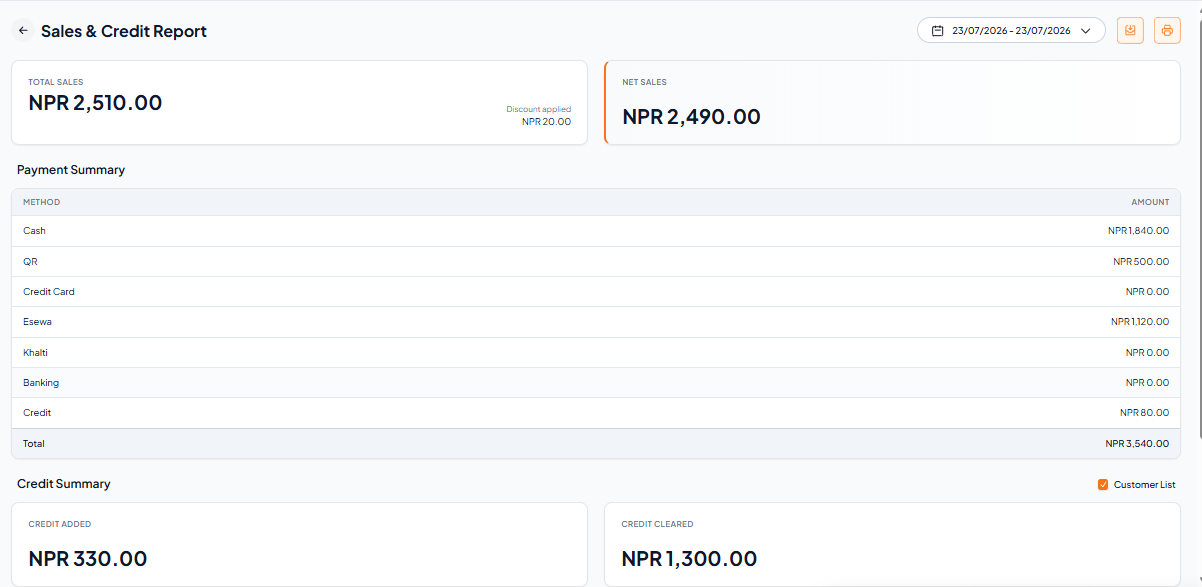
Step 2: You'll see a complete overview with:
Total Sales – total earnings including discounts
Net Sales – total earnings after discounts
Payment Summary – amounts by payment method (Cash, Esewa, QR, etc.)
Credit Summary – total credit added vs. credit cleared
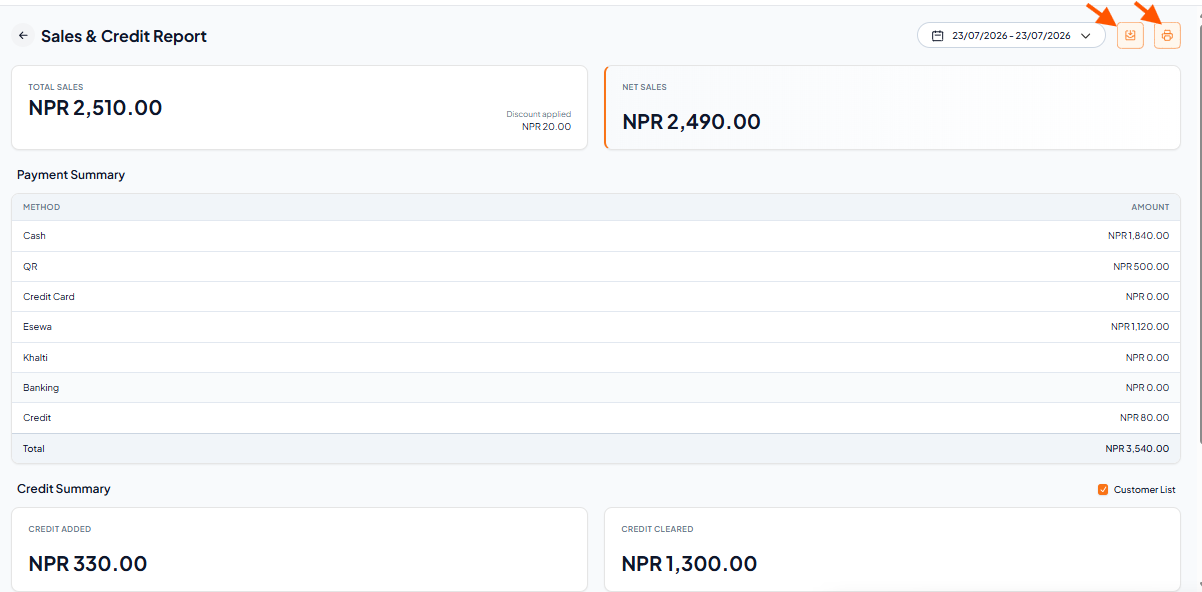
Step 3: Download or Print the Report
To save or print, click on the logo/icon shown on the report page (as indicated in the image).
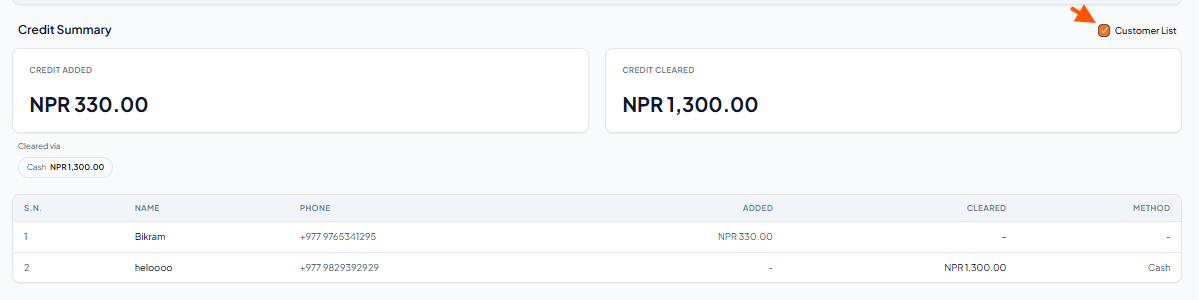
Step 4: Check Credit Details by Customer
To see who took credit or who paid off credit, scroll to the Customer List section and click "Customer List".
It shows each customer’s name, phone, amount added, cleared, and payment method.