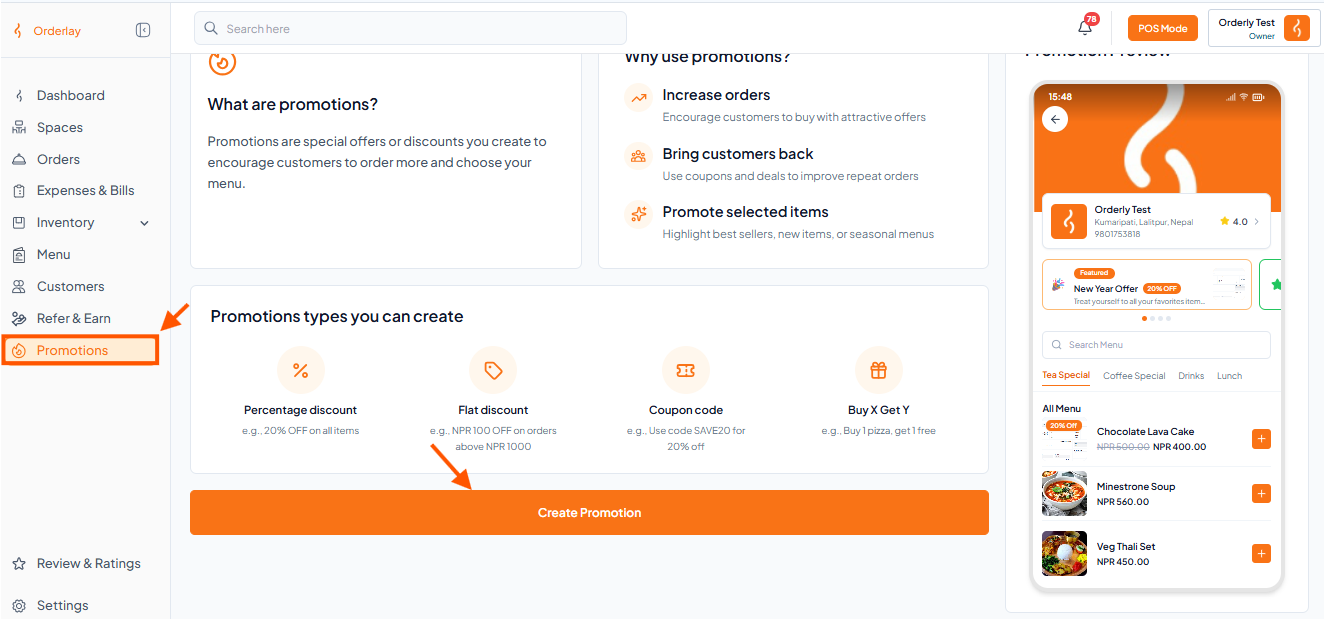
Step 1: Navigate to Promotions
Find the "Promotions" and click on the "Create Promotion".
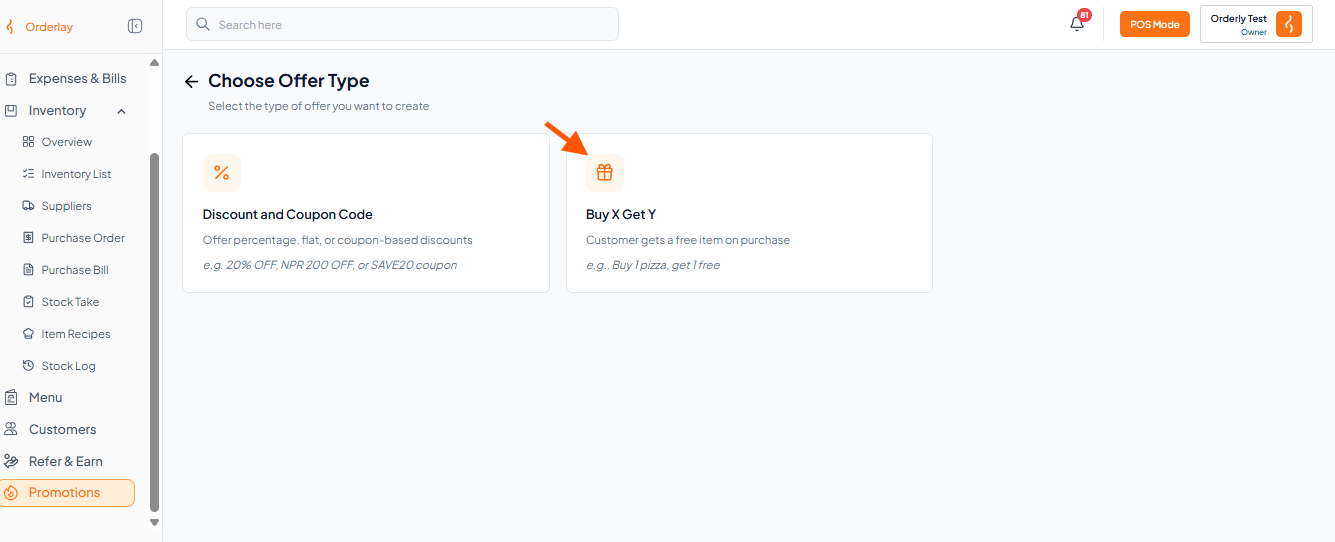
Step 2: Click on "Buy X Get Y promotions"
For Discount and Coupon Code promotions, [click here to create a Discount & Coupon Code offer]
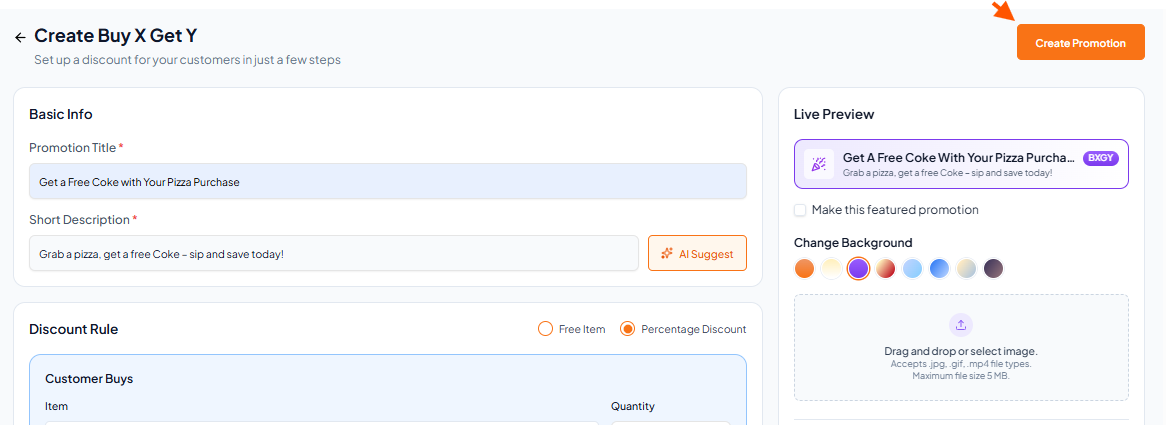
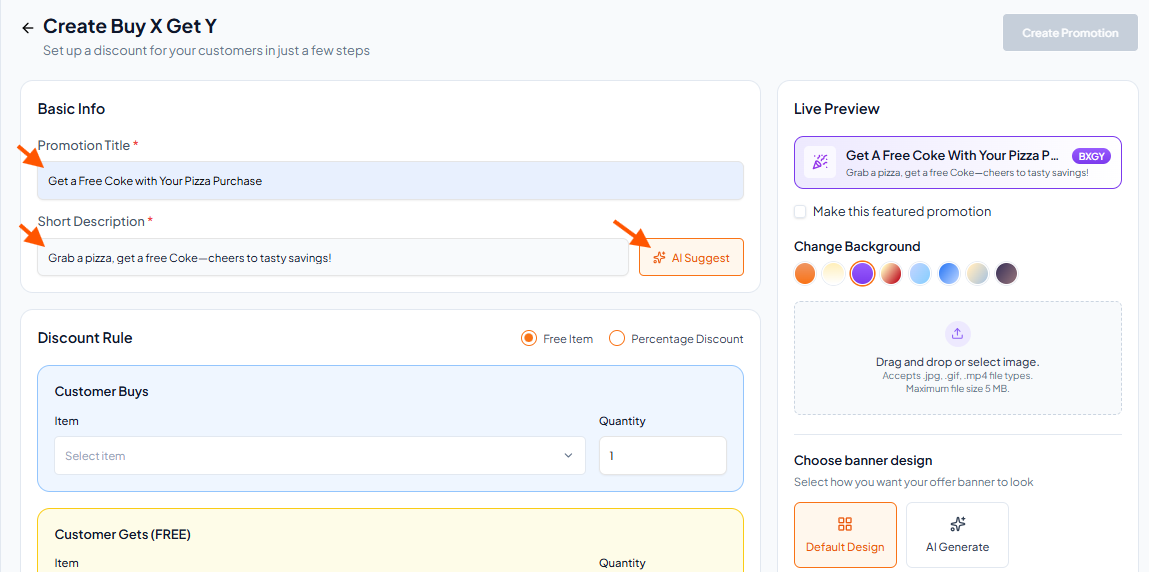
Step 3: Fill in the Basic Info
Enter Promotion Title & Short Description.
Click AI Suggest for auto-generated description).
Step 4: Design the Banner (Live Preview)
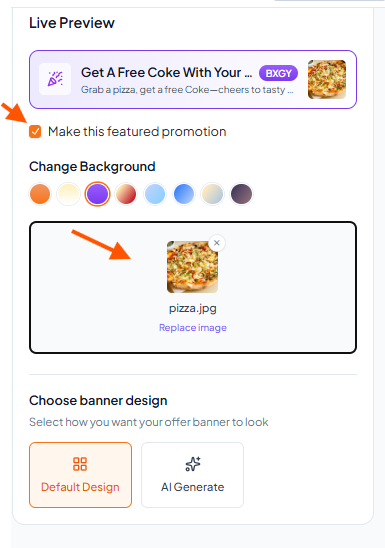
Option 1: Manual Design (Customize it yourself)
Show as featured banner: Tick the box if you want this promotion to be visible as a banner.
Banner Background: Choose a color for the banner.
Upload Image: Drag and drop or select an image (accepts .jpg, .gif, .mp4, max 5MB).
Option 2: AI Generate (Let AI do it for you)
Step 5: Apply the Discount
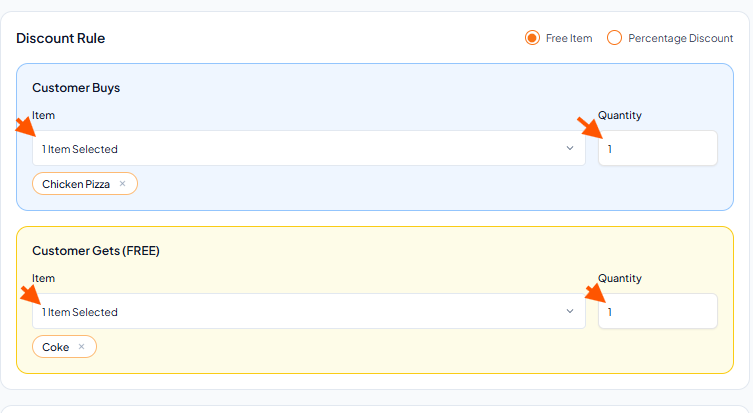
Option 1: Free Item
Pick the item the customer buys.
Pick the item the customer gets for free.
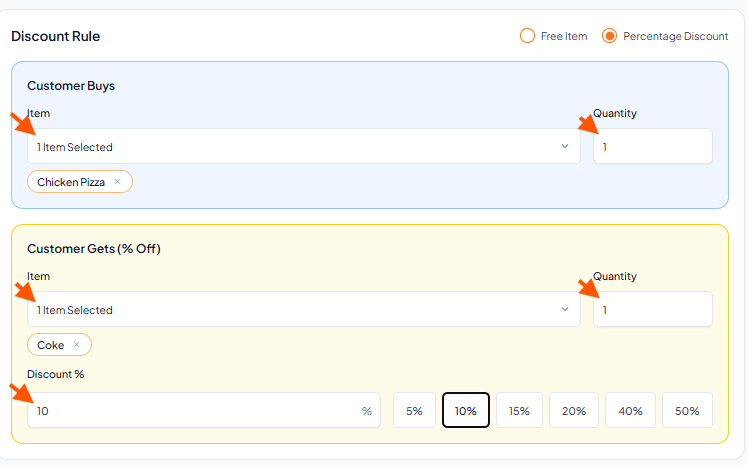
Option 2 – Percentage Off
Pick the item the customer buys.
Pick the item the customer gets.
Choose a discount % (5%, 10%, 15%, 20%, 40%, or 50%).
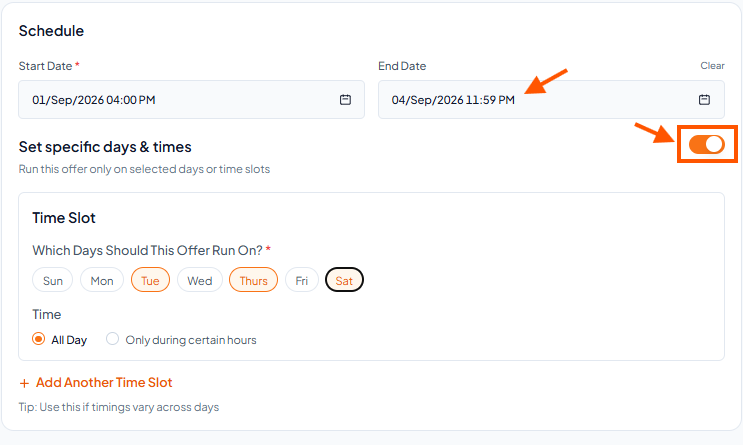
Step 6: Schedule the Promotion
Start Date & End Date: Set the dates for when the offer will be active.
Set specific days & times: Toggle this on if you want the offer to run only on specific days.
Select the Days (Sun, Mon, Tue, etc.).
Select the Time (All Day or Only during certain hours).
Click "Add Another Time Slot" if timings vary on different days.
Step 7: Finalize
Review all the information you have entered.
Click the "Create Promotion"