Set Up Role Default Permissions (Web)

Set role-based permissions to control what each team member can view and do in Orderlay.

Who can change Role Defaults?

  • Owner: can change permissions for every role.

  • Manager: can also change permissions, but only the permissions the Manager has been given. If a Manager does not have a permission, they cannot give it to anyone else.

Step-By-Step-Guide

Step 1: Click the restaurant name (Orderlay New) in the top-right corner
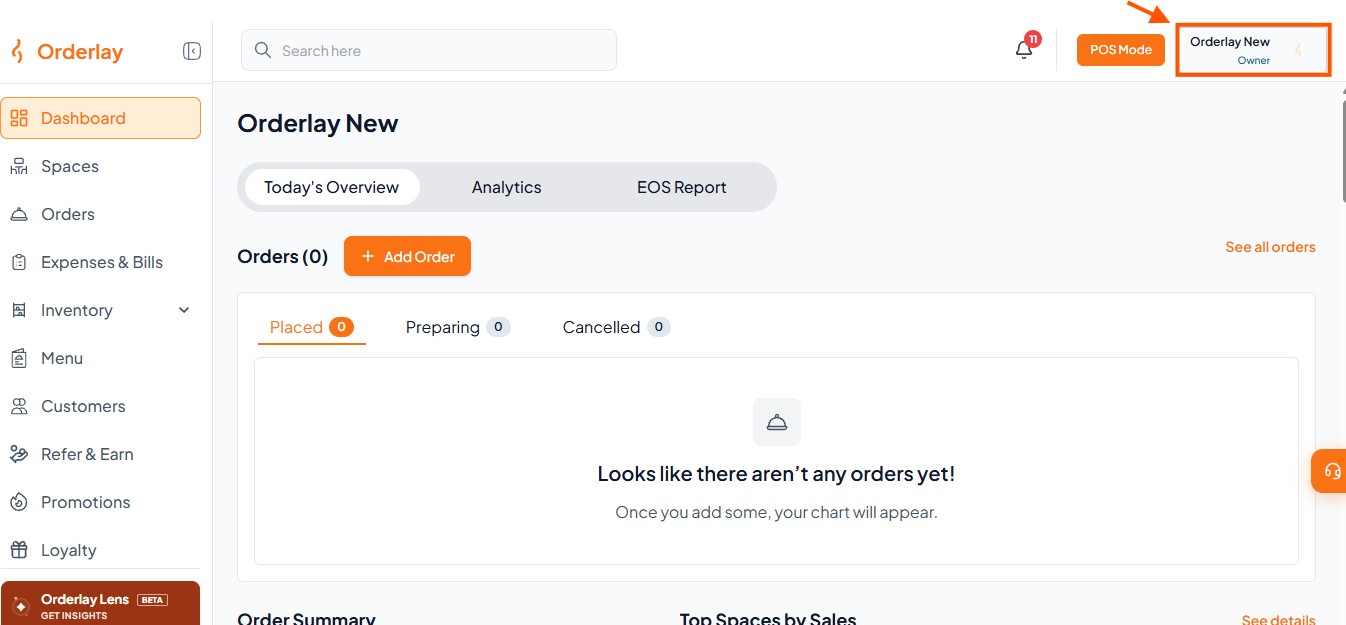
Orderlay New Dashboard shows an empty Orders section, with an orange arrow pointing to the Orderlay New owner selector in the top-right corner. Visible: Orderlay, Search here, POS Mode, Orderlay New, Owner, Dashboard.

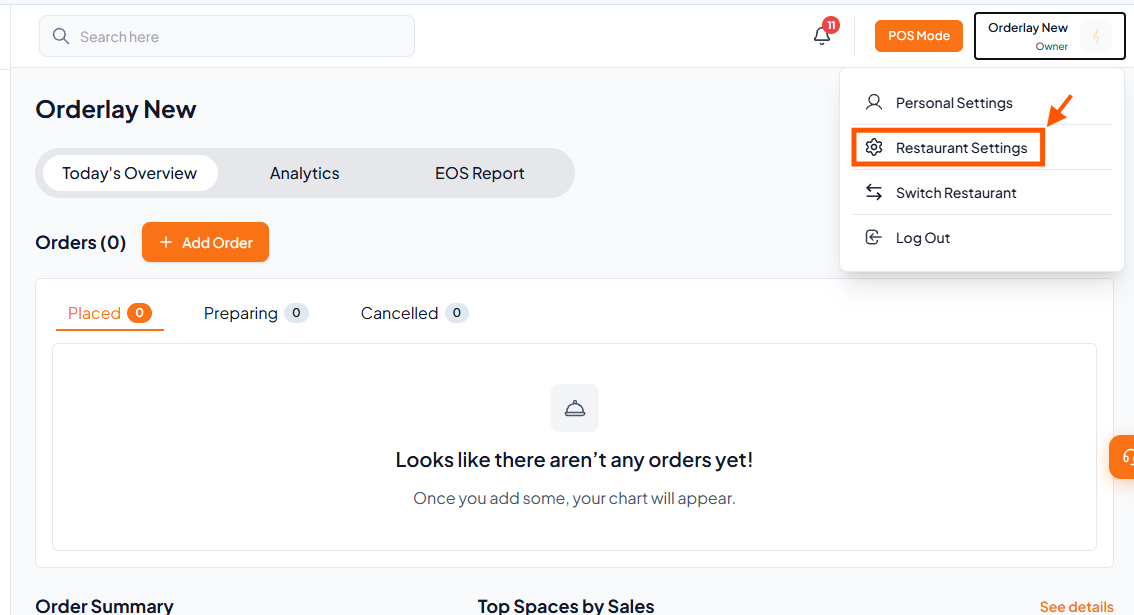
Step 2: Tap "Restaurant Settings"

Orderlay New dashboard with the account menu open; an orange box and arrow highlight Restaurant Settings. Visible: Search here, Orderlay New, POS Mode, Owner, Personal Settings, Restaurant Settings.

Step 3: Find and Click "Role Defaults"
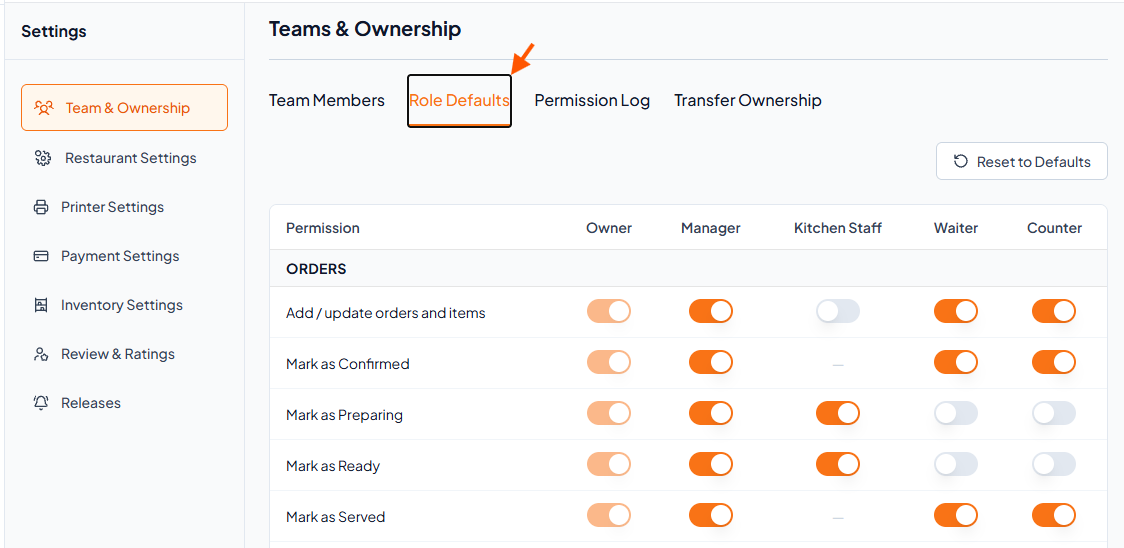
Settings > Teams & Ownership screen with the Role Defaults tab selected; an orange arrow points to the tab above a role permissions table. Visible: Settings, Team & Ownership, Team Members, Role Defaults, Permission Log, Transfer Ownership.

Step 4: Turn permissions ON or OFF

  • ON: this role is allowed to do this.

  • OFF: this role is not allowed to do this.
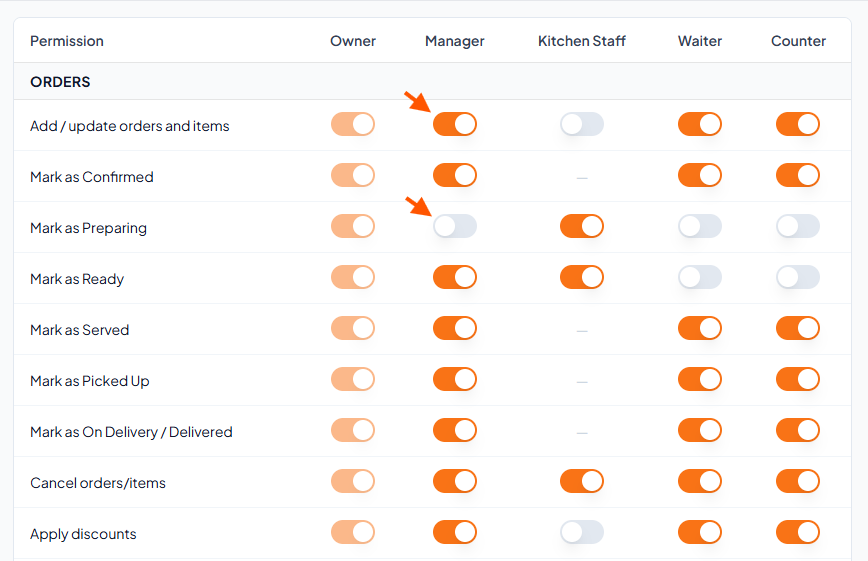
Orders permission table in the role settings screen, with orange arrows pointing to the Manager switches for adding or updating orders and marking orders as preparing. Visible: Permission, Owner, Manager, Kitchen Staff, Waiter, Counter.

Did this answer your question?
😞
😐
😁