company logo

Help center

Go to Orderlay
All collections2. Knowledge BaseRestaurant Onboarding (First-Time Setup)Printer SetupFill out printer details (Web)

Fill out printer details (Web)

The Add Printer form lets you enter printer details, such as name, type, IP address, and port, to print orders, bills, and kitchen tickets.

Step-By-Step-Guide

Step 1: Fill Basic Info

  • Connection: Choose LAN (Network) or USB.

  • Printer Type: Select your brand (e.g., ESC/POS or Star).

  • Managed by: Select Direct or Print Server. (According to preferences)

warning icon
Important for Web Users: To get print server ip, you must run the specific printing file (provided by the Orderlay team) in the background on your computer. If you need help setting this up or locating the file, please contact Orderlay Support.
  • Printer Name: Enter a name (e.g., "Counter").

  • IP Address: Enter the printer's network IP address and port (usually 9100).
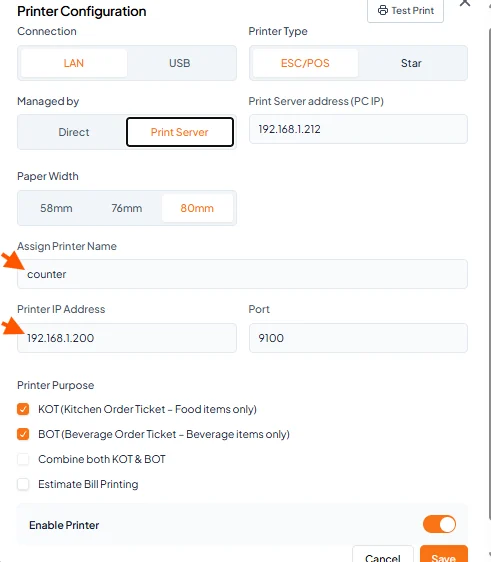
The Printer Configuration screen shows LAN, ESC/POS, Print Server, 80mm paper, printer name and IP address fields, ticket-purpose options, and printer enablement; arrows point to the name and IP fields. Visible: Printer Configuration, Connection, LAN, USB, Printer Type, ESC/POS.

Step 2: Choose Printer Purpose

Choose the purpose of the printer:

  • KOT: For food orders only

  • BOT: For bar beverage orders

  • Combine KOT & BOT: For both food and drinks

  • Estimate Bill: For customer bill printing
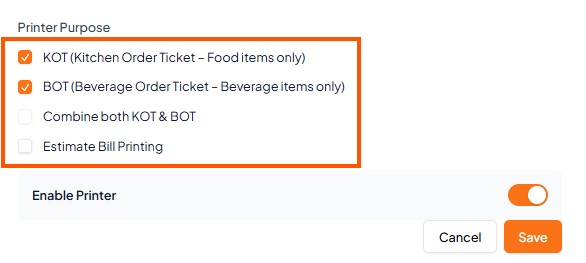
Printer Purpose settings show KOT and BOT selected, with Combine both KOT & BOT and Estimate Bill Printing unchecked; an orange outline highlights these options. Visible: Printer Purpose, KOT (Kitchen Order Ticket - Food items only), BOT (Beverage Order Ticket - Beverage items only), Combine both KO

Step 3: Enable the Printer

  • Turn on the Enable Printer toggle to activate it.
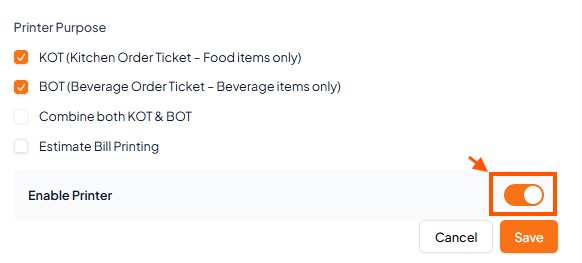
Printer Purpose settings show KOT and BOT selected, with an orange arrow pointing to the enabled printer toggle above Cancel and Save. Visible: Printer Purpose, KOT (Kitchen Order Ticket - Food items only), BOT (Beverage Order Ticket – Beverage items only), Combine both KOT & BOT, Estimate Bill Prin

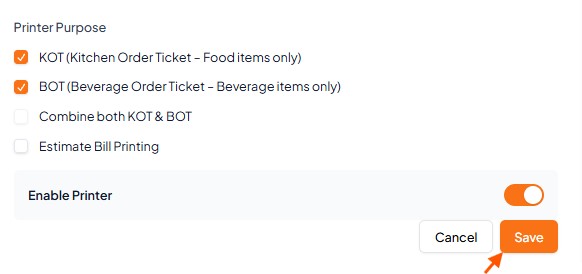
Step 4: Tap "Save" to finish setup.

Printer Purpose settings show KOT and BOT selected, with an arrow pointing to the Save button. Visible: Printer Purpose, KOT (Kitchen Order Ticket - Food items only), BOT (Beverage Order Ticket - Beverage items only), Combine both KOT & BOT, Estimate Bill Printing, Enable Printer.

Support

  • Initial setup (network & hardware) is handled by the Orderlay Team. For issues, contact Orderlay support.
Did this answer your question?
😞
😐
😁