Step-By-Step-Guide
Step 1: Go to Payment Settings
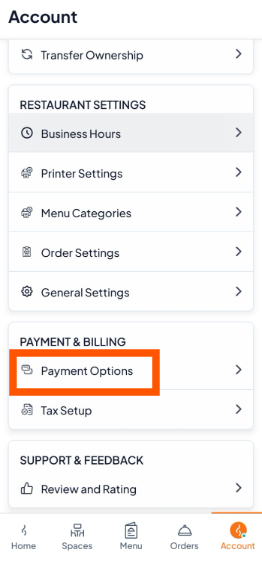
From the bottom menu, Tap "Account".
Under Payment & Billing, select Payment Options.
Step 2: Add or Activate Payment Methods
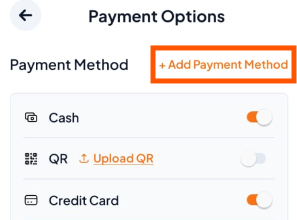
To add a new payment method: Tap "+ Add Payment Method" and follow the steps shown.
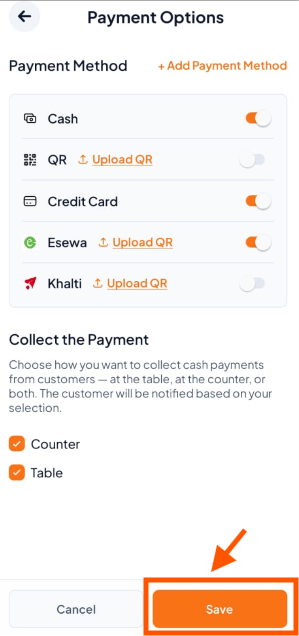
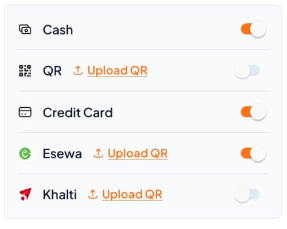
To activate a payment method you already have: Turn ON the switch next to each payment option you want to use.
Cash – Accept cash payments
Credit Card – Accept card payments
QR Payment – Accept payments from apps like QR, E-Sewa or Khalti

Step 3: Choose Payment Collection Point
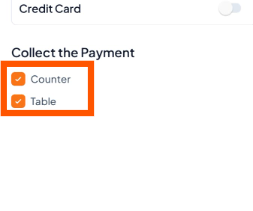
Select where customers will pay:
Counter – Customers pay at a central counter or cashier.
Table – Staff collect payments directly at the table.
Step 4: Save Your Settings
After selecting your preferred options, tap "Save".