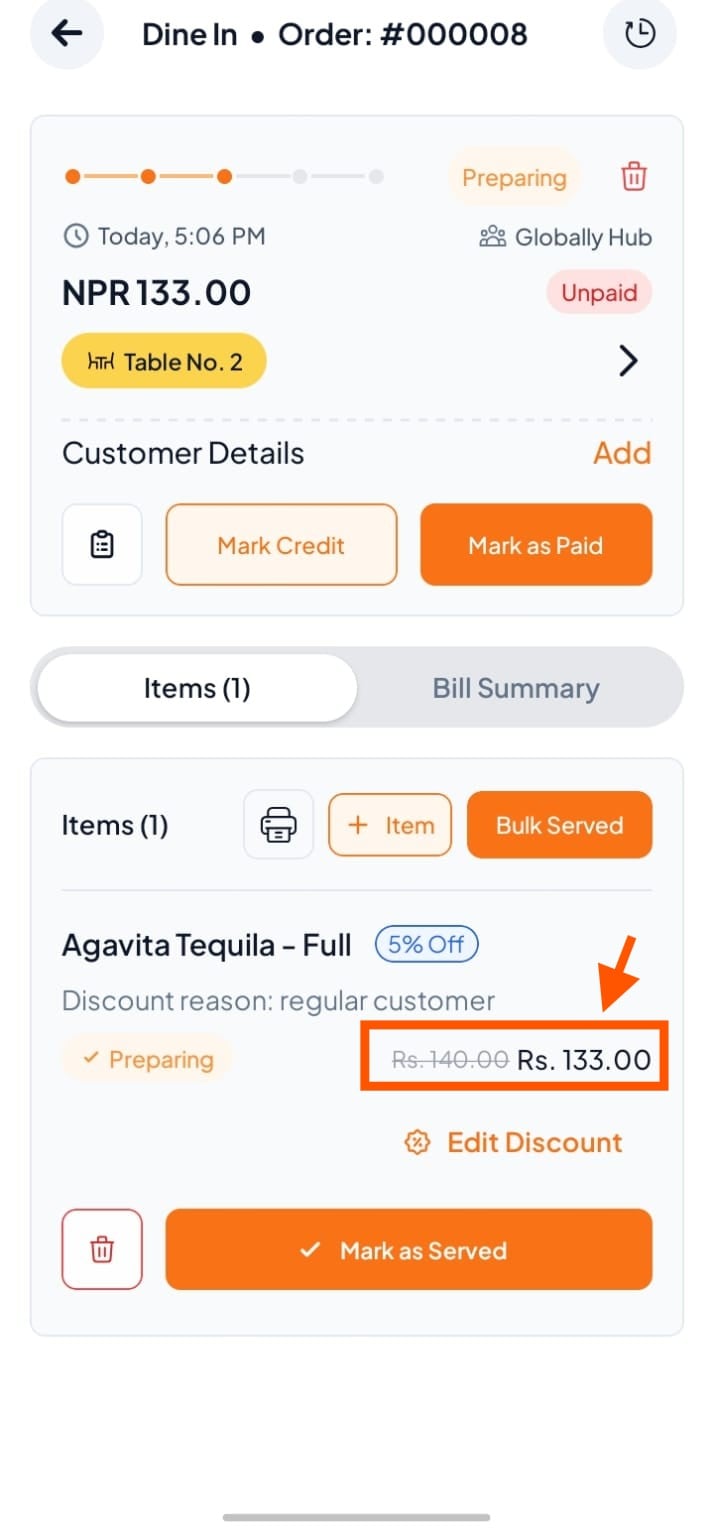
Step 1: Select the Order or Table
There are three ways to access the order you want to discount:
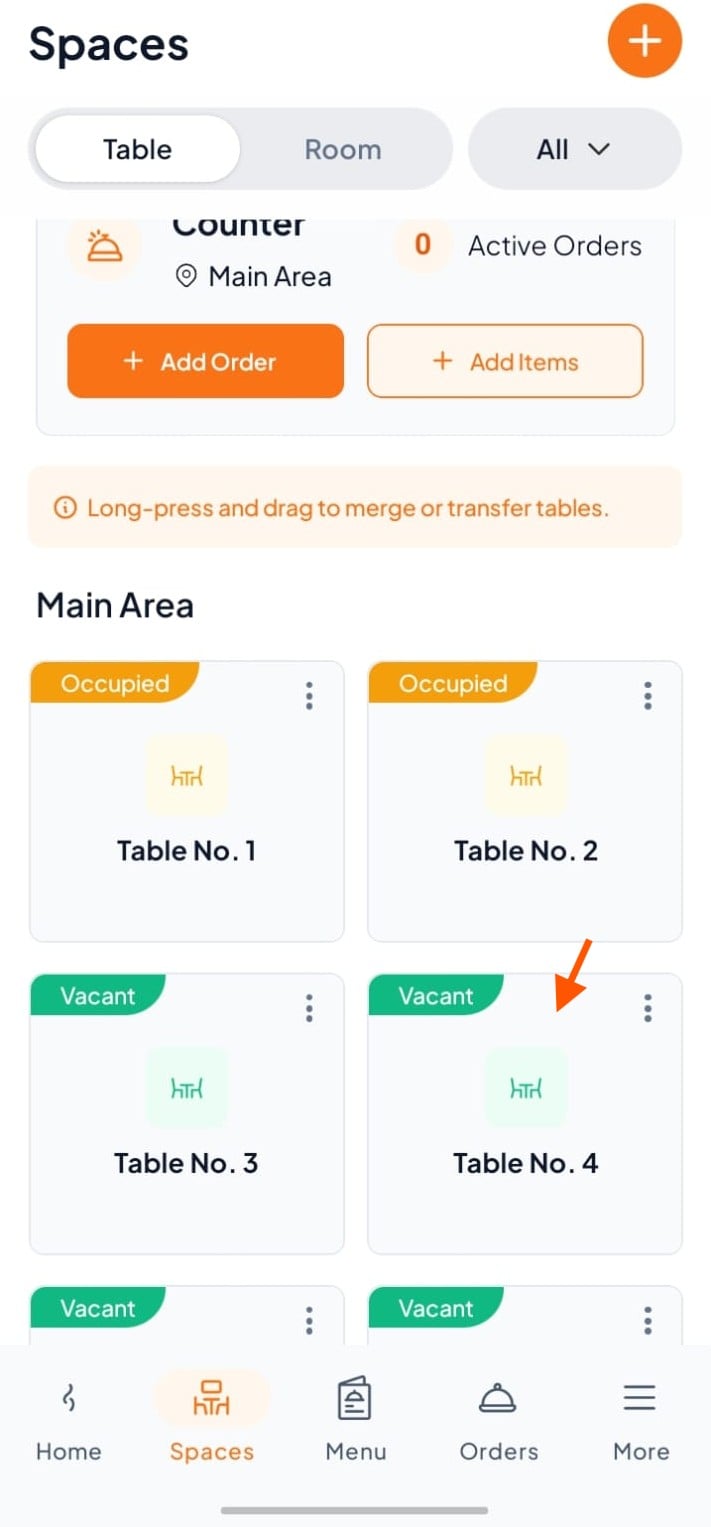
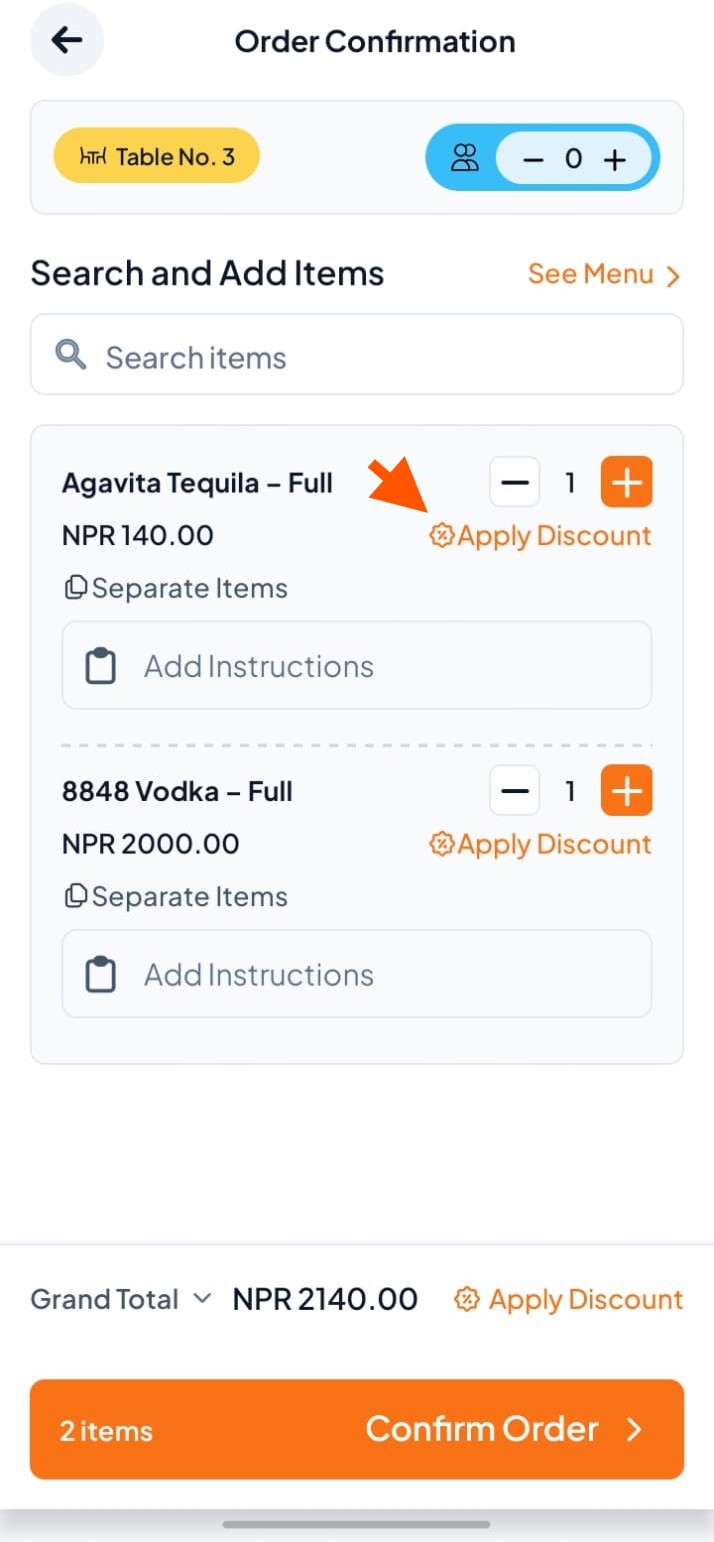
Option A (Before Placing an Order): Go to the Spaces section, select the table where you want to add order and apply the item discount (e.g., Table No. 4).
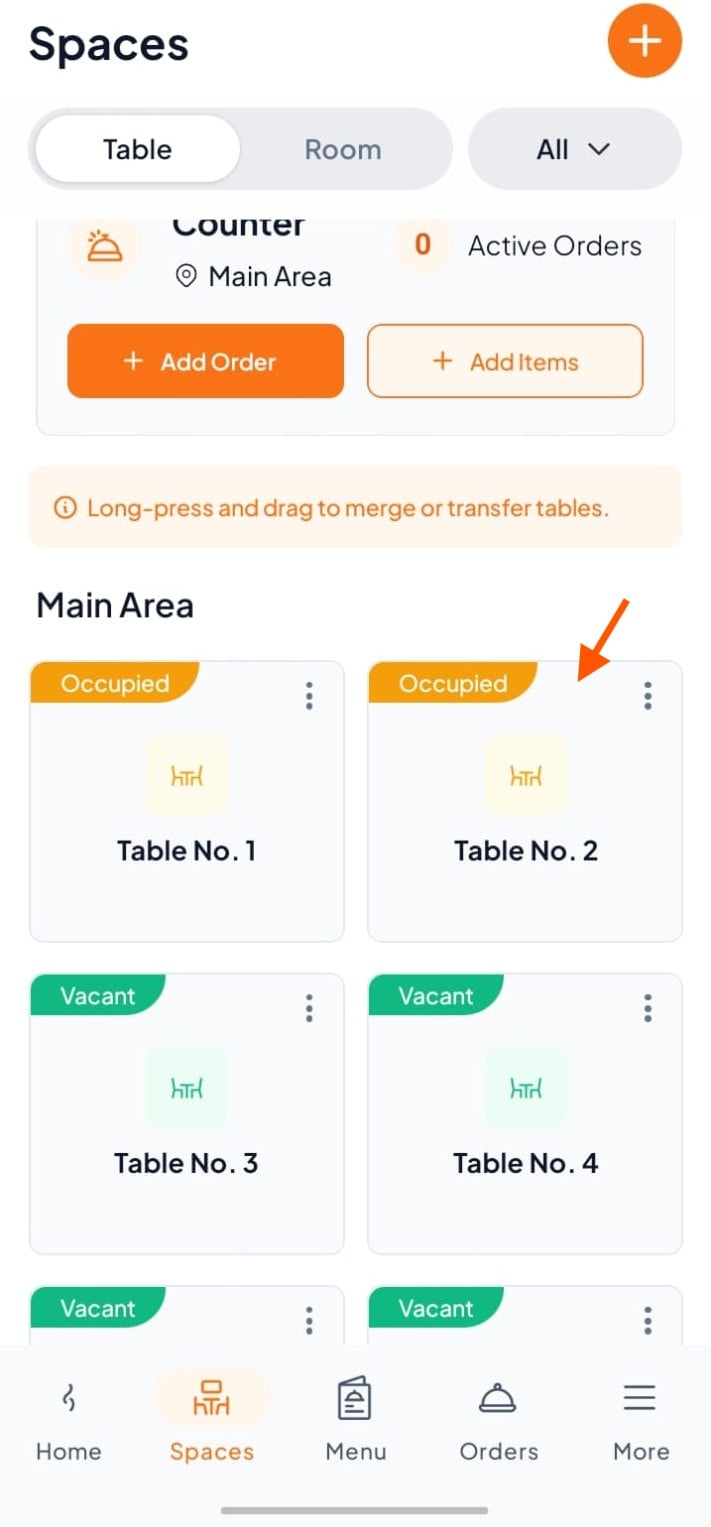
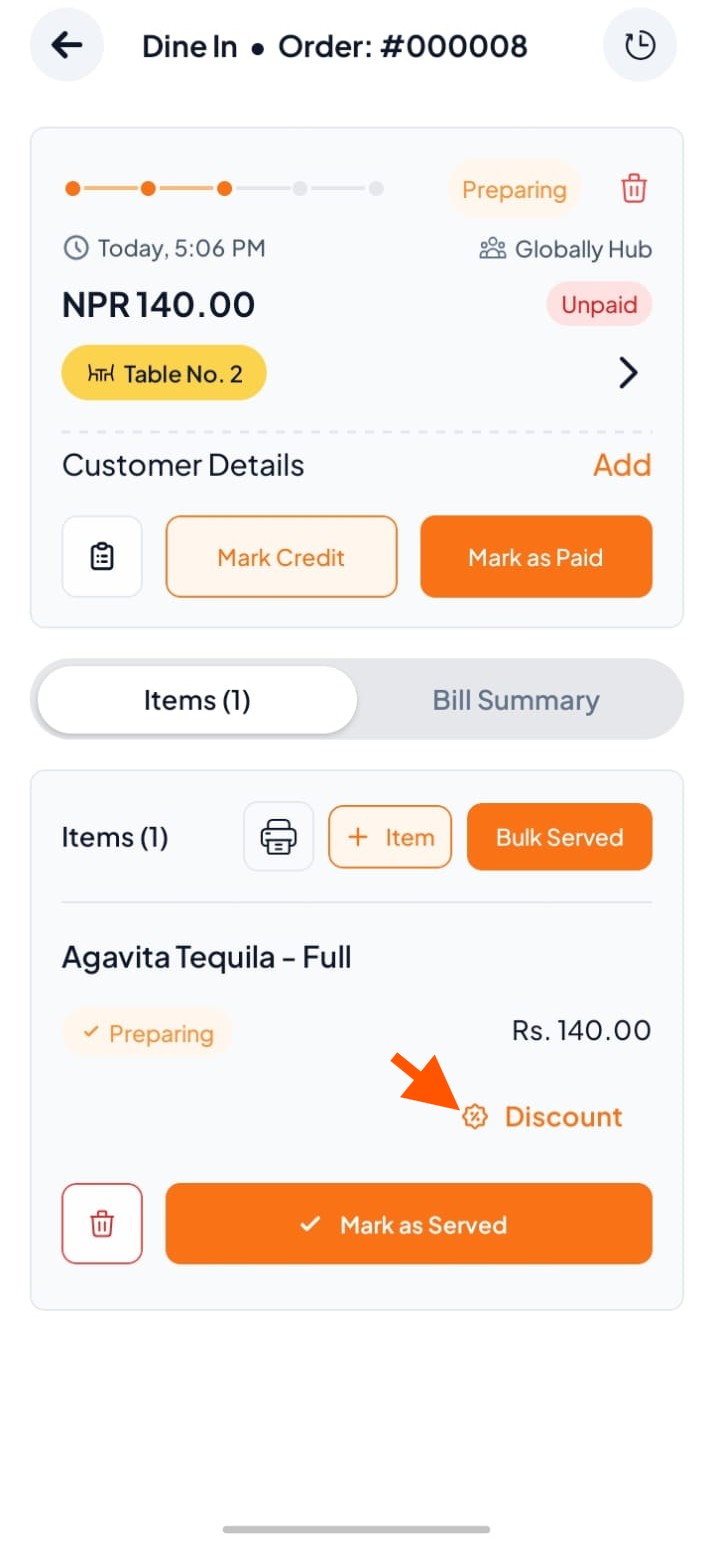
Option B (After Placing an Order): Go to the Spaces section and select the occupied table where you want to apply the item discount (e.g., Table No. 2).
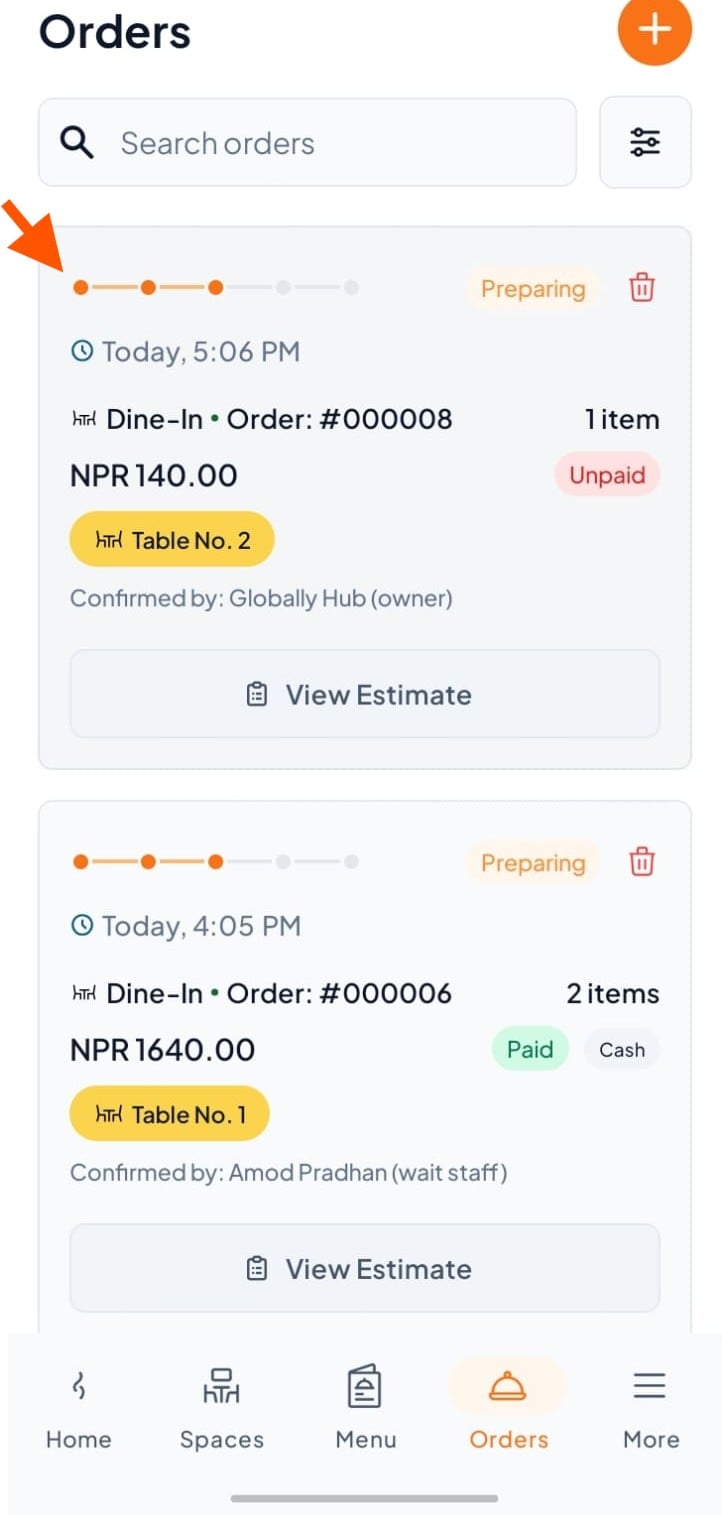
Option C (From Orders): Go to the Orders section and click on the specific order where you want to apply the item discount (e.g., Order #000008).
Step 2: Open Apply Discount
Option A (During Order Creation): Click the Discount button below the selected item.
Option B (From Order Details): Once you reach the Order Details page through either occupied table or from orders section click on discount button below the selected item.
Step 3: Choose Discount Type
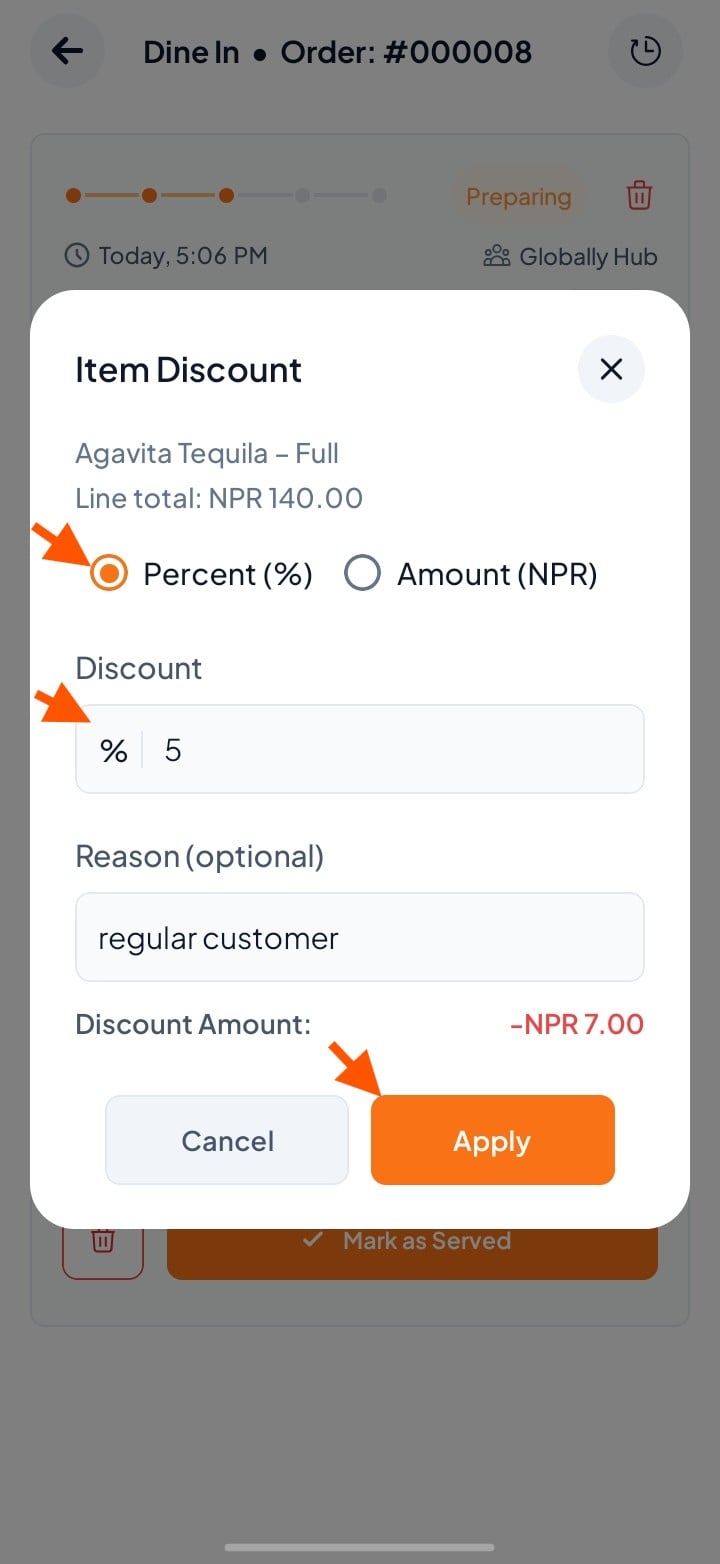
You will see 2 options – choose between Amount or Percentage.
Enter the discount amount and click "Apply Discount"
Step 4: Verify the Updated discounted amount.