company logo

Help center

Go to Orderlay
All collections2. Knowledge BaseInventory ManagementCreate a Purchase Bill (App)

Create a Purchase Bill (App)

Learn how to create and record a purchase bill in Orderlay.

Step-By-Step-Guide

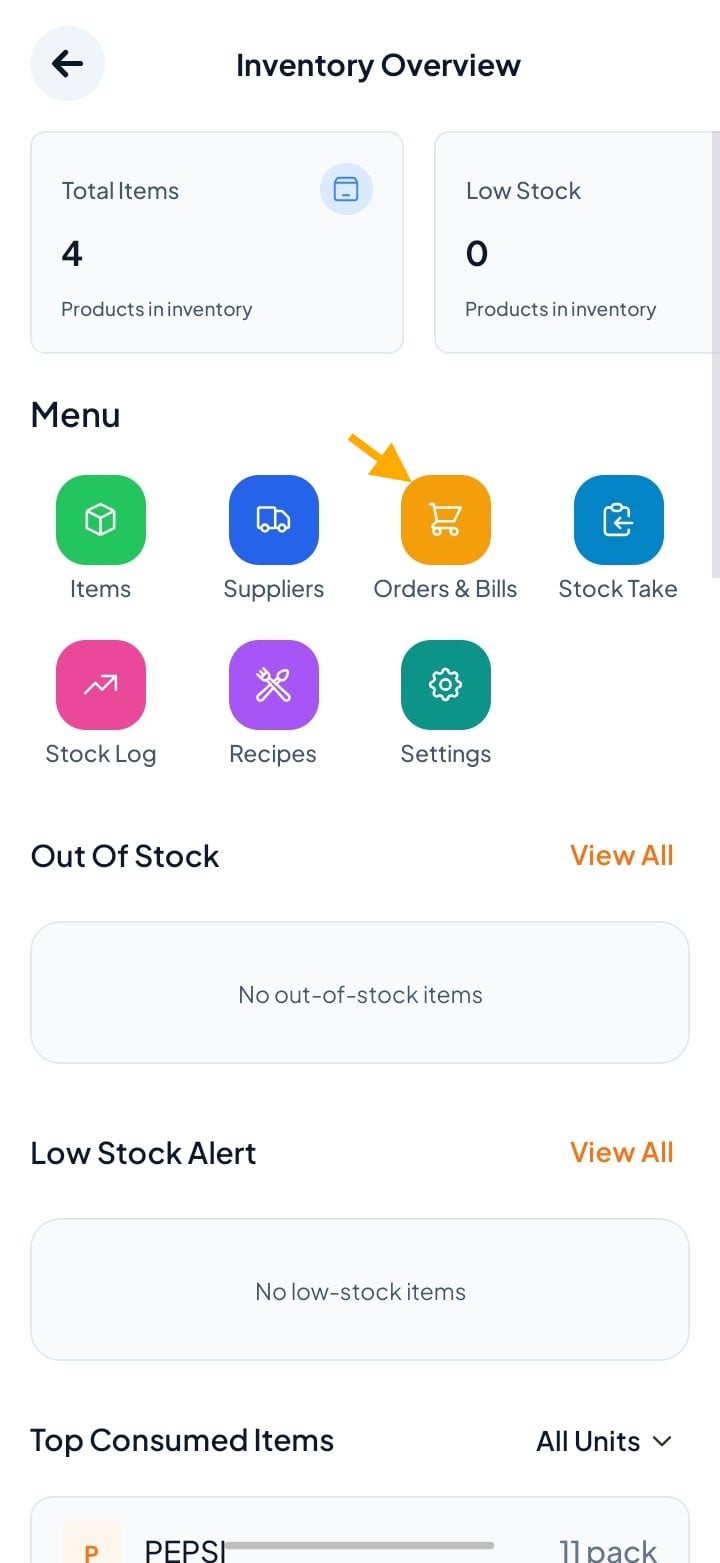
Step 1: Go to Suppliers

  • Click More → Inventory Management → Orders and Bills
Step 2: Click on "Bills"
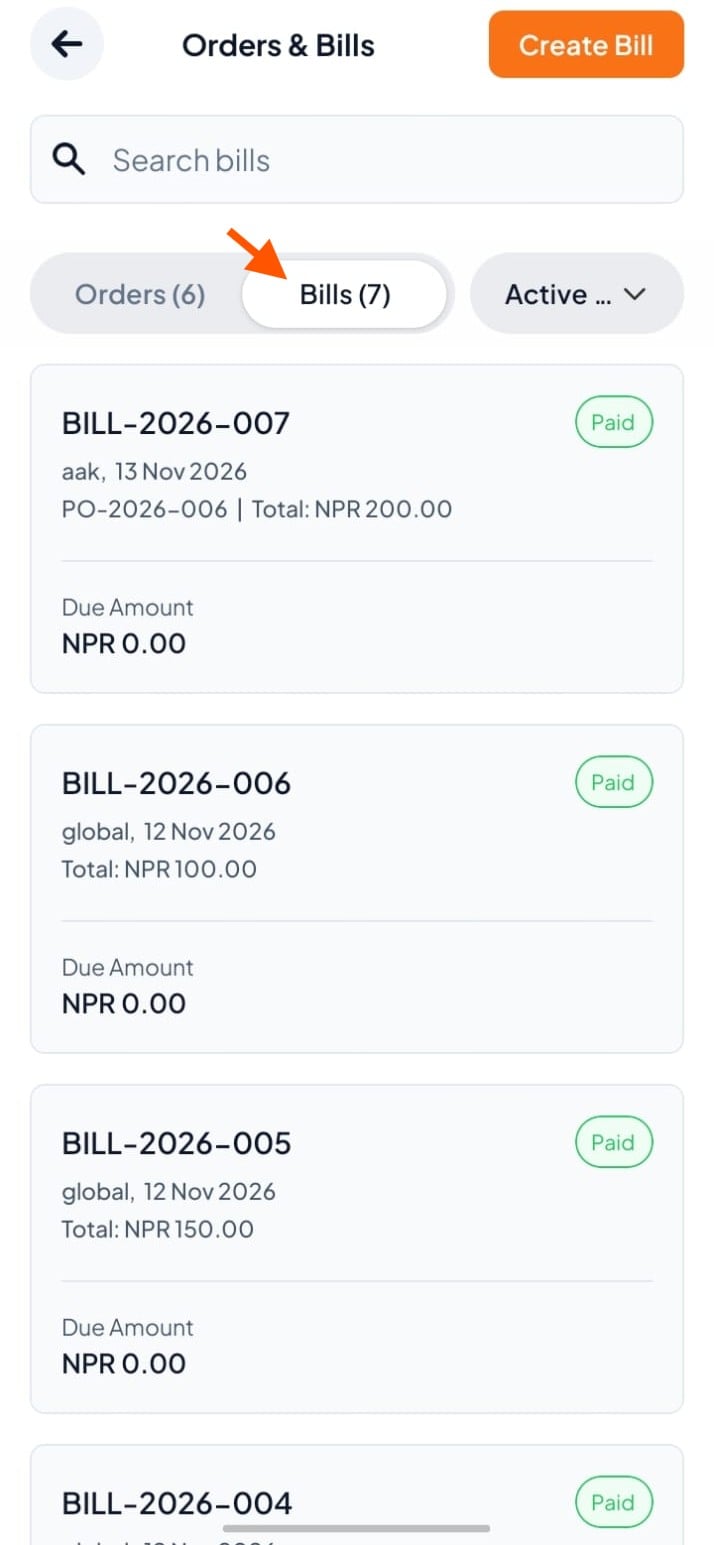
Orders & Bills screen with the Bills (7) tab selected; an orange arrow points to it above a list of paid bills. Visible: Orders & Bills, Create Bill, Search bills, Orders (6), Bills (7), Active.

Step 3: Click the "Create Bill" button
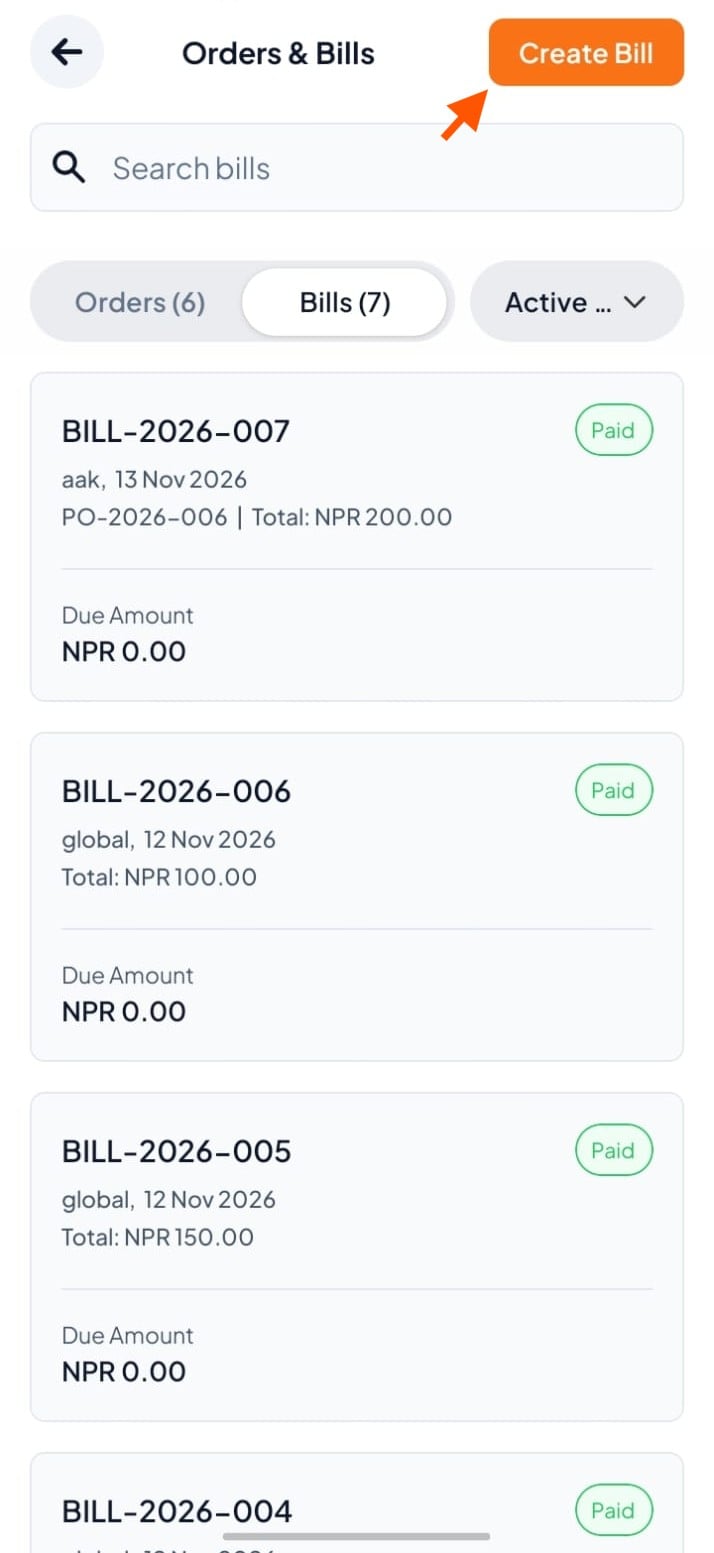
The Orders & Bills screen shows bill listings, and an orange arrow points to the Create Bill button. Visible: Orders & Bills, Create Bill, Search bills, Orders (6), Bills (7), Active.

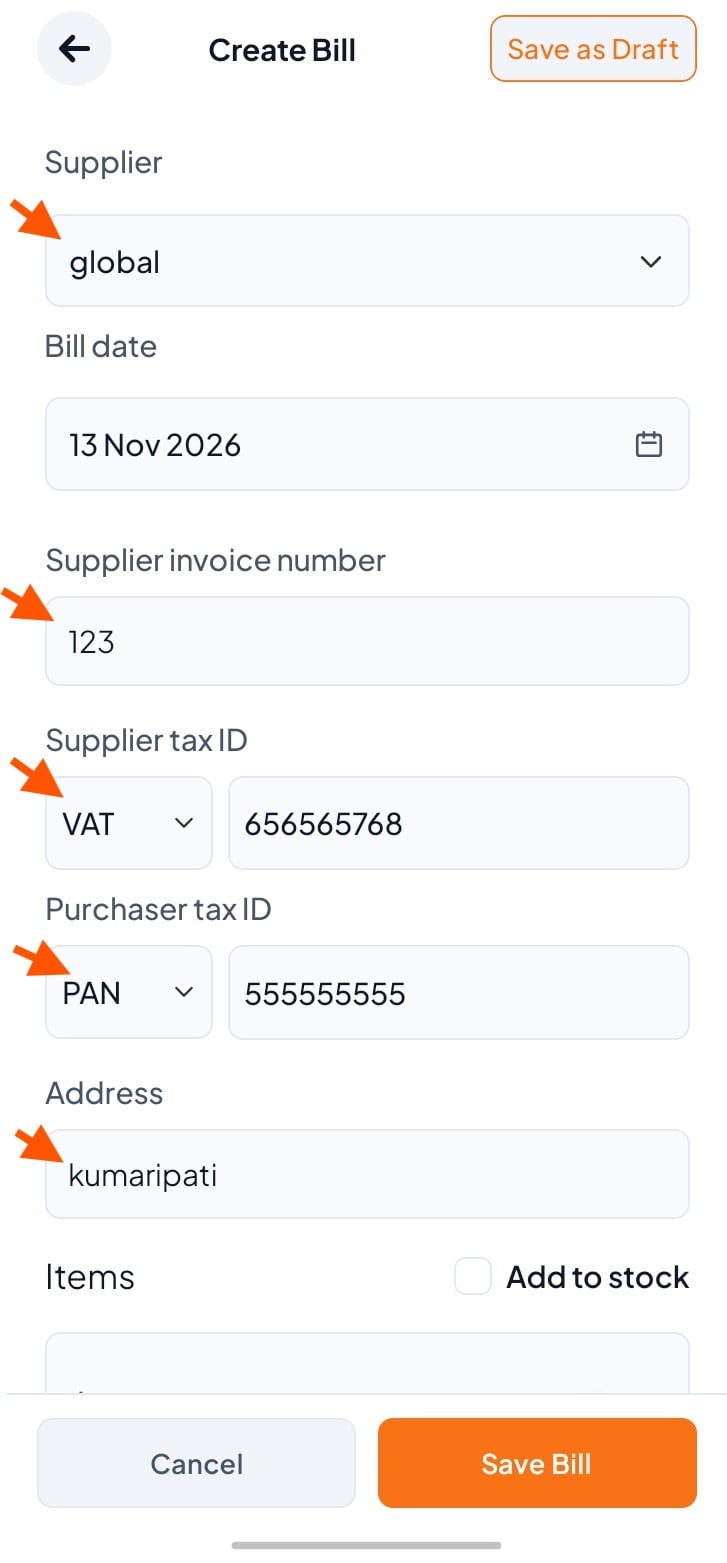
Step 4: Fill in bill details

  • Supplier name (required)

  • Bill date (required)

  • Supplier invoice number

  • Supplier tax ID

  • Purchaser tax ID

  • Address

Create Bill screen shows supplier, invoice, tax ID, and address fields; orange arrows point to the supplier dropdown, invoice number, tax selectors, and address field. Visible: Create Bill, Save as Draft, Supplier, global, Bill date, Supplier invoice number.

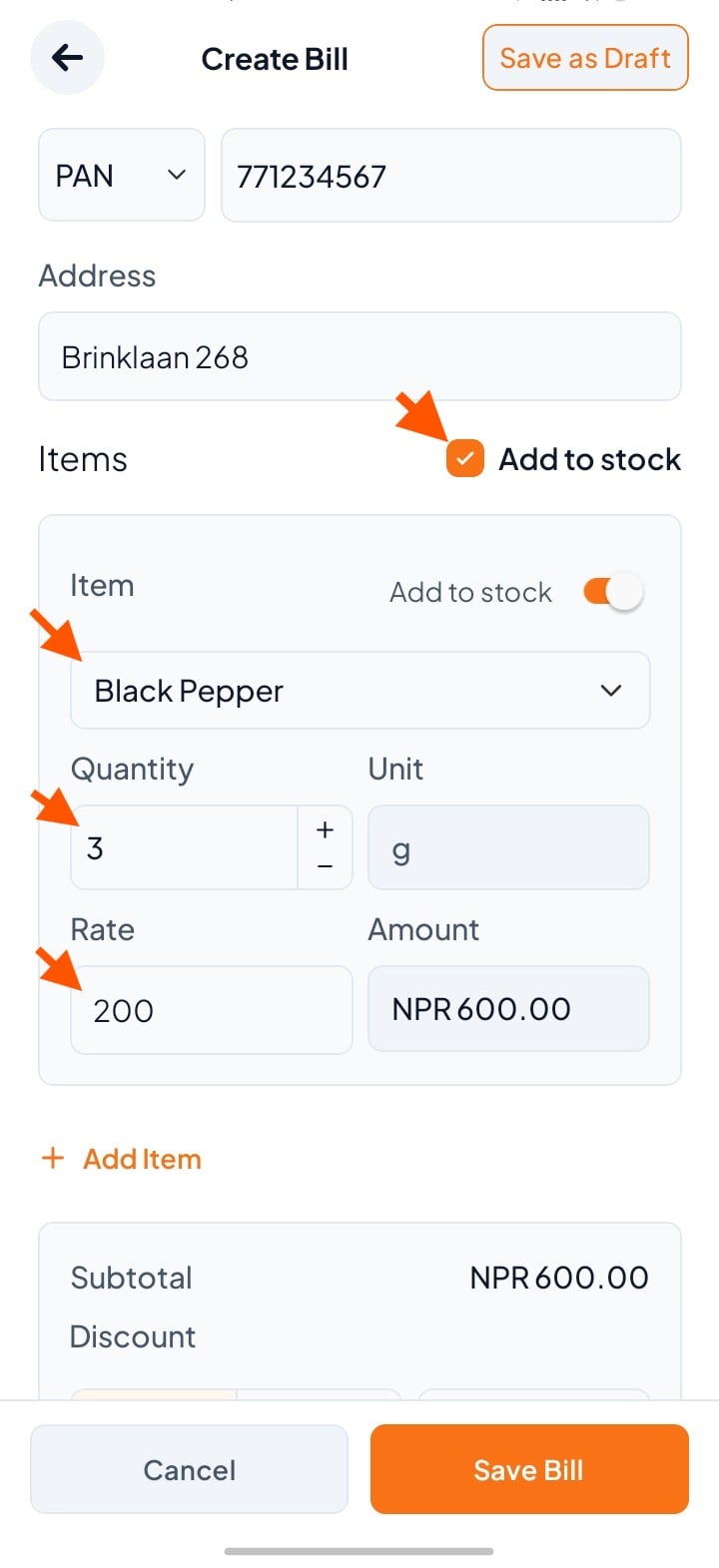
Step 5: Add items you purchased

  • Enter item name, quantity, unit, and rate

  • Toggle "Add to stock" ON if you want to add items to inventory

  • Click + Add item to add more items

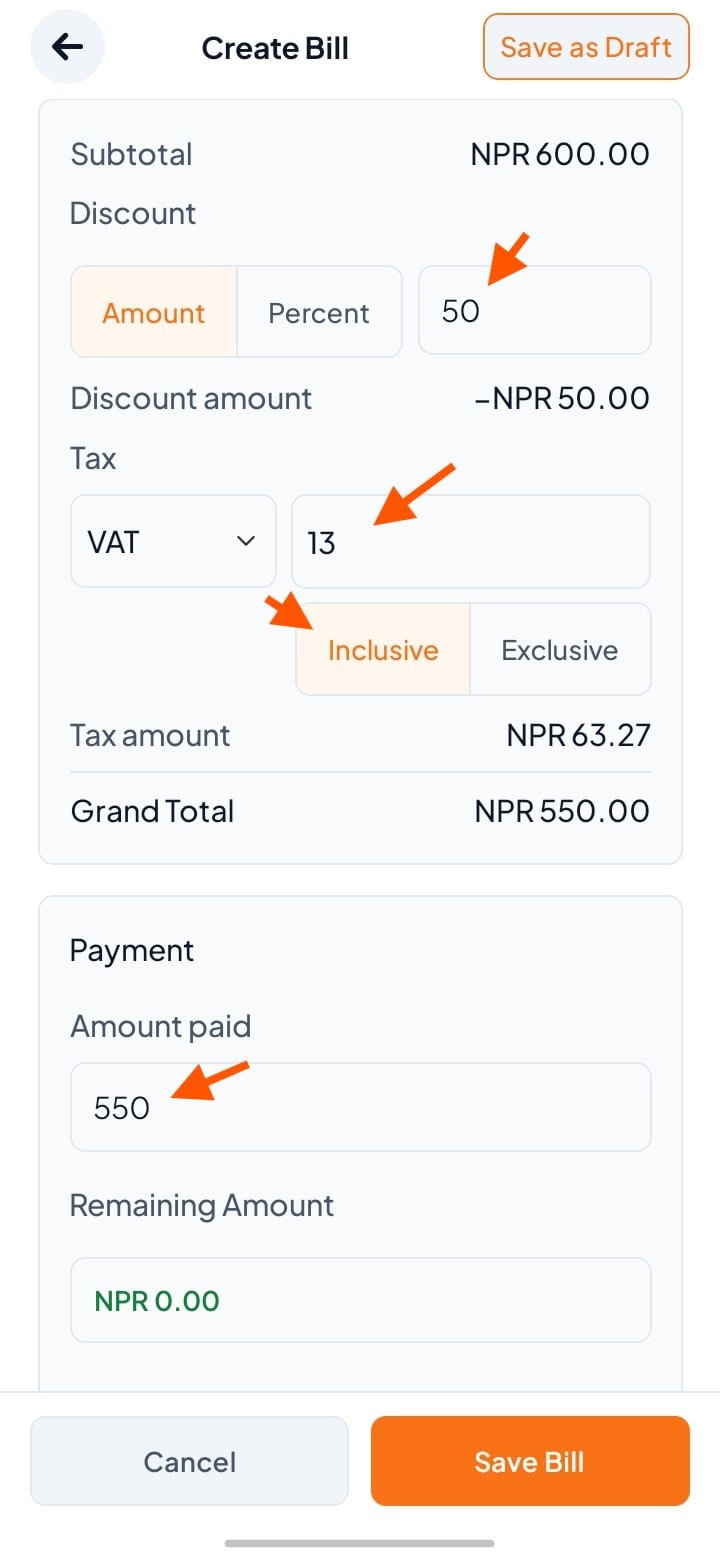
Step 6: Enter discount, tax & payment

  • Discount – Enter amount in NPR or %

  • Tax/VAT – Select tax rate (e.g., VAT 13%)

  • Amount Paid:

    • Full amount = Paid in full

    • Partial amount = Partially paid

    • Leave empty = Unpaid

Create Bill screen showing discount and VAT tax settings, with arrows pointing to 50, 13, Inclusive, and the 550 amount paid. Visible: Create Bill, Save as Draft, Subtotal, Discount, Amount, Percent.

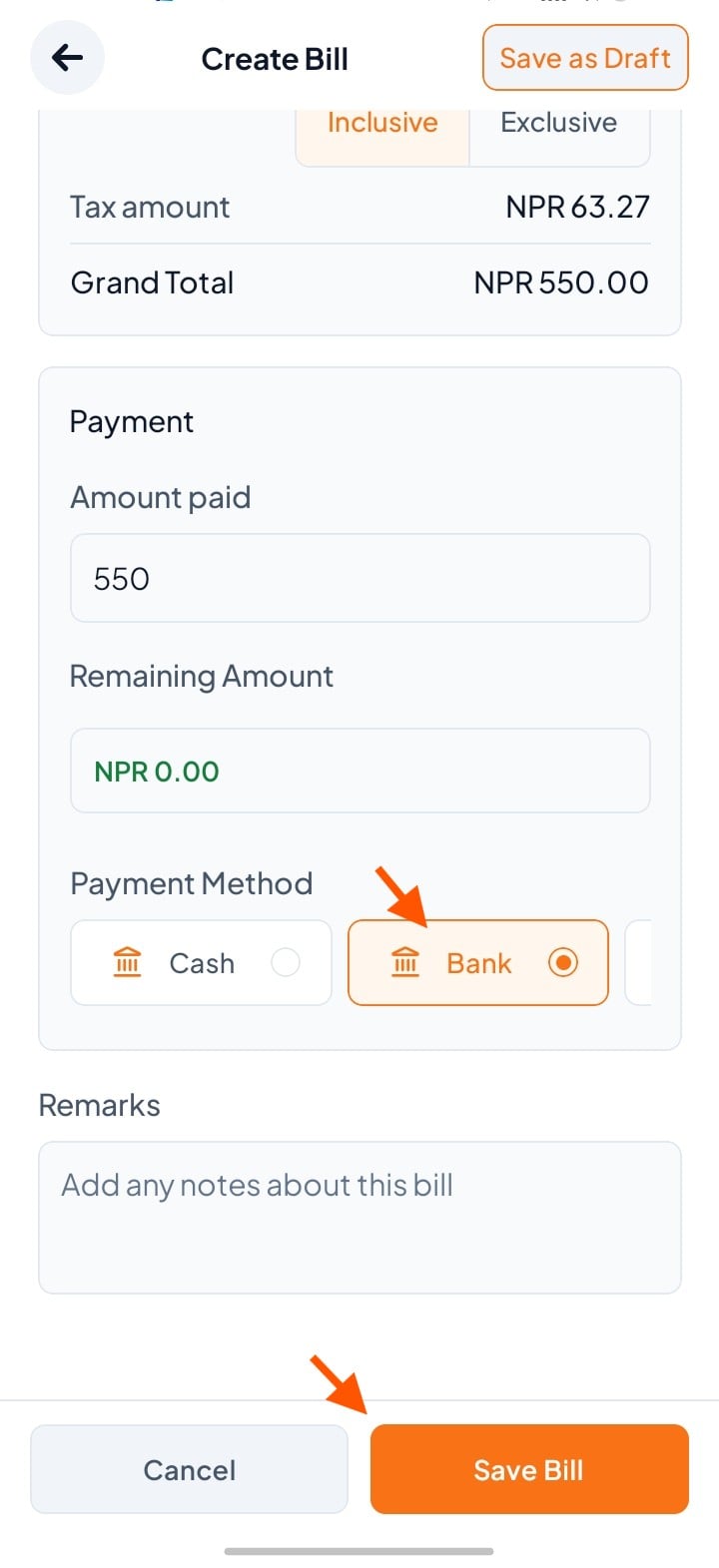
Step 7: Select Payment Method and Save Bill

  • Payment Method – Select Cash, Bank, Esewa, or Khalti

  • Click "Save Bill"

Create Bill screen showing payment details; arrows point to the selected Bank payment method and the Save Bill button. Visible: Create Bill, Save as Draft, Inclusive, Exclusive, Tax amount, NPR 63.27.

Did this answer your question?
😞
😐
😁