Step 1: Select a Table/Room
Tap Spaces to open the Tables & Rooms.
Select a Vacant table or room (e.g., Table 2)
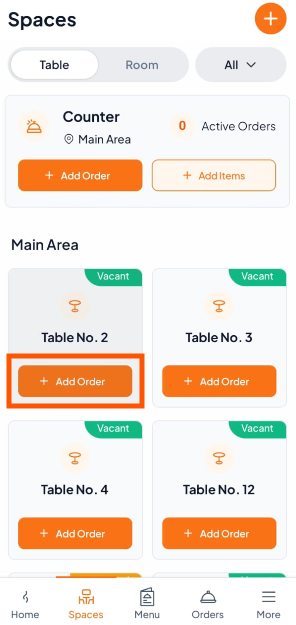
Step 2: Tap "Search Items" or "See Menu" to add items.
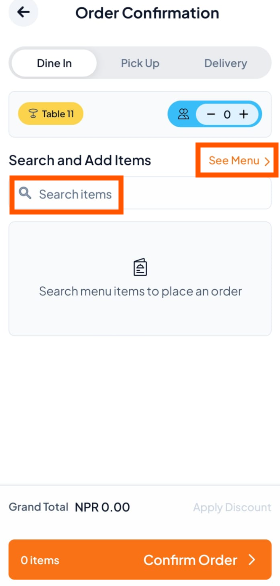
Step 3: Add Menu Items
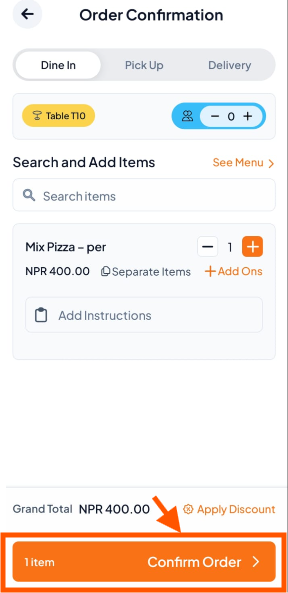
Add the required menu items to the order.
Tap Add-Ons to add extras (e.g., cheese) if needed.
Add special instructions if required.
Repeat the process for all items.
Finally, Confirm the Order.
Step 4: Track & Complete the Order
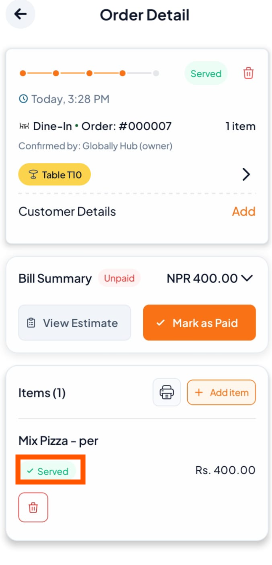
Go to Orders to track status: Preparing → Ready → Served
After serving the food, mark the order as Served to complete it and keep table/room status accurate.
Smart Auto-Status (Optional)
Orderlay can automatically:
Auto-confirm after placing a Dine-In order
Auto-move to Preparing after confirmation
Skip "Mark as Ready" step
This reduces manual work during busy hours.