Step-by-Step-Guide
Step 1: Open the Reports Dashboard
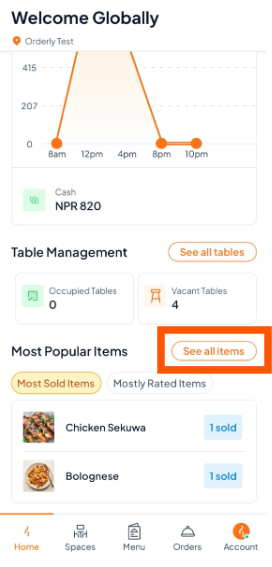
From the Home screen, scroll down and tap "See all items".
This will take you to the detailed Reports Dashboard.
Step 2: Check Sold Items
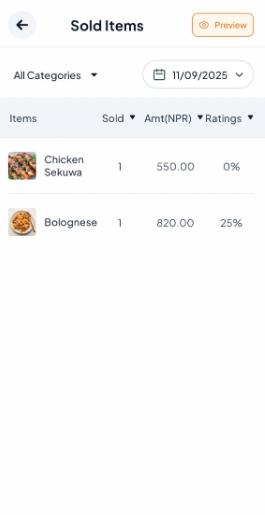
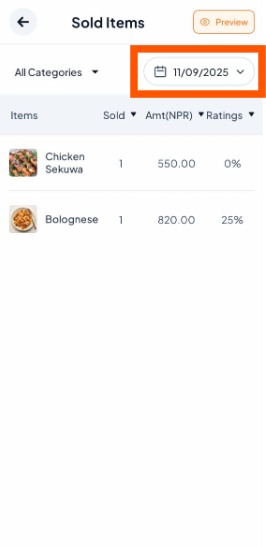
On the Sold Items screen, you’ll see:
All items sold
Quantities
Total earnings (Amt NPR)
Ratings
Make sure the date shown matches the period you want to review.
Step 3: Select Your Date Range
Use the date filter at the top to pick:
A single day (Daily)
A week (Weekly)
A month (Monthly)
The report will automatically update with your selection.

Reports are based on completed orders, so ensure all orders are marked finished for accurate data.
Step 4: Export or Print (Optional)
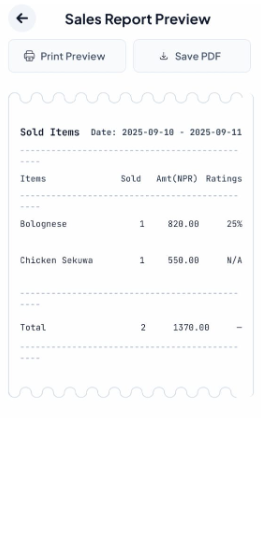
Tap Print Preview or Save PDF if you want a copy for your records or accounting.