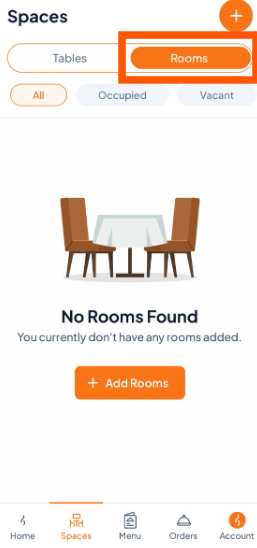
Step 1: Go to the Rooms Section
Open the Orderlay app, tap "Spaces" on the bottom menu
Select the "Rooms" tab.

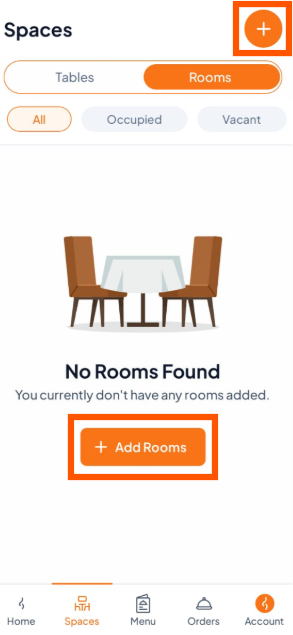
Step 2: Adding a New Room
Tap the (+Add Rooms) icon at the top right corner.
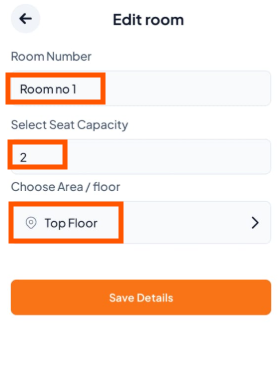
Step 3: Fill in Room Details
Room Number: Enter a unique name (e.g., Room no 1).
Seat Capacity: Select the number of guests (e.g., 2).
Area / Floor: Choose the appropriate section of your restaurant (e.g., Ground Floor).
→ For detailed instructions, see How to Adding New Area
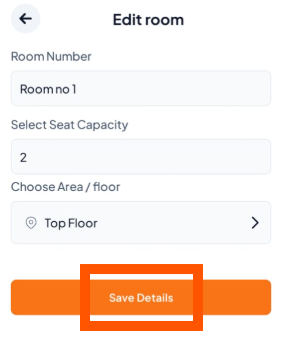
Step 4: Tap "Save Details" to finish. Your new room will appear in the Spaces list.
What’s Next?
After creating tables, generate a QR code for each table so customers can scan and order. Follow the guide: [How to Generate QR Codes for Your Tables and Rooms].