Step-By-Step-Guide
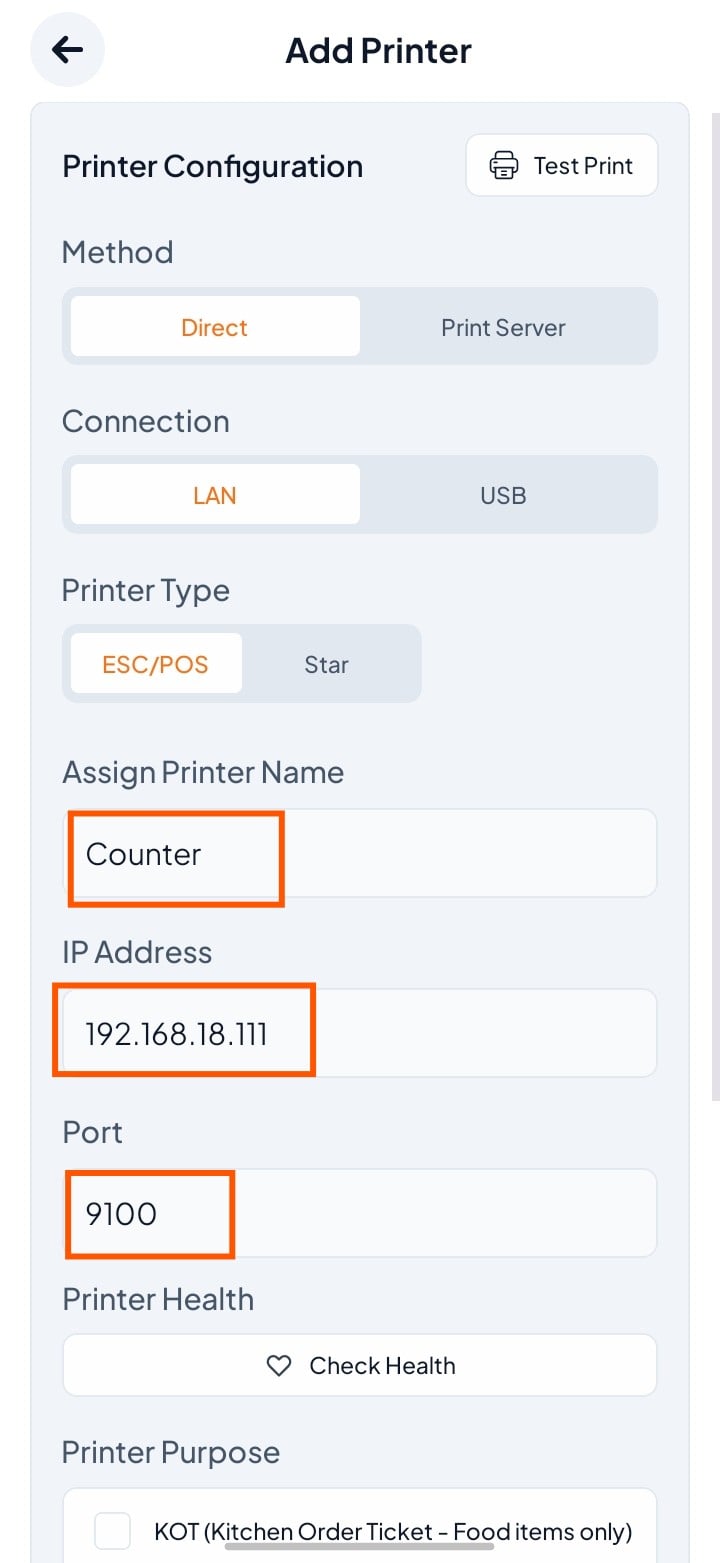
Step 1: Fill Basic Info
Method: Direct / Print Server
Connection: LAN (needs IP) / USB
Printer Type: ESC/POS / Star
Printer Name: e.g., Kitchen Printer, Counter
IP Address: e.g.,
192.168.18.111(for LAN)Port:
9100(default)
💡 Don’t know the IP/Port? Check printer settings or ask your technician.
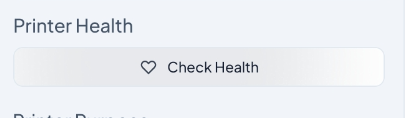
Step 2: Check Health (Optional)
Click Check Health to test the connection.
Step 3: Choose Printer Purpose
Choose the purpose of the printer:
KOT: For food orders only
BOT: For bar beverage orders
Combine KOT & BOT: For both food and drinks
Estimate Bill: For customer bill printing
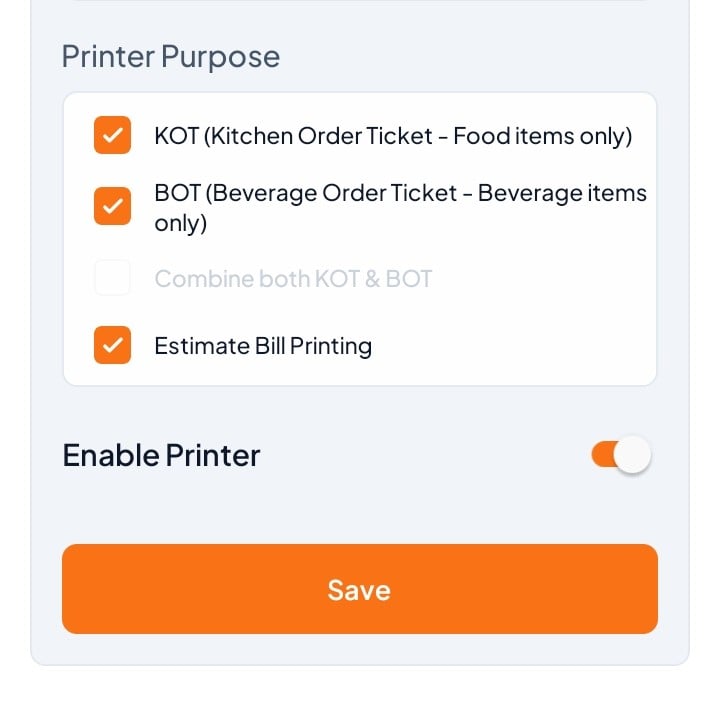
Step 4 : Enable the Printer
Turn on the Enable Printer toggle to activate it.
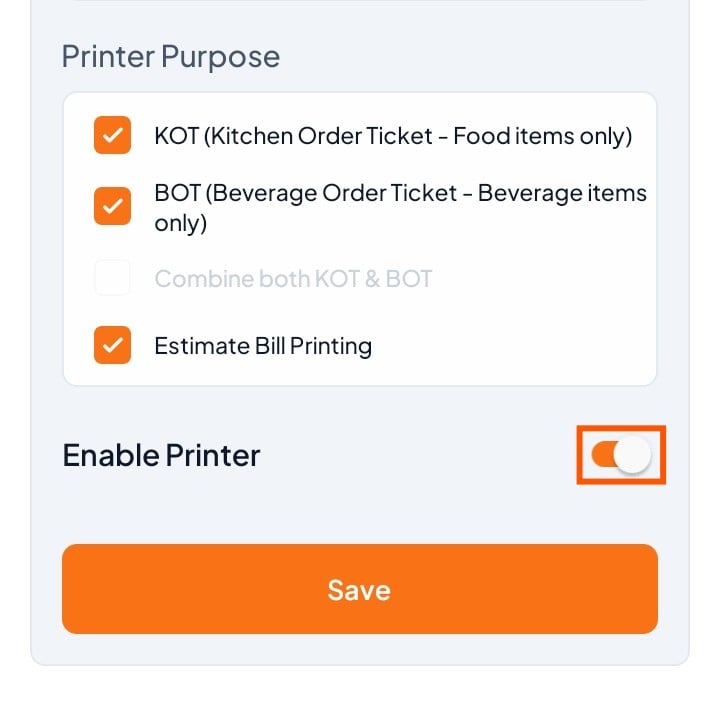
Step 5: Tap "Save" to finish setup.
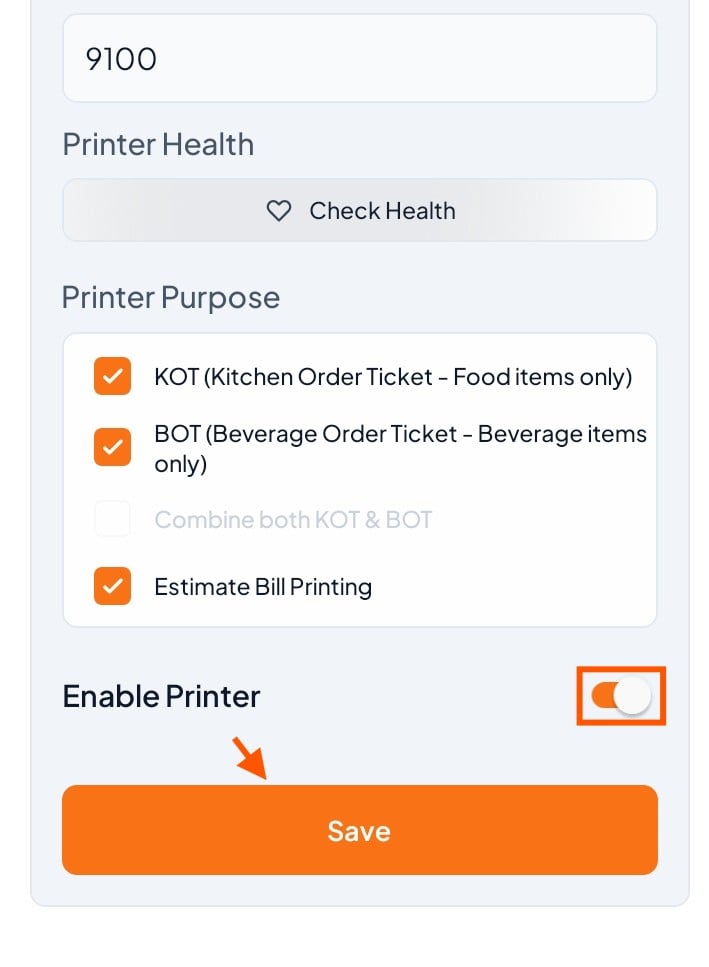
Your printer is now ready to print orders and bills from Orderlay.
Support
Initial setup (network & hardware) is handled by the Orderlay Team. For issues, contact Orderlay support.