Step-By-Step-Guide
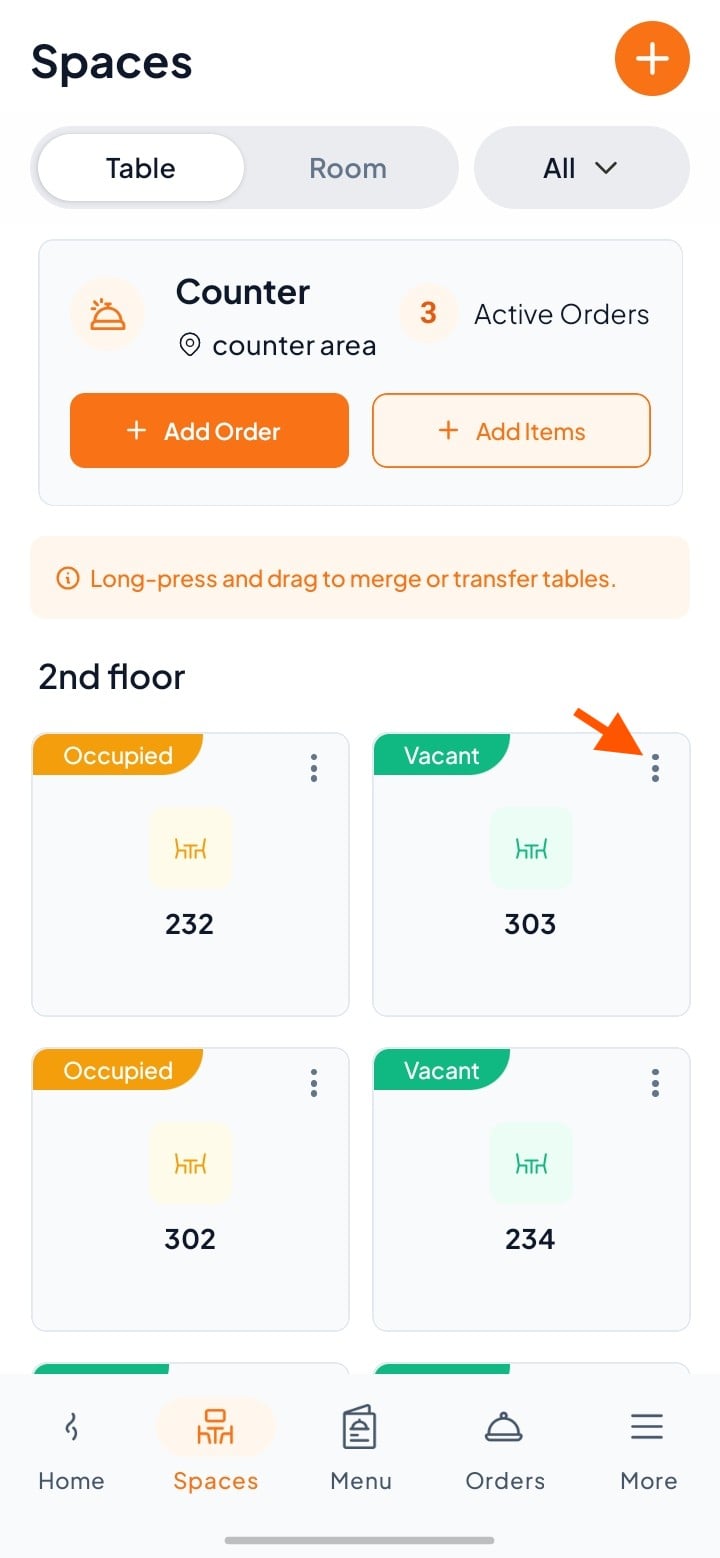
Step 1: Go to Spaces and Select a Table or Room
In Spaces, you’ll see all your tables and rooms.
Tap the three-dot menu next to the one you want to edit or delete (e.g., Table 303).
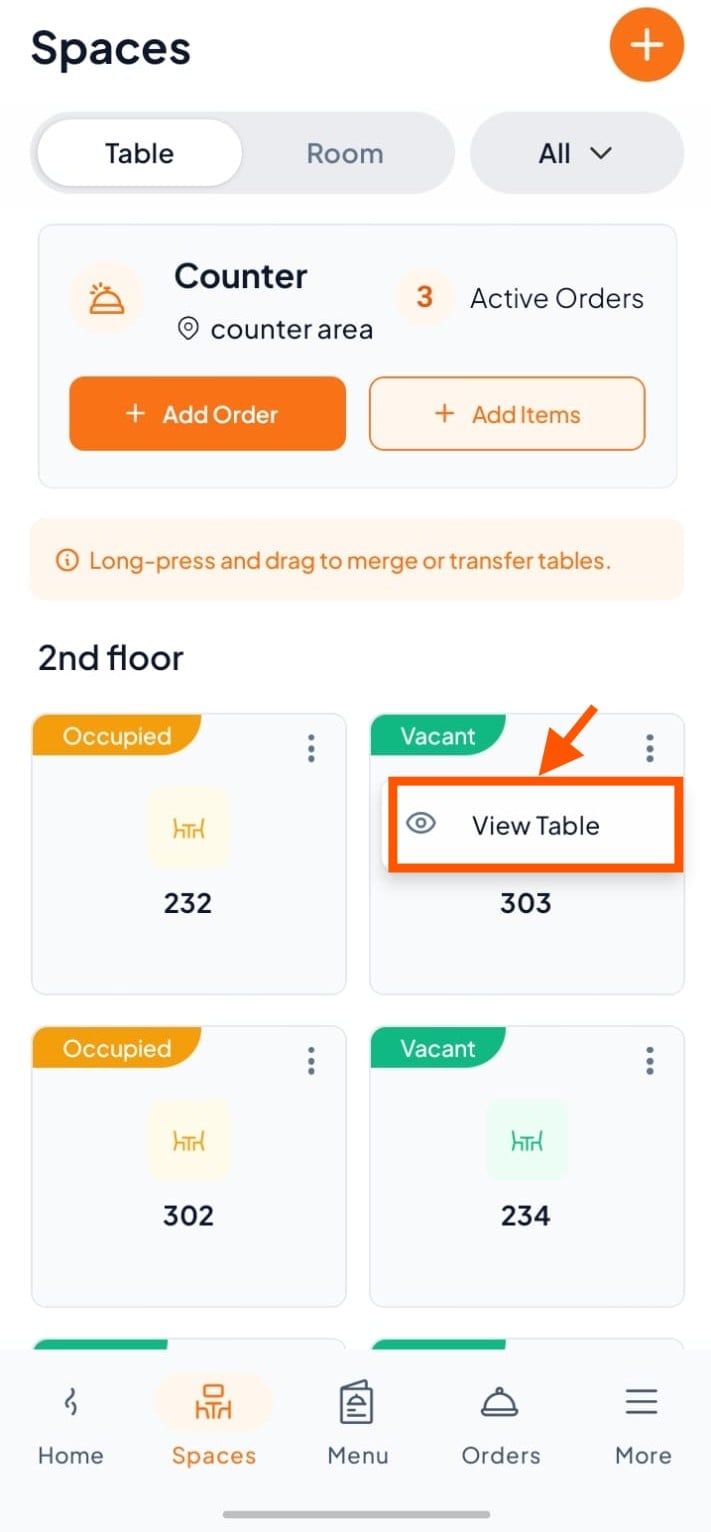
Step 2: Click "View Table"
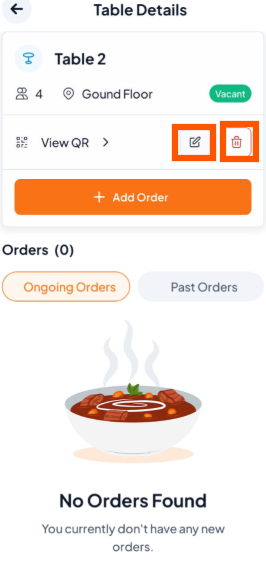
Step 3: Choose Edit or Delete
To Edit: Tap Edit, make the changes you need (like table name, seat capacity, or floor), then go to Step 3.
To Delete: Tap Delete and confirm. The table or room will be removed.
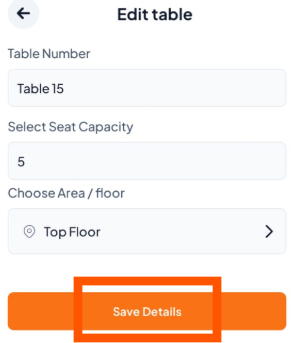
Step 4: Save Your Changes (If Edit)
After editing, tap Save Details to confirm and save your updates.