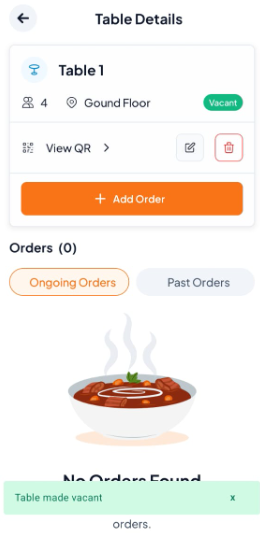
Step 1: Access and Select Table/Rooms
On Spaces: You will see a list of your tables or rooms.
Find and tap and click view table on the occupied table/rooms (e.g., Table 1) that you want to mark as vacant.
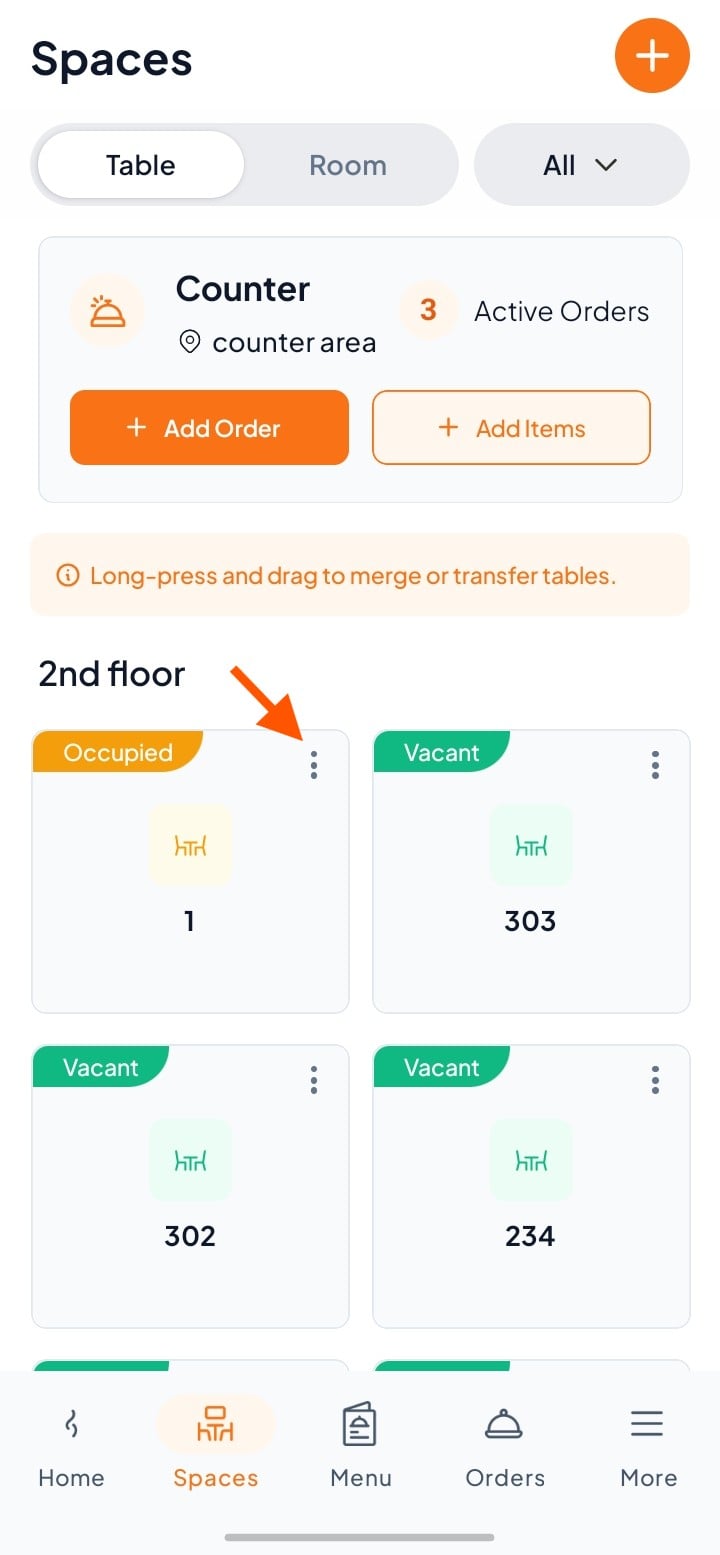
Step 2: Open Table/Room Details and Complete Orders
Tap the occupied table/room to open Table Details.
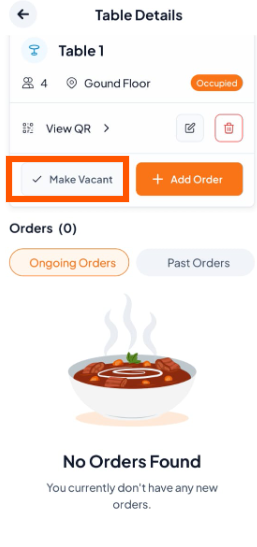
Check the table status and current orders.
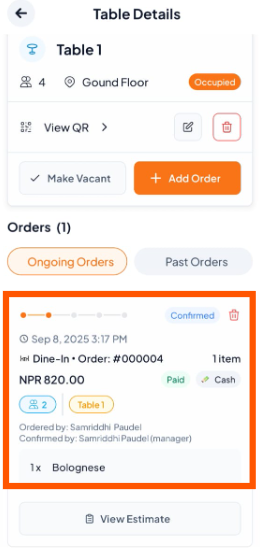

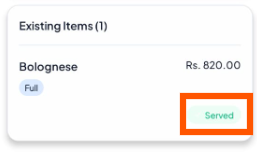

Step 3: Initiate the "Make Vacant" Action
On the Table/Room Details page, tap the button "Make Vacant".
Step 4: Confirm the Action
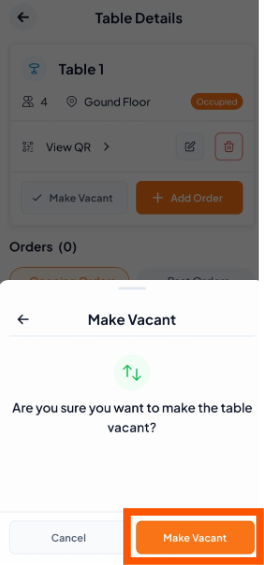
A confirmation pop-up will appear.
Tap "Make Vacant" to confirm.
Step 5: Verification
The table/room is now Vacant.
The status will show “Vacant” on the Table/Room Details screen.