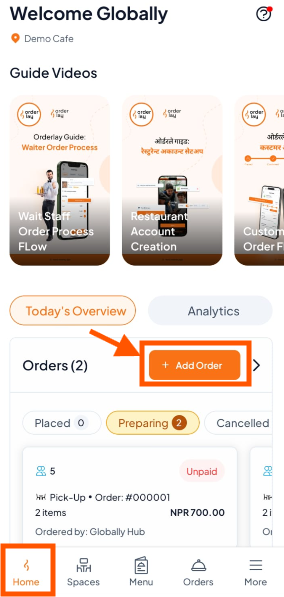
Step 1: Go to Home Page & Click "Add Order"
Open the Home Page→ here you will see Add Order
Tap [+ Add Order]
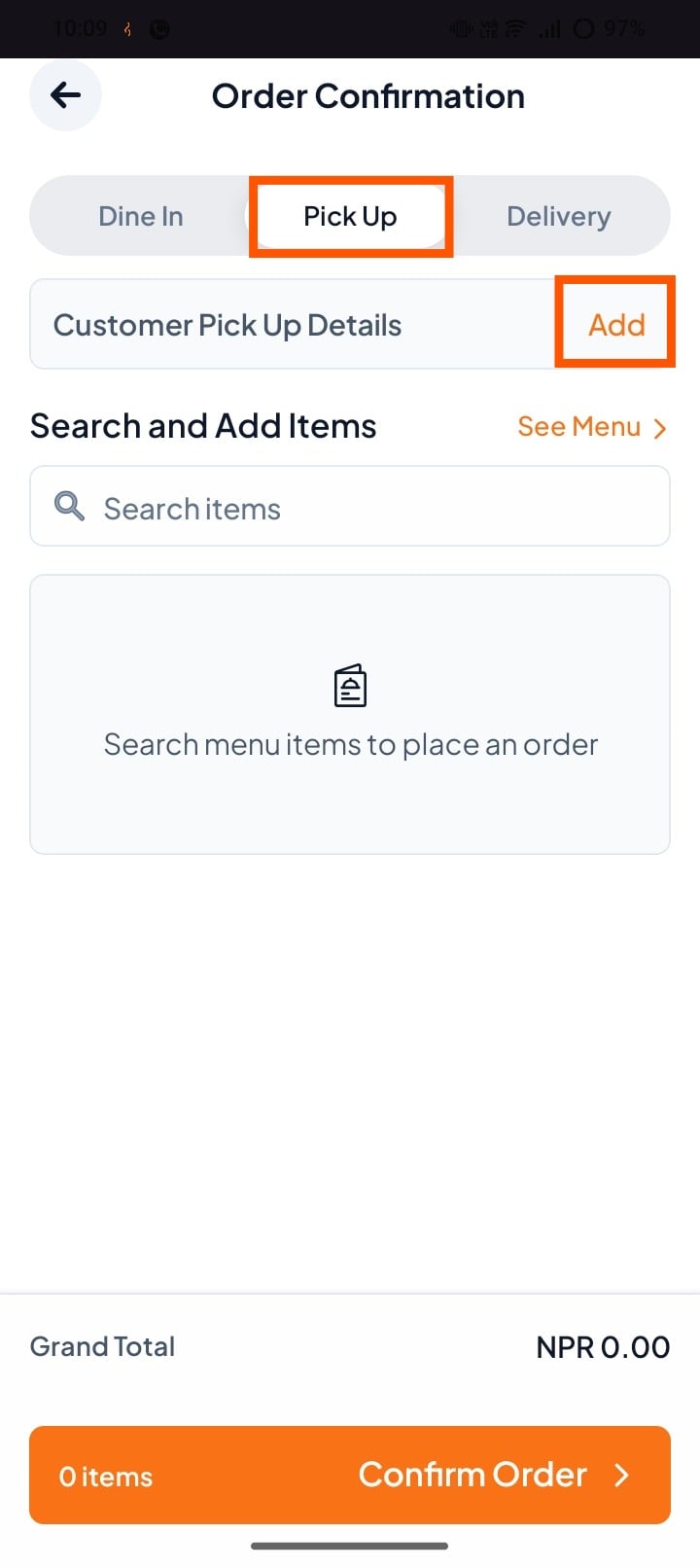
Step 2: Select "Pick Up" and tab "add" to add customer details.
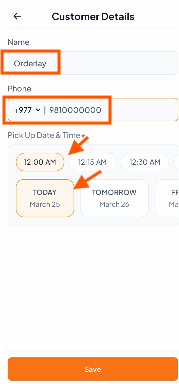
Step 3: Add Customer Details
Enter the customer's name and phone number.
Set the Pick Up Date & Time.
Step 4: Tap "Search Items" or "See Menu" to add items.
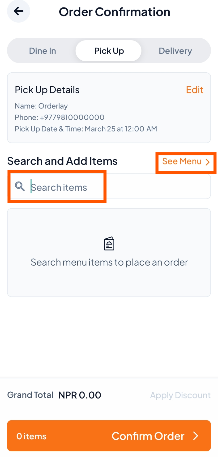
Step 4: Add Menu Items
Select the items you want to add.
Tap Add-Ons to add extras (e.g., cheese) if needed.
Add special instructions if required.
Repeat the process for all items.
Finally, tap "Confirm Order" to proceed.
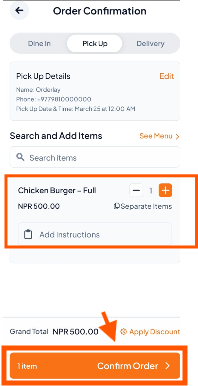
Step 5: Add Payment
Tap "Add Payment" and select the payment method (cash, card, etc.).
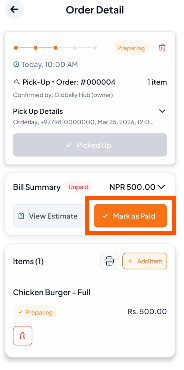
Step 6: Complete the Order
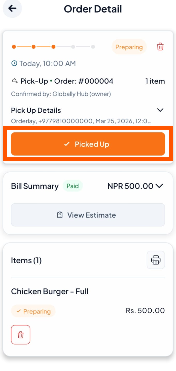
After payment, mark the order as "Picked Up" to complete it.