Step-By-Step-Guide
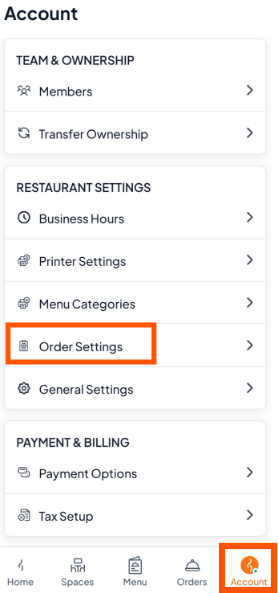
Step 1: Navigate to Order Settings
Tap the "Account" tab.
Under RESTAURANT SETTINGS, select Order Settings.
Step 2: Locate Auto Status Change
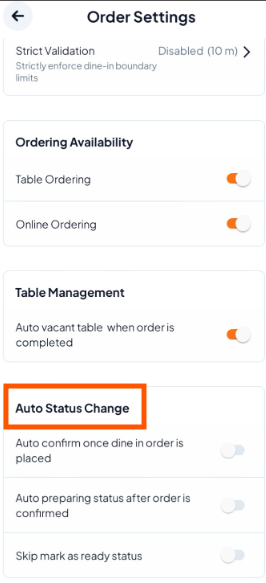
Scroll to Auto Status Change.
You will see three toggle switches to configure.
Step 3: Set Your Preferences & Review Summary
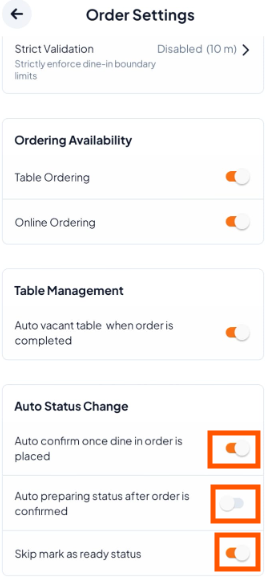
Enable or disable each option based on your workflow. Your changes save automatically.
Options
Auto Confirm: Skips "Confirm Order" - sends orders to the kitchen immediately.
Auto Preparing: Moves orders from "Confirmed" → "Preparing" automatically.
Skip Mark as Ready: Removes "Mark as Ready" - orders go straight from Preparing → Ready for service.