Step 1: Open the Login Page
Click on this link: https://web.orderlay.app/sign-in to open the Orderlay Web App login page. You will be directed to the login screen.
Step 2: Sign In to Your Account
Log in using the same method you used to create your Orderly account.
Choose the option that matches how you signed up:
Our account was created with Gmail, so we simply click "Continue with Google" and select our Google account.
1. Enter your email address | |
Phone Number | 1. Enter your phone number |
Google Account | Click "Continue with Google" → Select your Google account |
Apple ID | Click "Continue with Apple" → Authenticate with Face ID, Touch ID, or your Apple password |
Step 3: Switch to Your Restaurant Account (Only if you have created a restaurant account)
After logging into your personal account
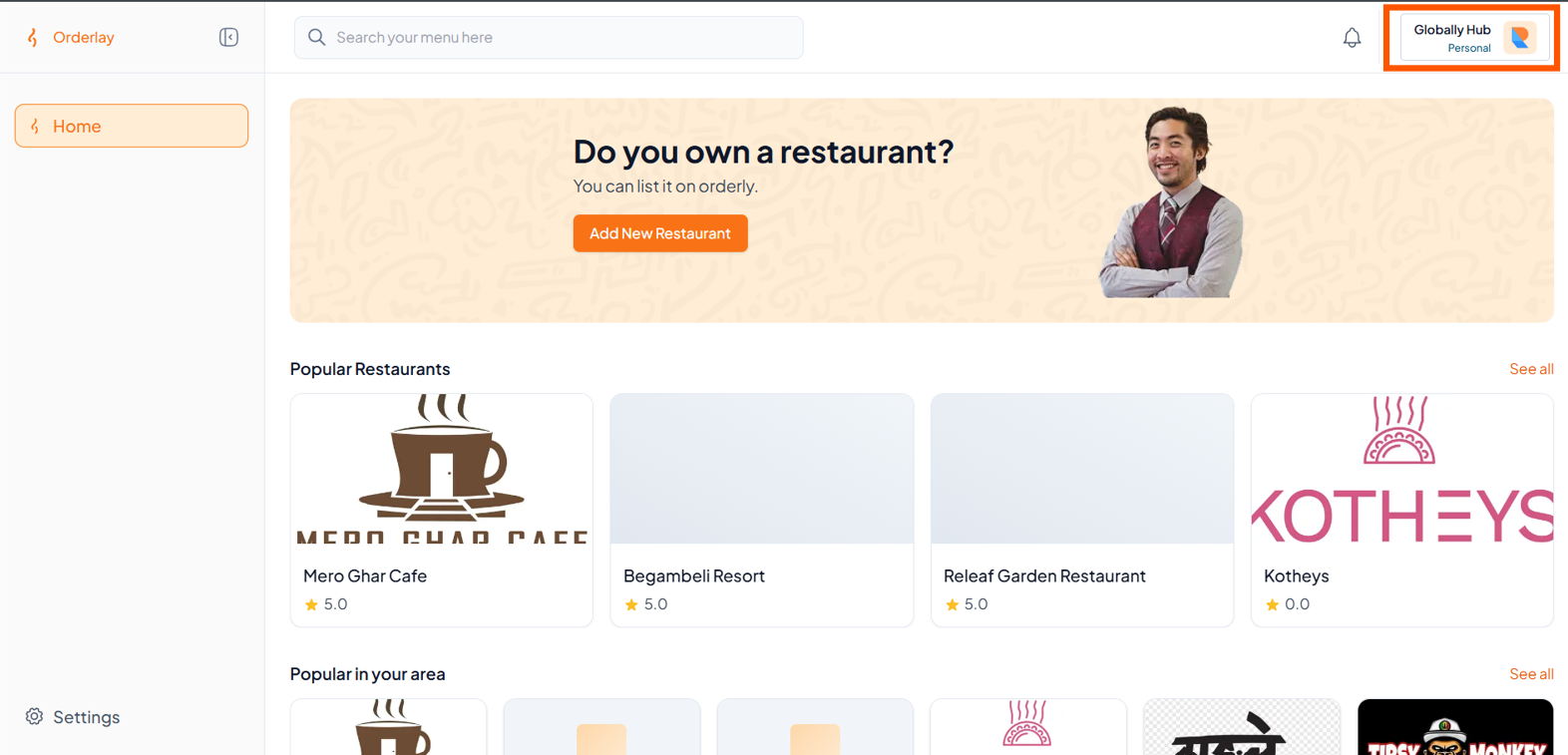
Click on your profile name or icon in the top right corner of the screen.
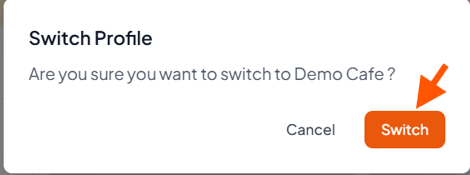
Tap on your Restaurant Name, For example: Demo Cafe
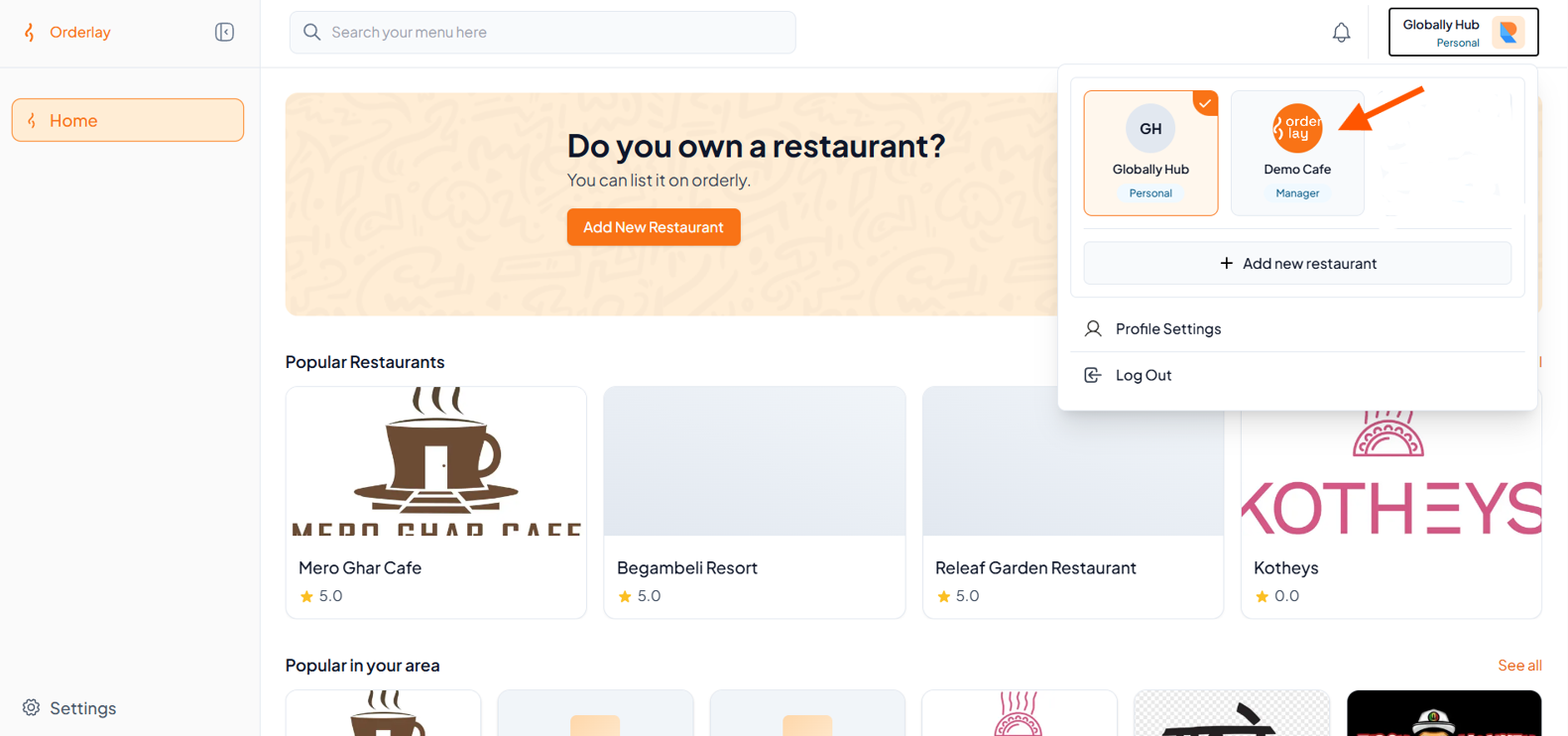
Click "Switch" to confirm.
Step 4: You're In!
You’ve now switched to your restaurant profile and are ready to manage orders.
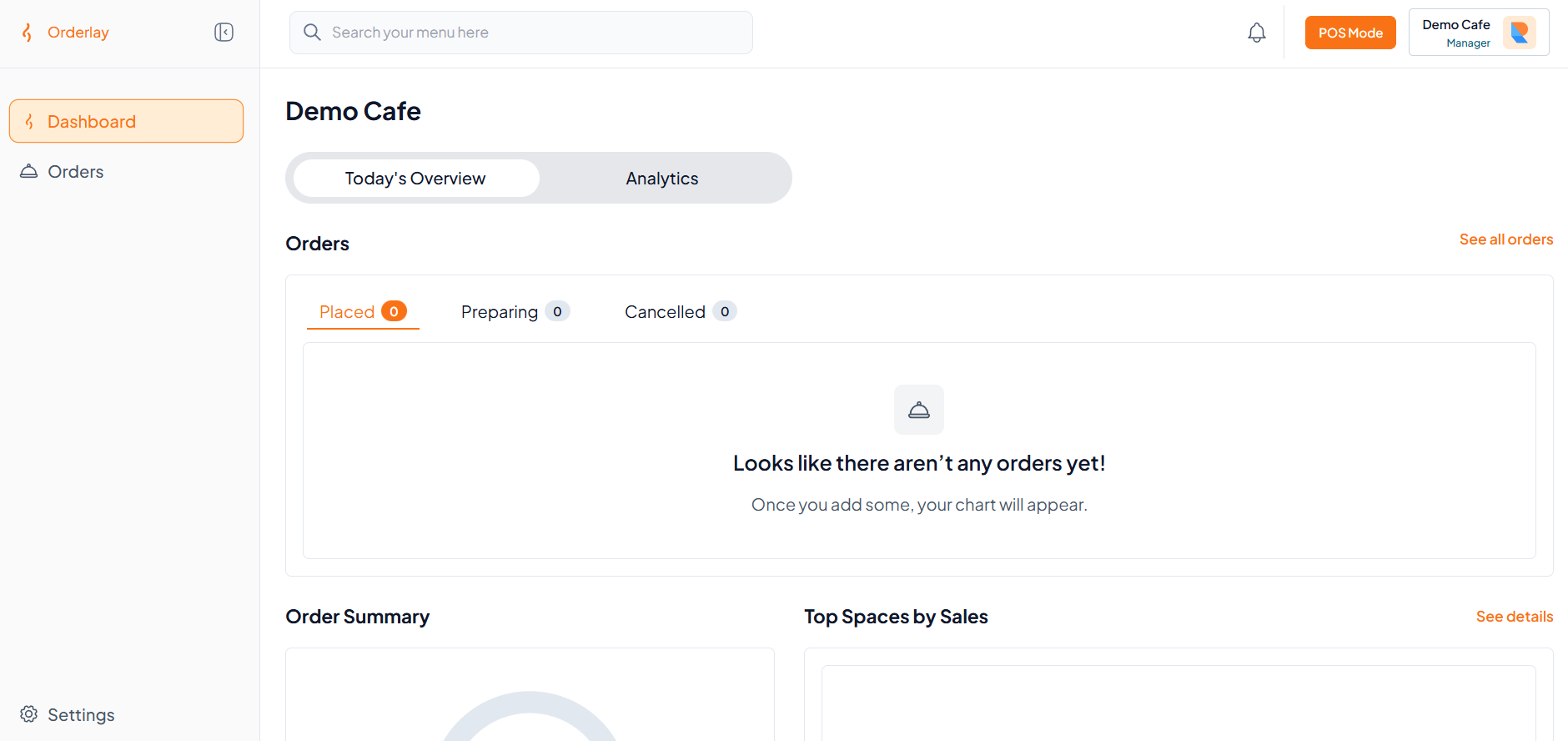
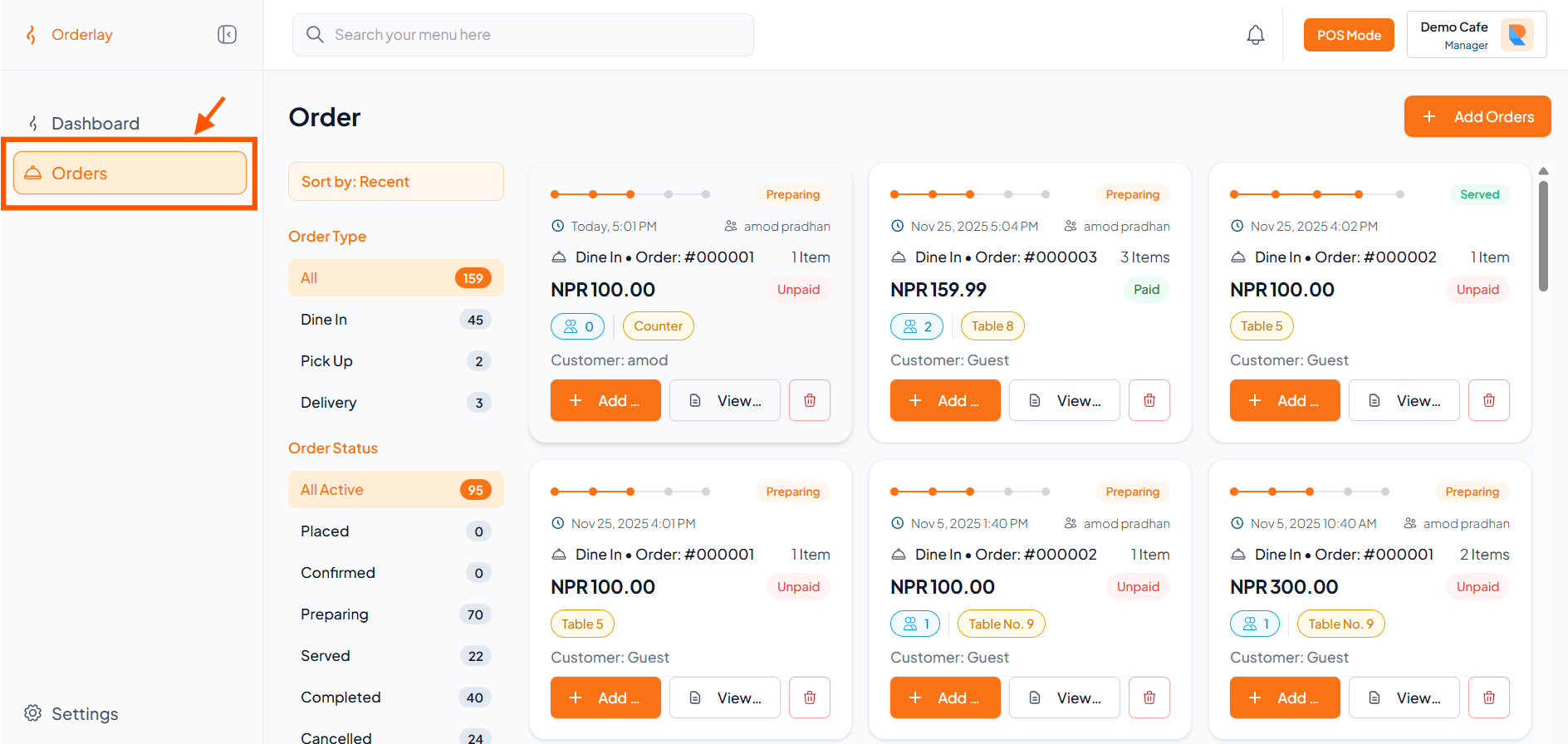
To check or manage new orders, click on the "Orders" section.