
Step-By-Step-Guide
Step 1: Check the Printer’s IP Address
Turn off your printer, then turn it back on.
Long press the button shown on your printer (usually the feed or test button).
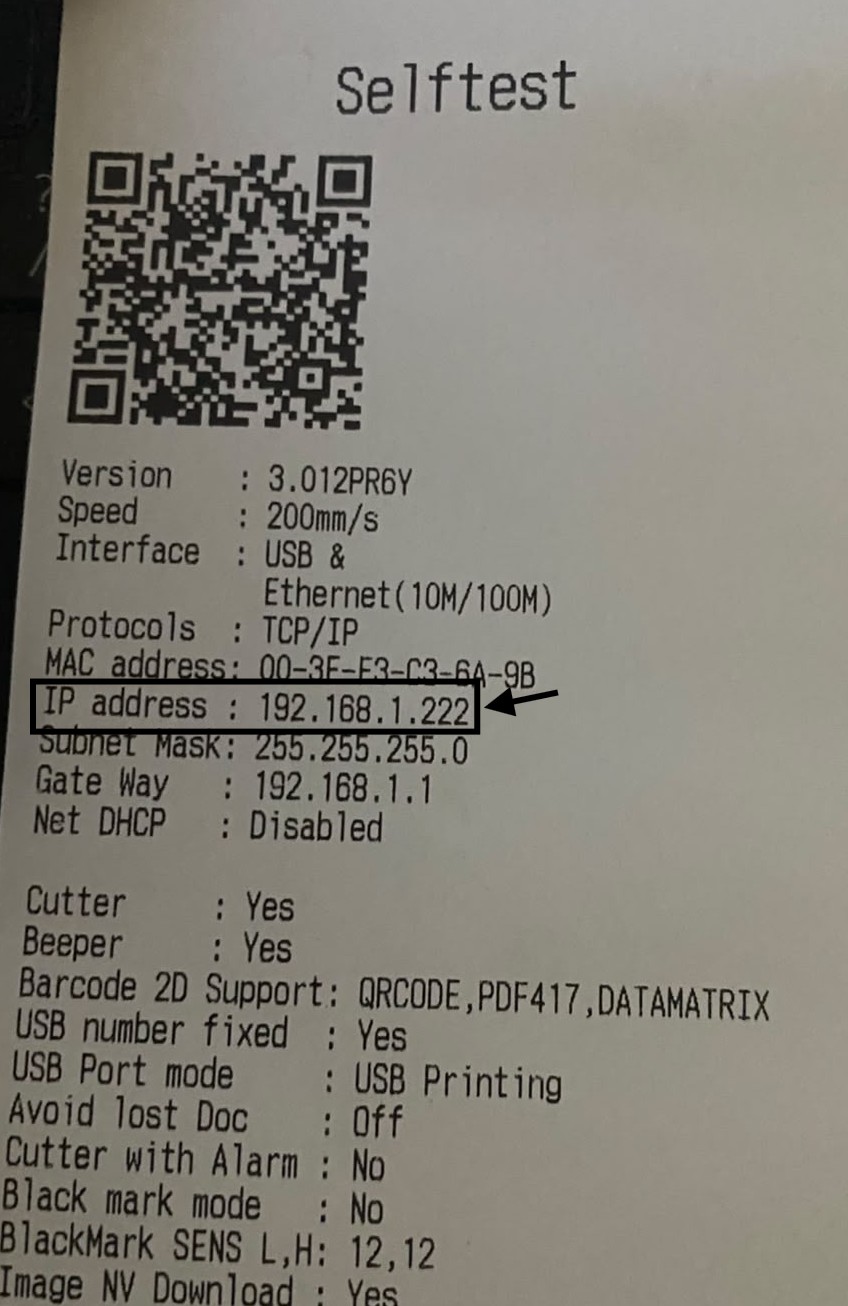
The printer will print a long paper with details.
Look for the IP address on the printed sheet.
Step 2: Check the IP Address in Orderlay
Open the Orderlay app.
Go to More → Restaurant Settings.
Click Printer Settings.
Find your printer from the list.
Click on the printer name. You will see the IP address set in the app.
Step 3: Update the IP Address (if needed)
If the IP address on the printer does not match the one in the app:
Update the IP in the Orderlay app to match the printer.
Save the changes.
Step 4: Test the Printer
Print a test order from Orderlay.
If it prints successfully, your printer is ready to use!