Step-By-Step-Guide
Step 1: Go to the Menu Section
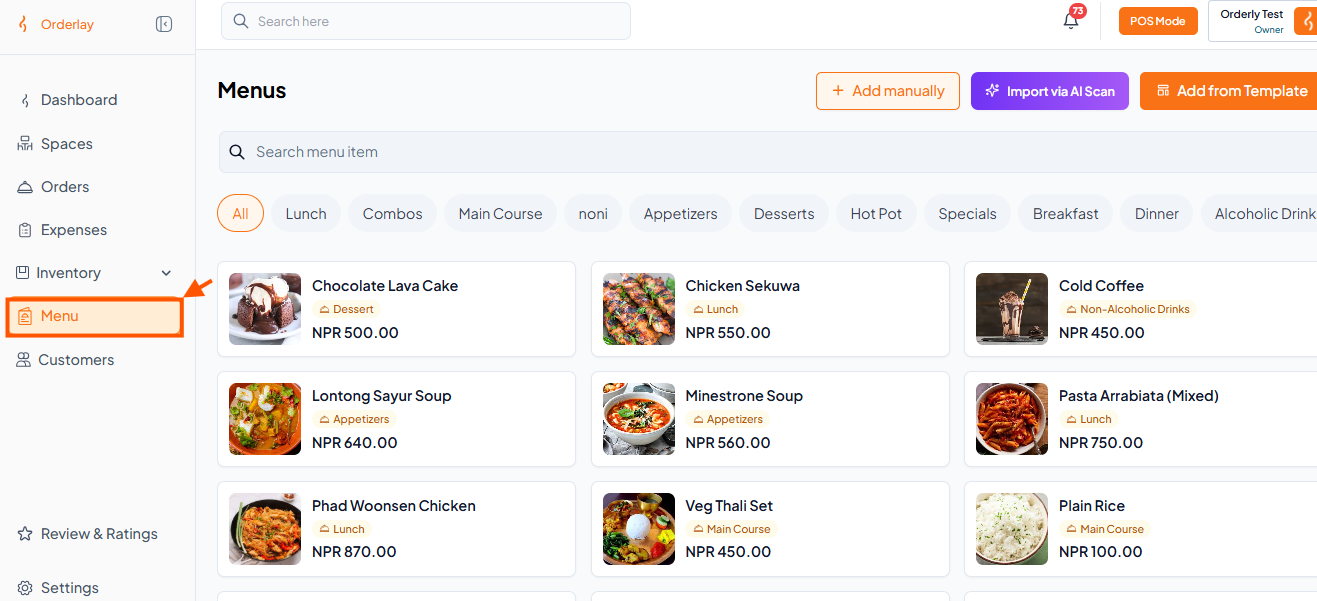
From the dashboard, click on Menu in the left sidebar.
Step 2: Select the Item You Want to Edit or Delete
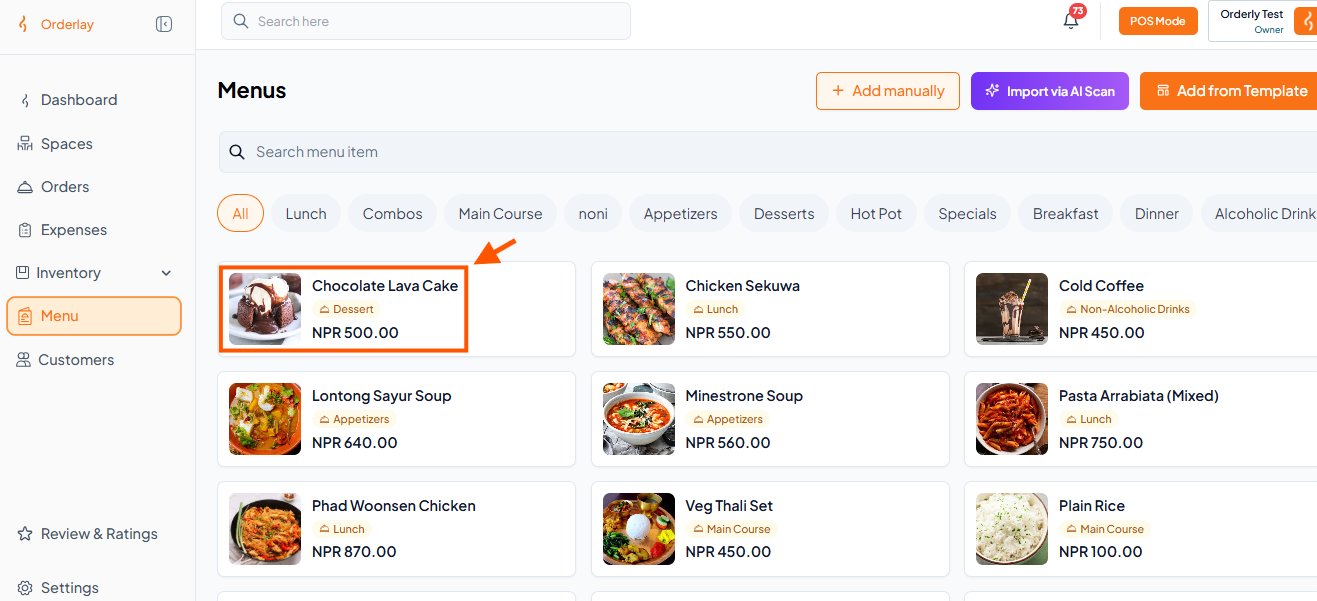
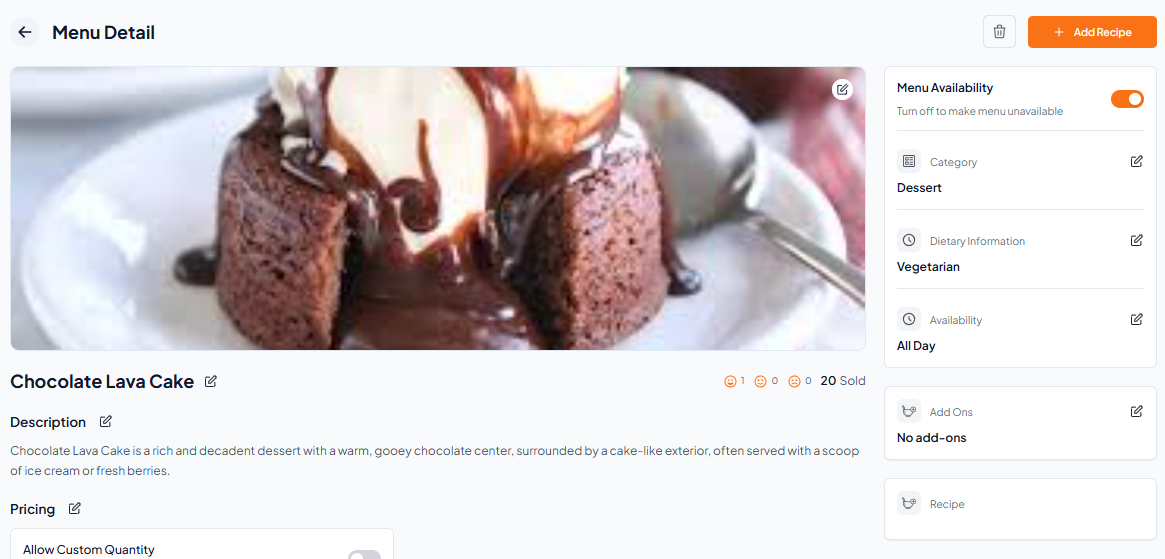
Browse or search for the menu item you want to change. For this example, let's use Chocolate Lava Cake.
Click on the item to open its details page.
Step 3: Choose What to Do
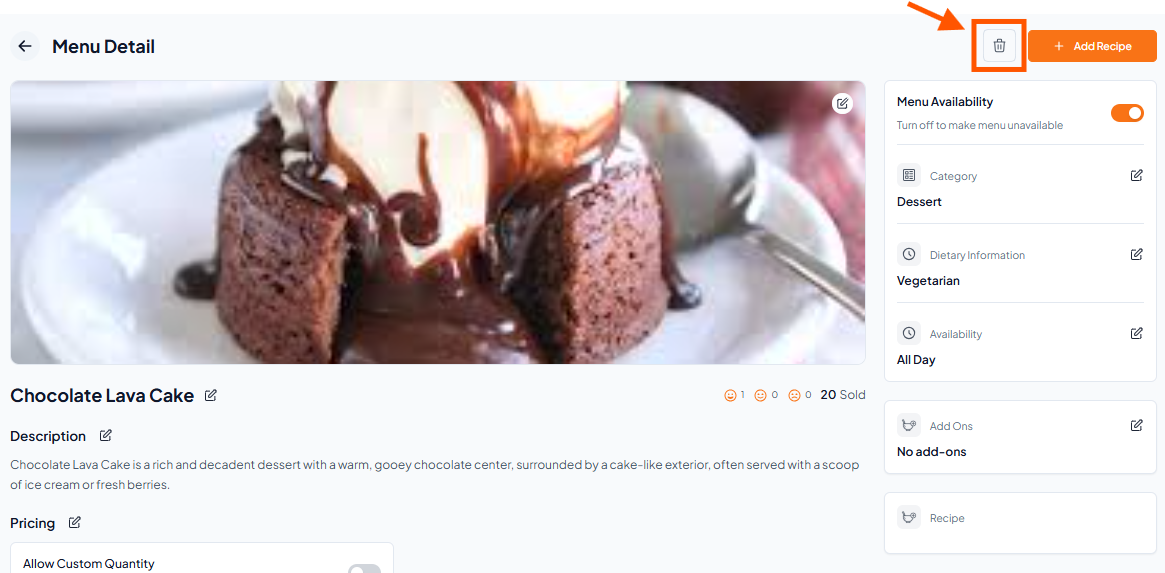
On the item details screen, you will see options to edit or delete:
To Edit:
Click the Edit button (edit icon) and make changes.
To Delete:
Click the Delete button
A confirmation message will appear – confirm to permanently remove the item from your menu.