Step 1: Go to Add Menu Items
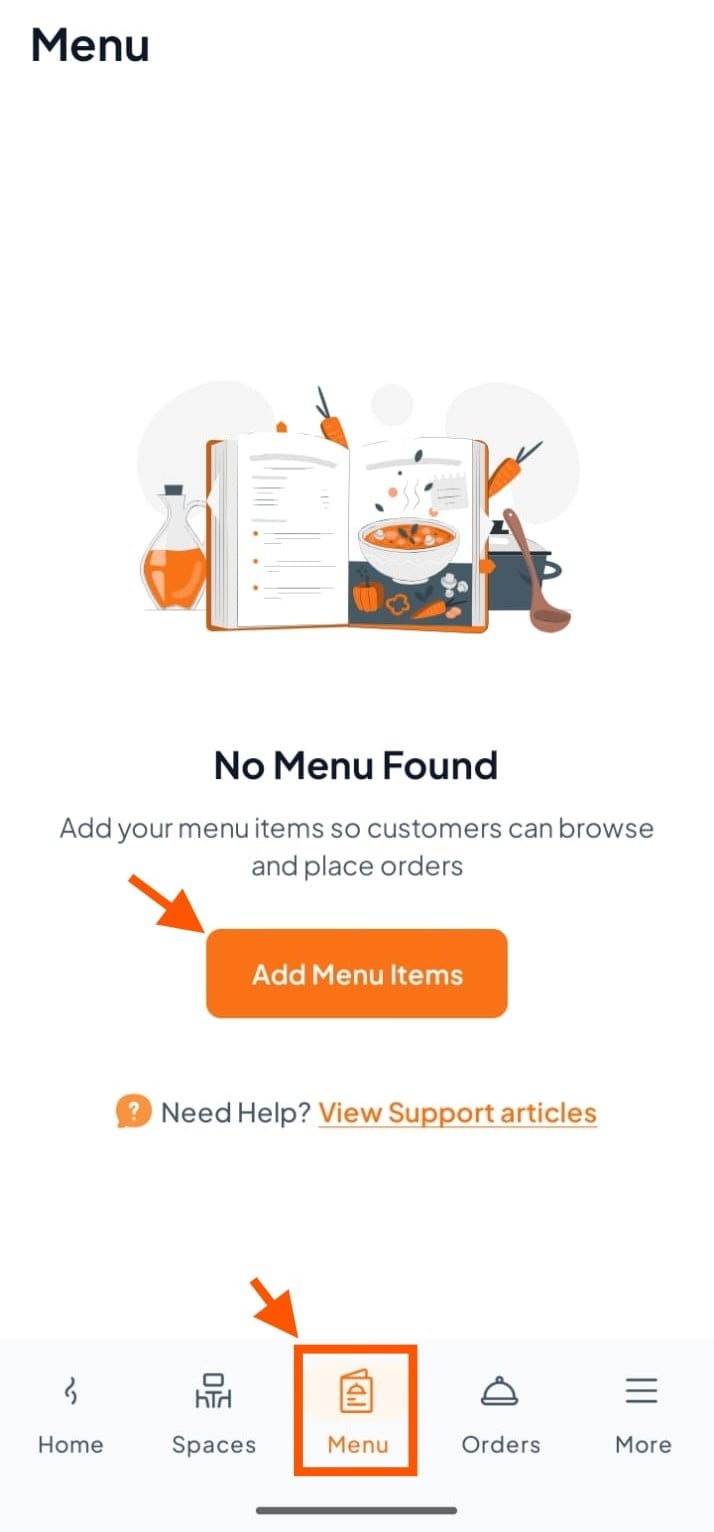
From your Orderlay dashboard, go to the "Menu" section.
Click "Add Menu Items"
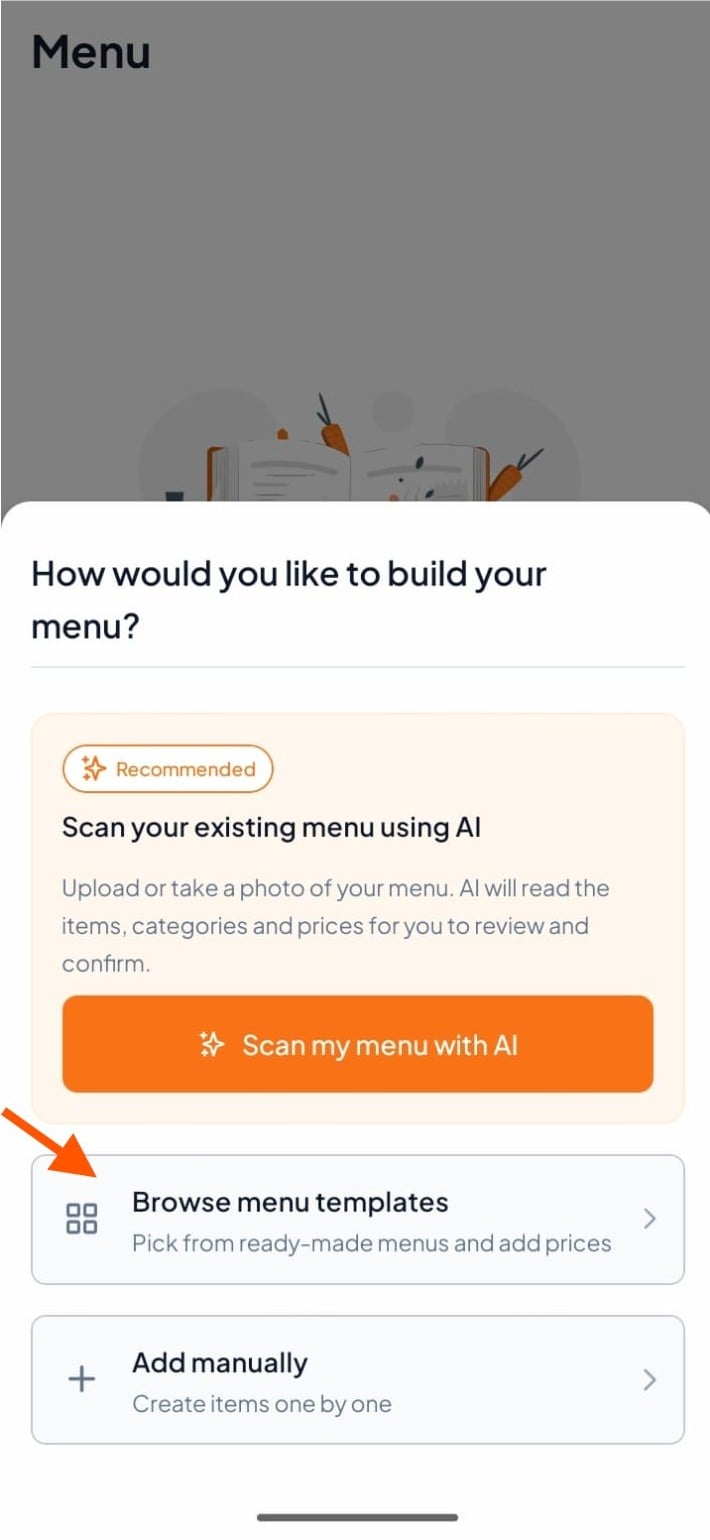
Step 2: Click "Browse menu templates"
Step 3: Select Template Items
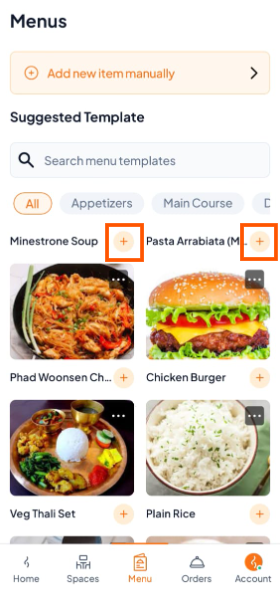
On the Menus page, you'll see a Suggested Template with items like Minestrone Soup, Pasta Arrabiata, and Chicken Burger.
Tap the (+) next to each item to add it to your menu.
You can also search for items (if available) in search menu templates and include them in your menu.
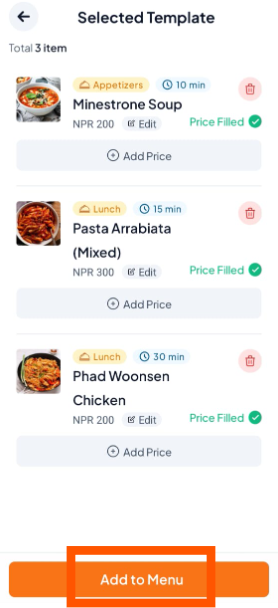
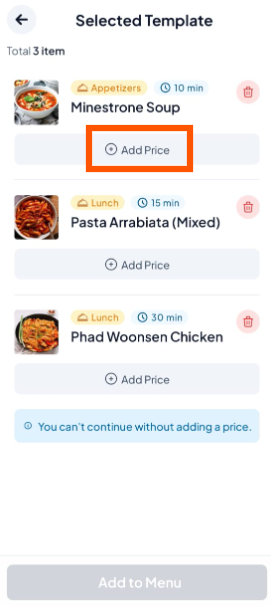
Step 4: Click "Add Price" for each item you added.
Step 5: Set Prices and Options
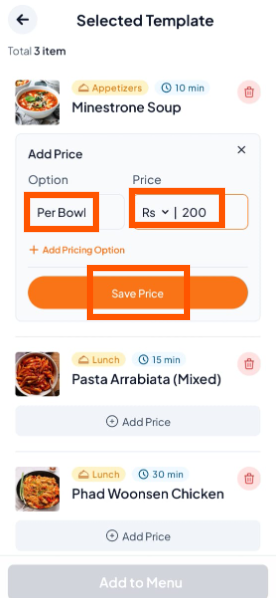
Enter the option (e.g., Per Bowl, Per Plate) and the price (e.g., Rs 200).
For multiple options, tap "+ Add Pricing Option".
Once done, tap "Save Price".
You need to follow these same steps for all other items you've added from the template.
Each item must have a price before you can continue.
Step 6: Click "Add to Menu" to save and publish.