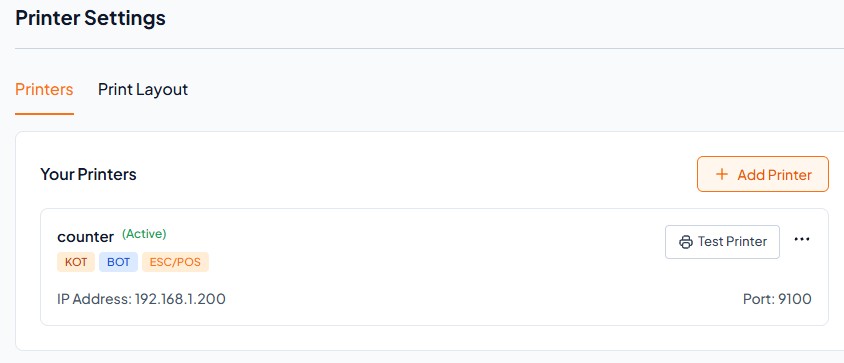
Printer is powered ON and has paper loaded.
Printer and Phone are connected to the same Wi-Fi network.
IP address of the printer is in the correct range (e.g., 192.168.1.200 - 192.168.1.253).
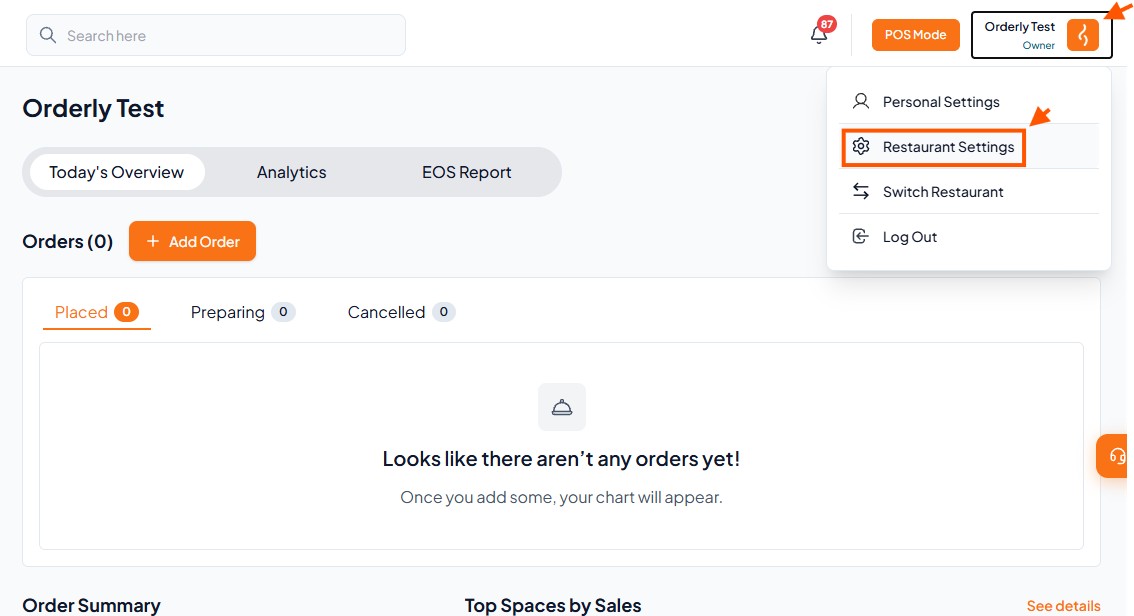
Step 1: Go to Restaurant Settings
Click Profile/Restaurant Name (top-right corner).
Select "Restaurant Settings".
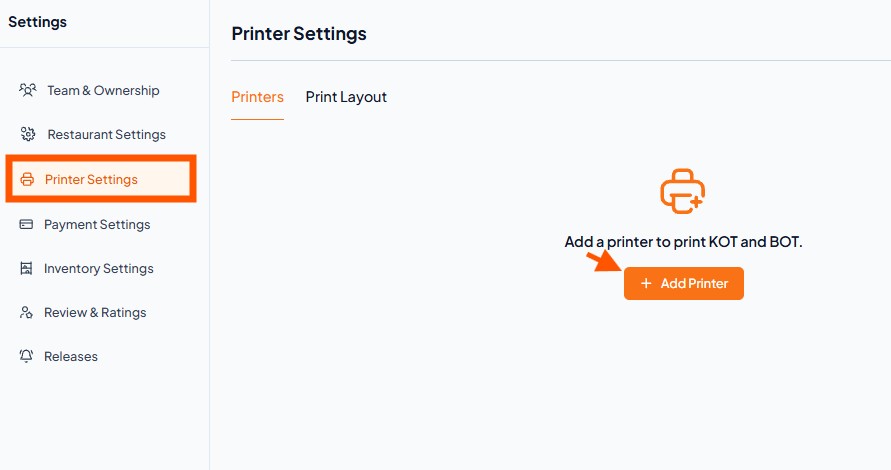
Step 2: Add Printer
Locate "Printer Settings" and Click "Add Printer".
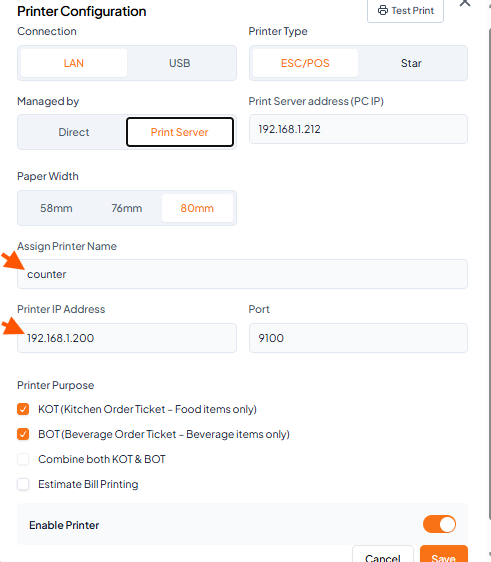
Step 3: Configure Printer Details
Fill out the printer form with accurate details. For the initial printer setup, you can contact the Orderlay Support Team for assistance.

Step 4: Confirmation
Once saved, your printer will appear in the Your Printers list with an "Active" status. You can now click Test Print to ensure it is working correctly.