Step 1: Go to Menu & Click Add Manually
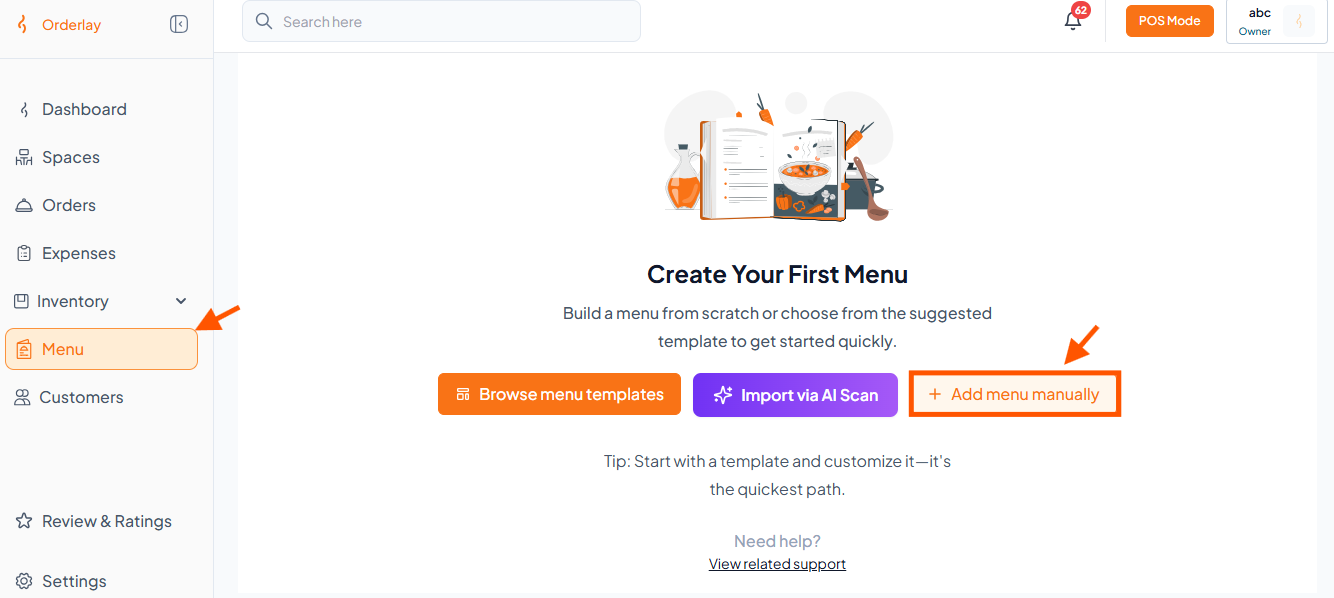
From your Dashboard, click Menu in the left sidebar, then click Add menu manually.
Step 2: Enter Basic Details
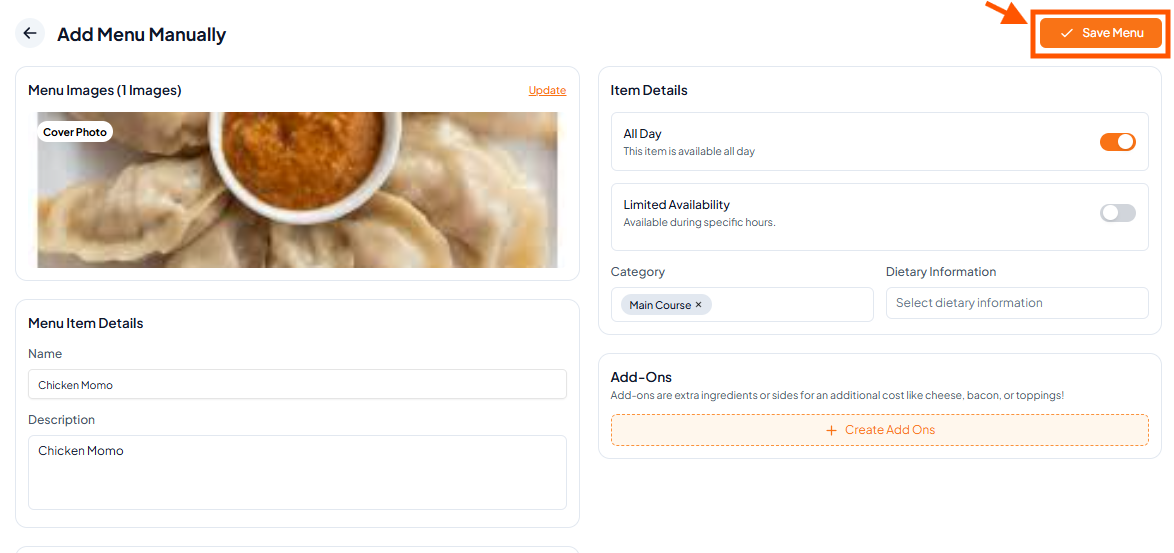
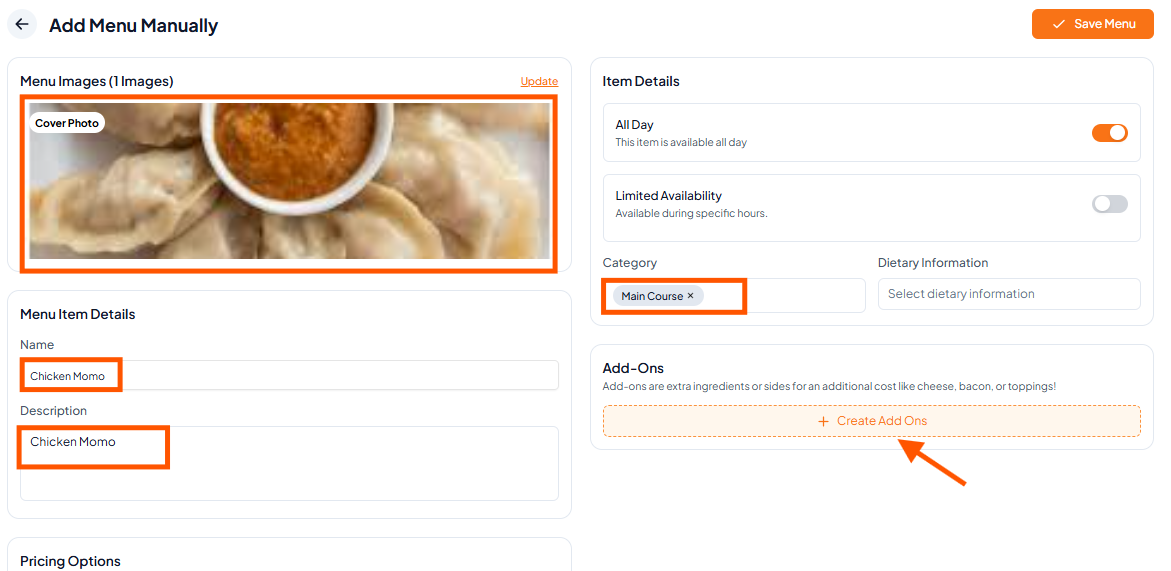
Update Menu Image – Learn how to update your menu item images.
Menu Categories – Learn how to create and manage categories.
Add-Ons - Learn how to set up extras like cheese, sauces, or other options.
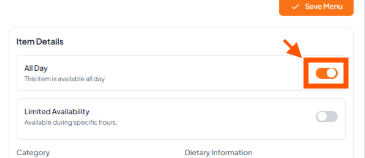
Step 3: Set Item Availability
Available All Day: Turn on the button to make the item available during all business hours.
Limited Availability: Set specific start and end times for when this item can be ordered.

Step 4: Add Price
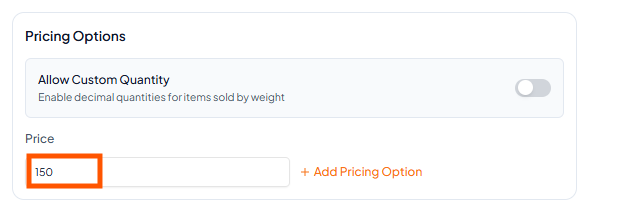
After entering the basic details, scroll down on the same page to find the pricing section.
Set Prices - Learn how to set your item’s pricing.
Step 5: Save